Tasks
My Work, the task centre and the task panel — statuses, assignees, dates, subtasks, dependencies, attachments, comments with @mentions, labels and activity.
On this page
A task is one piece of work with a status, priority, dates and one or more assignees. A task can belong to a project and a milestone, have subtasks, wait on other tasks, carry files, labels and comments, and keep a history of every change.
Who can do what#
| Role | See tasks | Create and edit | Move between statuses | Assign | Archive |
|---|---|---|---|---|---|
| Owner, Admin | Yes | Yes | Yes | Anyone | Yes |
| Manager | Yes | Yes | Yes | Anyone | No |
| Employee | Yes | Yes | Yes | Only themselves | No |
| Restricted | Yes | No | No | No | No |
Employees see the note You can take tasks yourself; your manager assigns work to others. next to Assign to.
My Work#
Work opens on My Work: the open tasks assigned to you, today's date and Completed today. Four counters — Today, Upcoming, Overdue and Blocked — sit above these sections:
| Section | What it holds |
|---|---|
| Overdue | Open tasks past their due date, judged in your company's time zone. |
| Blocked | Tasks marked Blocked. |
| Today | Tasks due today, and tasks that have started and are not yet due. |
| Upcoming | Tasks due or starting in the next seven days. |
| Later | Everything else that is still open. |
Each row shows the project, subtask progress, comment and attachment counts, Waiting on when the task has unfinished dependencies, its priority and due date. Start, Complete and Resume move a task without opening it; Open shows everything. If there are more tasks than fit, View all my tasks opens them in the task centre. When nothing is open you see You're all caught up.
The task centre#
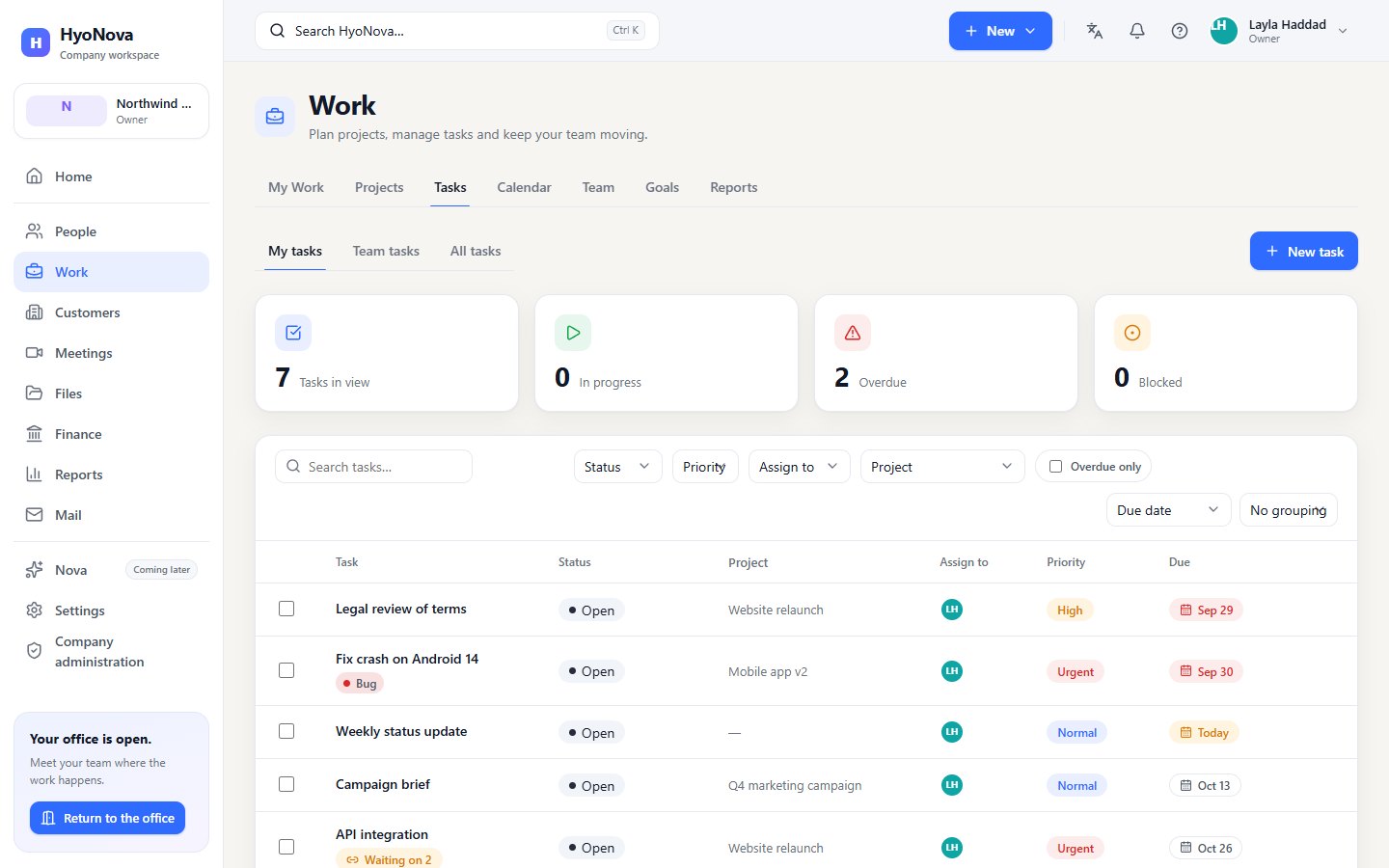
Work › Tasks lists tasks in three views: My tasks (assigned to you), Team tasks (in projects whose team you are on) and All tasks.
- Filter with Search tasks…, Status, Priority, Project, Overdue only and — for owners, admins and managers — Assign to. Clear filters resets them.
- Sort by Due date, Priority, Recently updated, Name or Status, and Group by Status, Project, Assign to or Priority.
- The list shows 50 tasks at a time; use Previous and Next.
- Filters are part of the page address, so a filtered view can be bookmarked or shared.
Change many tasks at once. Tick the tasks, then use Move to, Priority or Assign in the bar that appears. Each task is checked on its own rules, so a move that is not allowed for one task does not stop the others.
Create a task#
- Open the dialog. Select New task in My Work, Tasks, a project, the calendar, or New › New task in the top bar.
- Name it. Enter a Task name (up to 180 characters).
- Hand it over. Choose a person under Assign to — employees can choose only Me — and a Due date.
- Add details (optional). More options adds Project, Priority (Low, Normal, High, Urgent), Milestone, Start date and Description. The fields available depend on where you opened the dialog: a project's dialog fills in the project for you.
- Create it. Select Create task. The new task is Open; on a board lane it starts in that lane's status.
The assignee receives a notification. A meeting host can also create a task from a meeting note; see Meetings.
Move a task through its statuses#
| From | You can move it to |
|---|---|
| Open | In progress, Completed, Cancelled |
| In progress | Blocked, Completed, Cancelled |
| Blocked | In progress, Cancelled |
| Completed | Open (reopen) |
| Cancelled | — (final) |
Use the status chip (Move to), the quick buttons, a board card or a bulk change. Moving a task to Blocked notifies its assignees; completing it notifies the person who created it and, for every task that was waiting only on this one, that task's assignees.
The task panel#
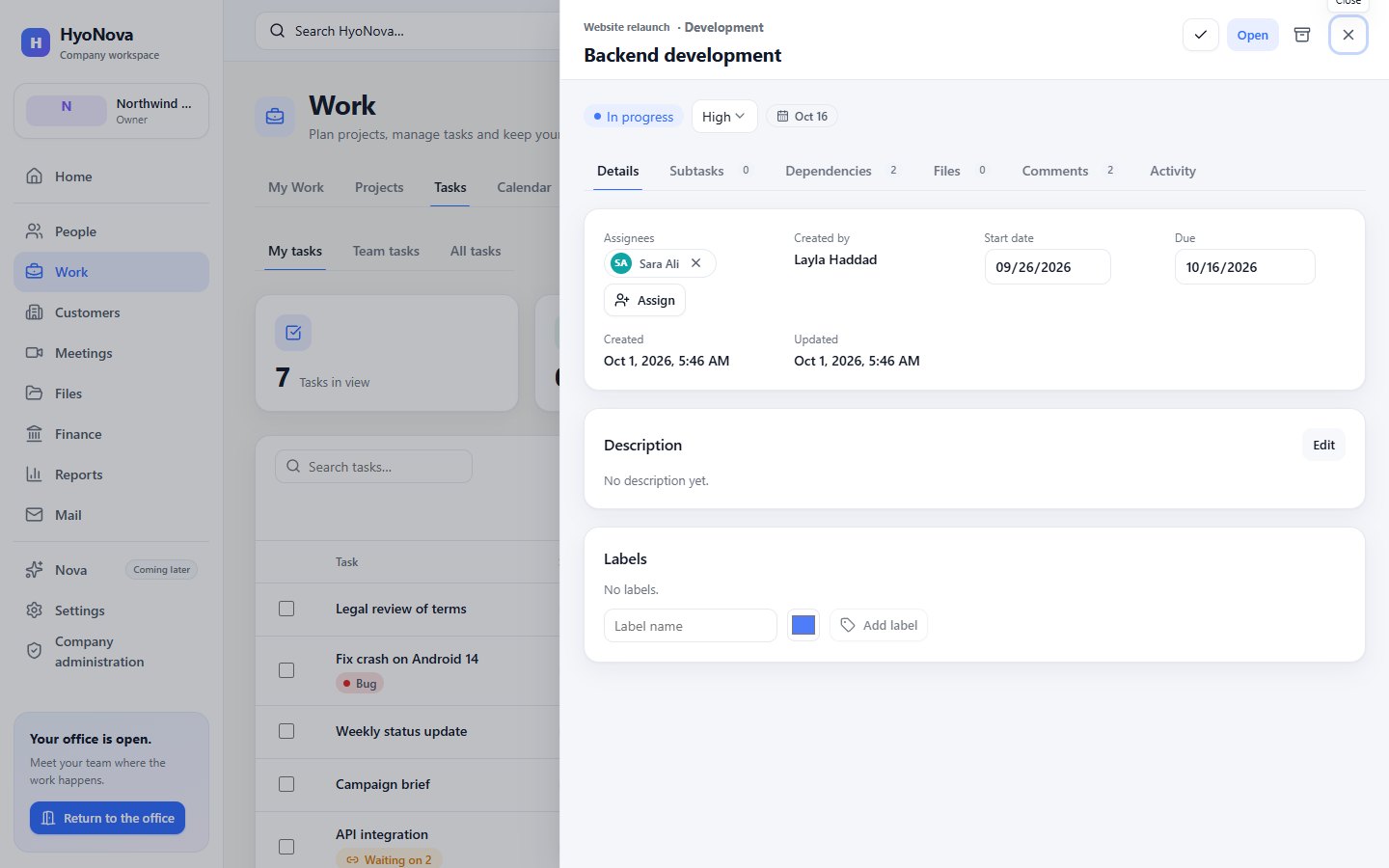
Selecting a task opens its panel on top of the page. The header shows its project and milestone; select the title to rename it. Next to the status chip you can change Priority. Owners and admins see Archive, which removes the task from Work.
| Tab | What you can do |
|---|---|
| Details | Add or remove Assignees with Assign, set Start date and Due, see Created by, Created, Updated and From meeting, edit the Description, and add Labels with a Label name and Label colour. |
| Subtasks | Add subtask and tick subtasks off; a progress bar shows how many are done. |
| Dependencies | Waiting on lists the tasks this one needs first; Add dependency picks one. Blocks lists the tasks waiting on this one. Open Flow shows the project's graph. |
| Files | Attach file (up to 10 MB), Download and Remove. "Attachments live in HyoNova Files with the same permissions." |
| Comments | Write a comment and select Send, or press Ctrl + Enter. |
| Activity | Every change, with who made it and when. |
Dependencies#
A dependency says "this task waits on that one". Dependencies work between tasks of the same project, and HyoNova refuses a task waiting on itself, the same dependency twice, and loops (A waits on B, B waits on A). A task with unfinished dependencies shows Waiting on and a number; its status does not change by itself. When the last one is completed, the assignees get a dependency is done; your task is ready.
Comments and @mentions#
Everyone who can edit tasks can comment, and a comment notifies the task's assignees. Owners, admins and managers can also mention people: type @, pick a name from the list, and that person gets mentioned you.
Status#
| Feature | Status | Notes |
|---|---|---|
| Tasks and My Work | AvailableWorks today for workspaces whose plan includes it. | My Work for your day, a task centre with filters and bulk actions, and a task panel for every detail. |
| Milestones, dependencies, comments, labels and subtasks | AvailableWorks today for workspaces whose plan includes it. | Milestones, task dependencies, comments with @mentions, labels, subtasks, project members and activity history. @mentions are offered to owners, admins and managers; employees' comments notify assignees. |
Recurring tasks are not available.
Was this page helpful?
Thanks. Page ratings are not collected yet, so nothing was sent. If something is missing or wrong, see the Get help page.