The world interface
The rail, top bar, bottom controls, prompts, notifications, reactions and settings around the 3D office, and how to adjust them.
On this page
The office fills the screen, and a small set of controls sits around it. This page describes each part, what it does and who sees it. What appears depends on how you entered: members see their company areas, guests see the office only, and trial visitors see a tour of the template.
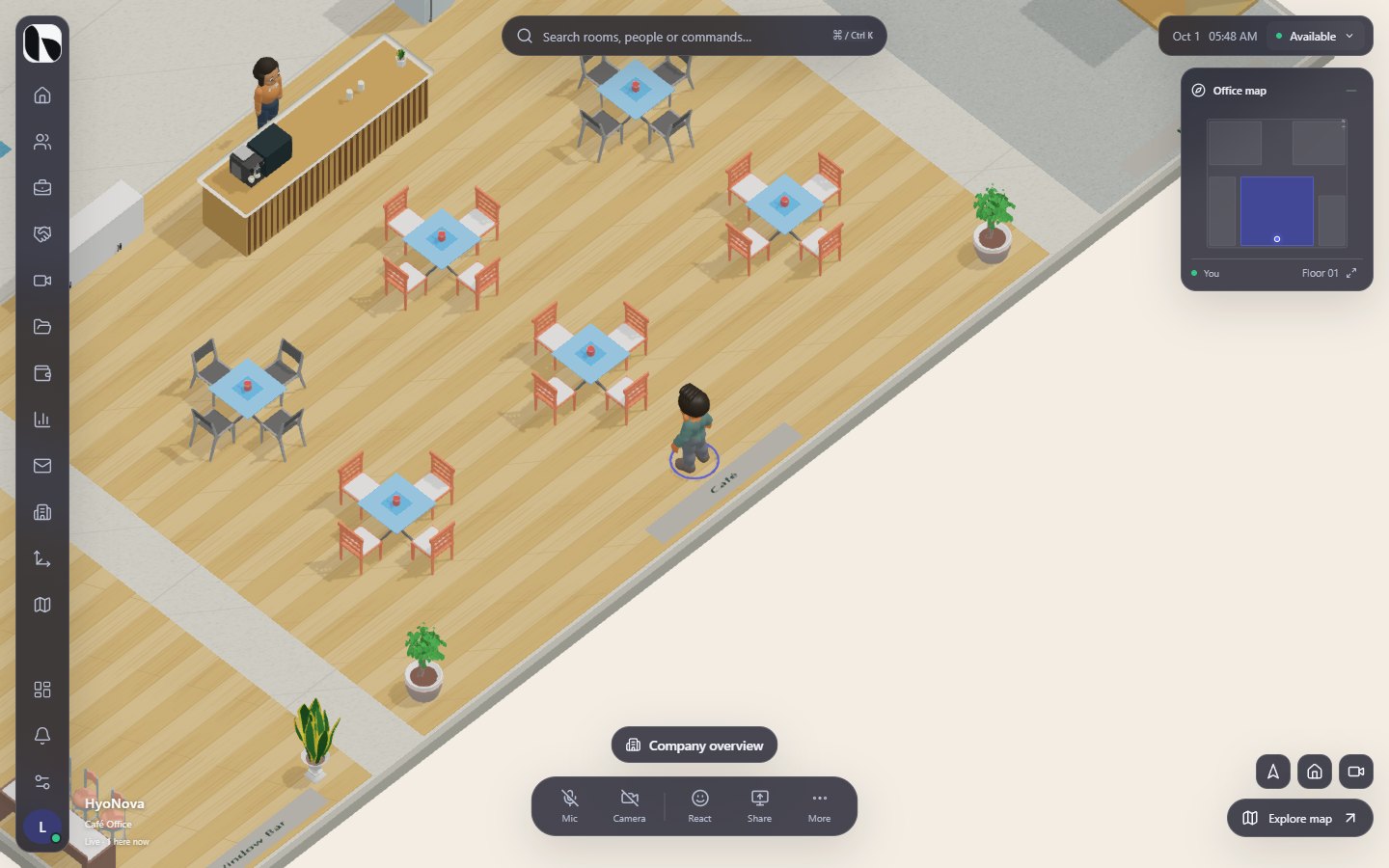
The rail (left)#
| Control | What it does | Who sees it |
|---|---|---|
| HyoNova logo | Opens the Company menu: Company home, the company areas your role allows, and Company workspace. | Members |
| Home | Opens the company Home page beside the office. In the trial it takes you back to the arrival point; for guests it centres the view on you. | Everyone |
| People, Work, Customers, Meetings, Files, Finance, Reports, Mail, Company administration | Open that company area in a sheet beside the office. You see only the areas your role allows. People shows how many people are in the office. Company administration opens in the company workspace. | Members |
| People and Messages | See who is in the office, and write to your host or the members present. | Guests |
| Build office | Opens the office builder. | Owners and admins; everyone in the trial |
| Map | Opens the full map. | Everyone |
| Company workspace | Opens the full company dashboard. | Members |
| Notifications | Room knocks, guest requests, your active meeting and your Work notifications. The number counts knocks and guest requests. | Members |
| Settings | Your personal settings for the office. | Everyone |
| My character | Change how you look. See Your character. | Everyone |
The top bar#
- Search — the bar that reads Search rooms, people or commands… opens search. Press Ctrl + K (or ⌘ + K on a Mac) from anywhere. See Map and search.
- Date, time and your status — select your status to change it to Available, Do not disturb or Away. See Presence.
If your connection drops, a banner appears at the top: You are offline. Reconnecting… when your device is offline, Reconnecting while HyoNova reconnects to the live office, and Connection lost with a Reconnect button when it could not.
The bottom control bar#
| Button | What it does | Who sees it |
|---|---|---|
| Mic | In a call or meeting, turns your microphone on or off. Outside one, the first press asks whether to turn on spatial voice; after that it mutes and unmutes you. | Members and guests |
| Camera | Turns your camera on or off in a call or meeting. Outside one, it opens Meetings & calls. | Members |
| React | Shows a quick reaction above your character. See Reactions. | Everyone |
| Share | Shares your screen in a call or meeting. Outside one, it opens Meetings & calls. | Members |
| More | Choose a view, Personal scratchpad, Meetings & calls, Focus mode, the company Settings (if your role allows) and your personal Settings. | Everyone (some items for members only) |
| Stop | Appears while your microphone, camera or screen is live. In a call or meeting it turns them all off; outside one it mutes your spatial voice. | While a device is live |
Next to the bar, a small status line shows where your voice goes, such as Nobody can hear you right now or Private call — the office cannot hear you. See Proximity and voice.
The lower corner#
- The minimap shows the current floor, the rooms and where you are. Press M to show or hide it.
- Center on me, Reset view and the camera view button. See Navigation.
- Explore map opens the full map.
The caption at the bottom shows the office name, how you are connected (Live, Guest visit or Demo) and, in a live office, how many people are here now.
Prompts in the office#
When you walk up to something you can use, HyoNova shows a small bubble or a prompt with the E key:
| Prompt | Where |
|---|---|
| Take a seat / Sit down | Near a chair or sofa |
| Stand up | While you are seated |
| Open door | Near a door |
| View profile | Near a built-in host character |
| View screen | Near a screen |
| Interact | Near other objects you can use |
A few prompts are for members and appear by place:
- Your work — while you sit at a desk. It opens your Work area.
- Company overview — in the lobby or reception. It opens the company Home page.
- Project room — in a room linked to a project, while you are standing. It opens the project's progress, milestones and your tasks in it. See Work in the world.
- In a meeting room, a card shows the room name, its seats and Meet here. See Rooms.
Clicking a person's nameplate opens their contact bubble. See Presence.
Notifications#
Notifications at the bottom of the rail lists what needs you in the office and in your work:
- Knock requests — someone asks to enter a room you can manage, shown as name asks to enter · room, with Accept and Deny. Owners, admins and managers receive them.
- Guest requests — a guest whose link needs approval asks to enter the office, with Approve and Decline. See Guests.
- Your active meeting — with Open to bring the meeting back.
- Work — your latest work notifications: assignments, mentions, comments, completed and ready tasks, and due-soon and overdue reminders, with the number unread. Select one to open it — a task opens as a sheet over the office — and use Mark all as read to clear them. See Work in the world.
When there are no knocks, guest requests or meetings, the sheet says Nothing new. Knocks, calls and invitations appear here. above any Work notifications. The number on the bell counts knocks and guest requests only.
Incoming calls do not wait in this list: they appear as a banner with Accept call and Decline. See Calls.
The same Work notifications are in the company workspace, behind the bell in the top bar. See Work overview.
Reactions#
Select React and choose 👋 ❤️ 👏 🎉 👍 or ☕. The emoji floats above your character for a few seconds.
Settings#
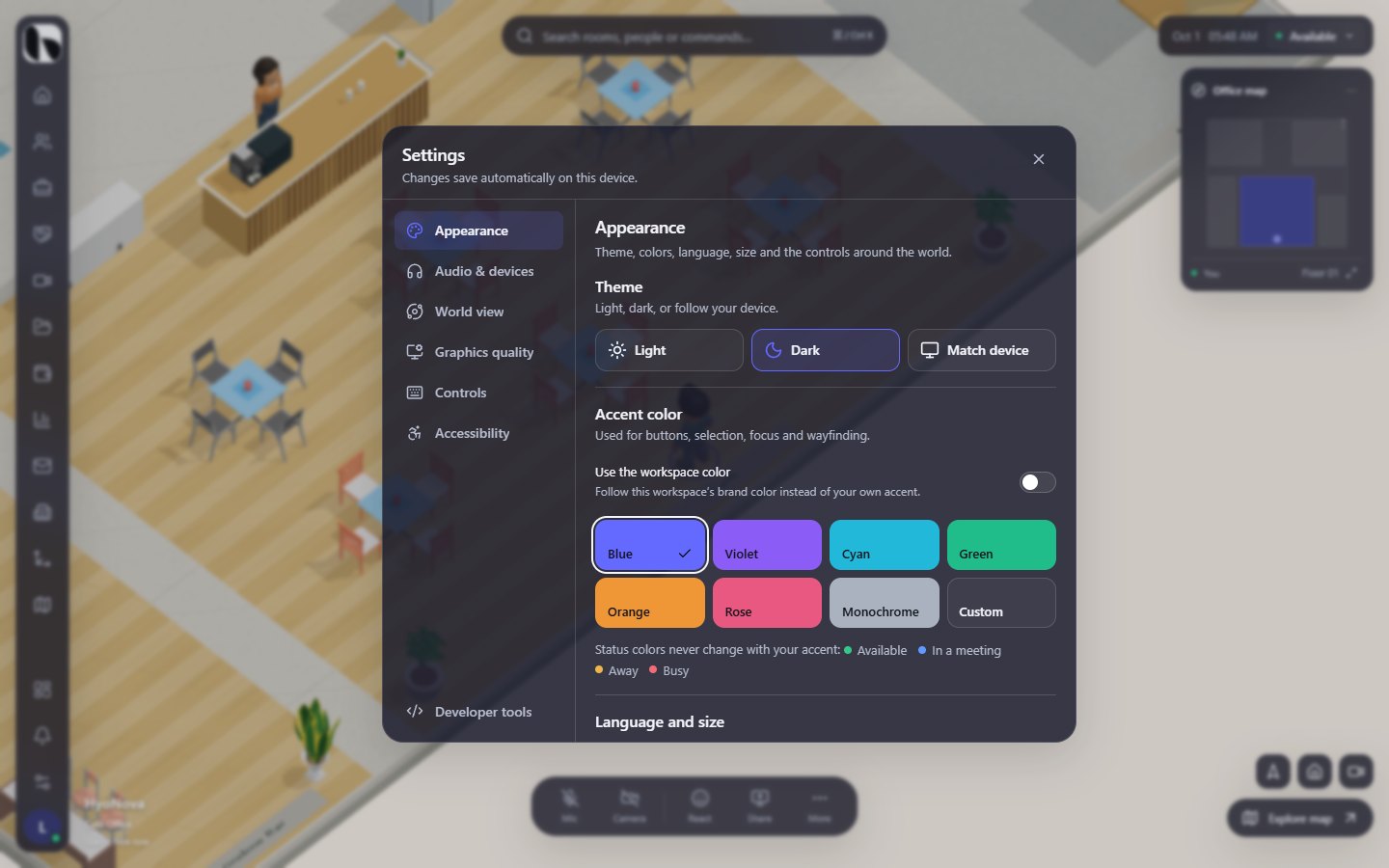
Settings (the gear in the rail, More › Settings, or Esc when nothing is open) holds your personal preferences for the office. Changes save automatically on this device.
| Section | What you can change |
|---|---|
| Appearance | Theme (Light, Dark or Match device), Accent color or Use the workspace color, Panels tint and opacity, Language (English or العربية), Interface scale and On-screen controls. |
| Audio & devices | World sounds and Sound volume, your Microphone (with Test microphone), Speaker (with Play test sound) and Video camera (with Preview camera). |
| World view | Perspective and Looking around: Turn speed and Zoom speed. |
| Graphics quality | Quality preset (Auto, Low, Medium, High, Ultra), Render scale, Soft shadows and Smooth edges. |
| Controls | The list of keyboard and mouse shortcuts. See Keyboard shortcuts. |
| Accessibility | Reduce motion and Stronger panel contrast. |
Choosing العربية switches the whole interface to Arabic, right to left.
Choose what stays on screen#
In Appearance › On-screen controls, choose a Layout: Minimal, Balanced, Full or Custom. With Custom you turn each part on or off: Navigation rail, Search bar, Minimap, Meeting room hints and Button labels. Turn on Fade controls after 3 seconds without activity to keep the office clear while you are not using the controls. Reset layout returns to the default. If you hide the rail, a small button stays at the edge to bring it back.
Status#
| Feature | Status | Notes |
|---|---|---|
| Reactions | PreviewA first, limited version you can use today. Important parts are still missing. | Quick emoji reactions above your character. Reactions currently appear only on your own screen. |
Was this page helpful?
Thanks. Page ratings are not collected yet, so nothing was sent. If something is missing or wrong, see the Get help page.