Company settings
The Settings page of your company workspace — Personal, Workspace, Access, Connections and Billing tabs — and the world settings inside the office.
On this page
Settings in the company workspace is organised in five tabs: your own profile and preferences, your company's workspace, sign-in and access, connections, and billing. Each member sees only the tabs they can use. Personal preferences for the 3D office — appearance, devices, view and controls — live in a separate Settings panel inside the office.
Open Settings#
- Open the company workspace. Sign in at https://app.hyonova.com and open your company. From the office, select Company workspace in the left rail.
- Select Settings. Choose Settings in the bottom group of the sidebar, or open the account menu at the top right and choose Settings.
- Choose a tab. The page opens on Personal. The tab you choose is kept in the page address, so a reload or a shared link opens the same tab.
Who sees which tab#
| Tab | Who sees it | What is on it |
|---|---|---|
| Personal | Every member | Your profile, language, work preferences and notifications |
| Workspace | Owners, admins and managers | Company profile, office worlds, guests and guest visits; Address & domains for owners and admins |
| Access | Every member | Sign-in & Security, your access, the standard roles and the permission matrix |
| Connections | Owners and admins | The real state of providers and integrations |
| Billing | Owners and admins | Your plan and payment method, read-only |
Personal#
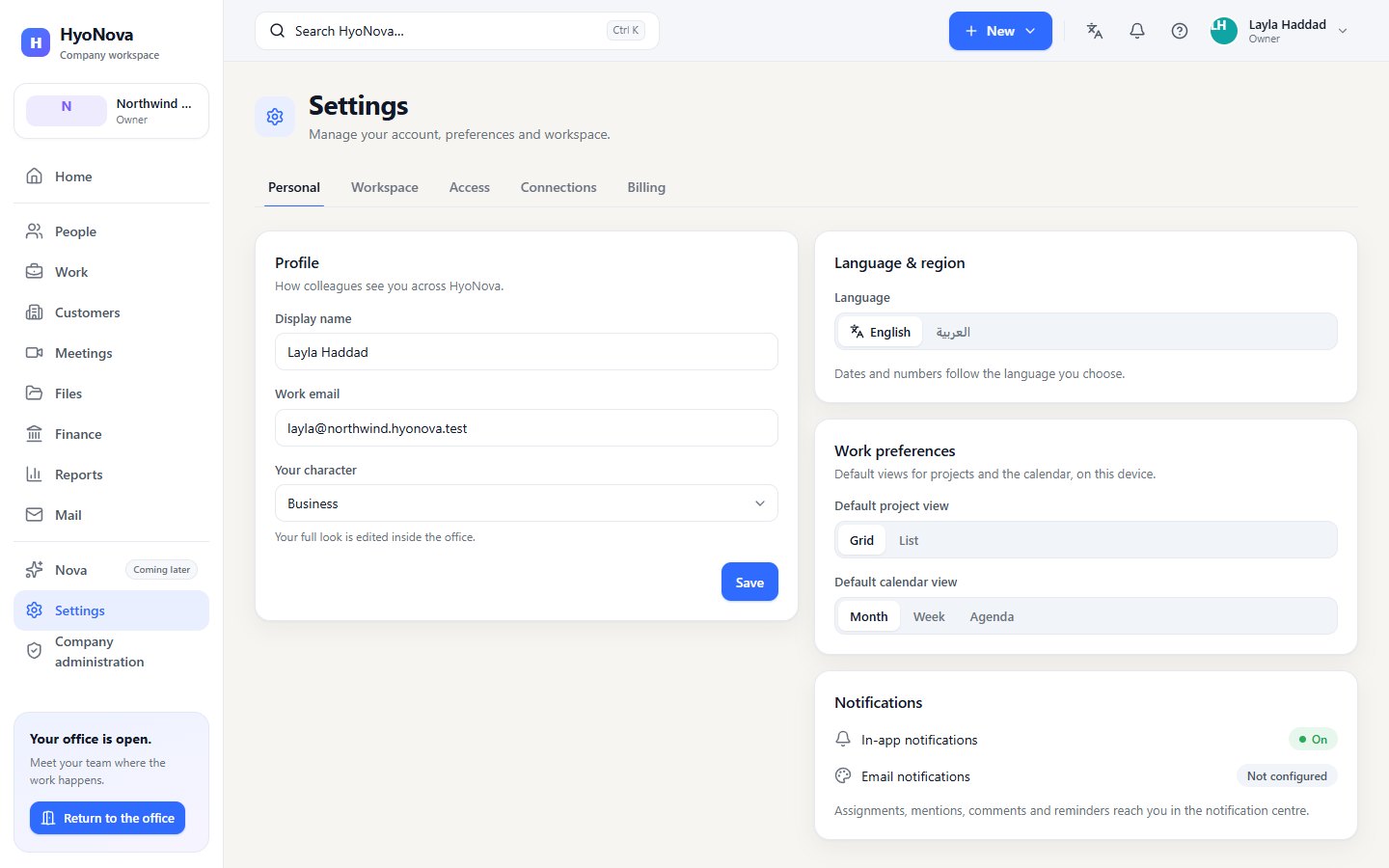
- Profile — How colleagues see you across HyoNova. Change your Display name (2 to 100 characters) and pick a Your character preset. Your email is shown but cannot be changed here. Select Save; your profile follows you to other devices. For clothes, hair and other details, edit your character inside the office — see Your character.
- Language & region — choose English or العربية. Arabic switches the interface to right-to-left, and dates and numbers follow the language you choose. The choice applies in this browser.
- Work preferences — Default project view (Grid or List) and Default calendar view (Month, Week or Agenda), saved on this device.
- Notifications — In-app notifications are On: assignments, mentions, comments and reminders reach you in the notification centre. Email notifications show Not configured.
Workspace#
The Workspace tab is for people who manage the company or invite guests.
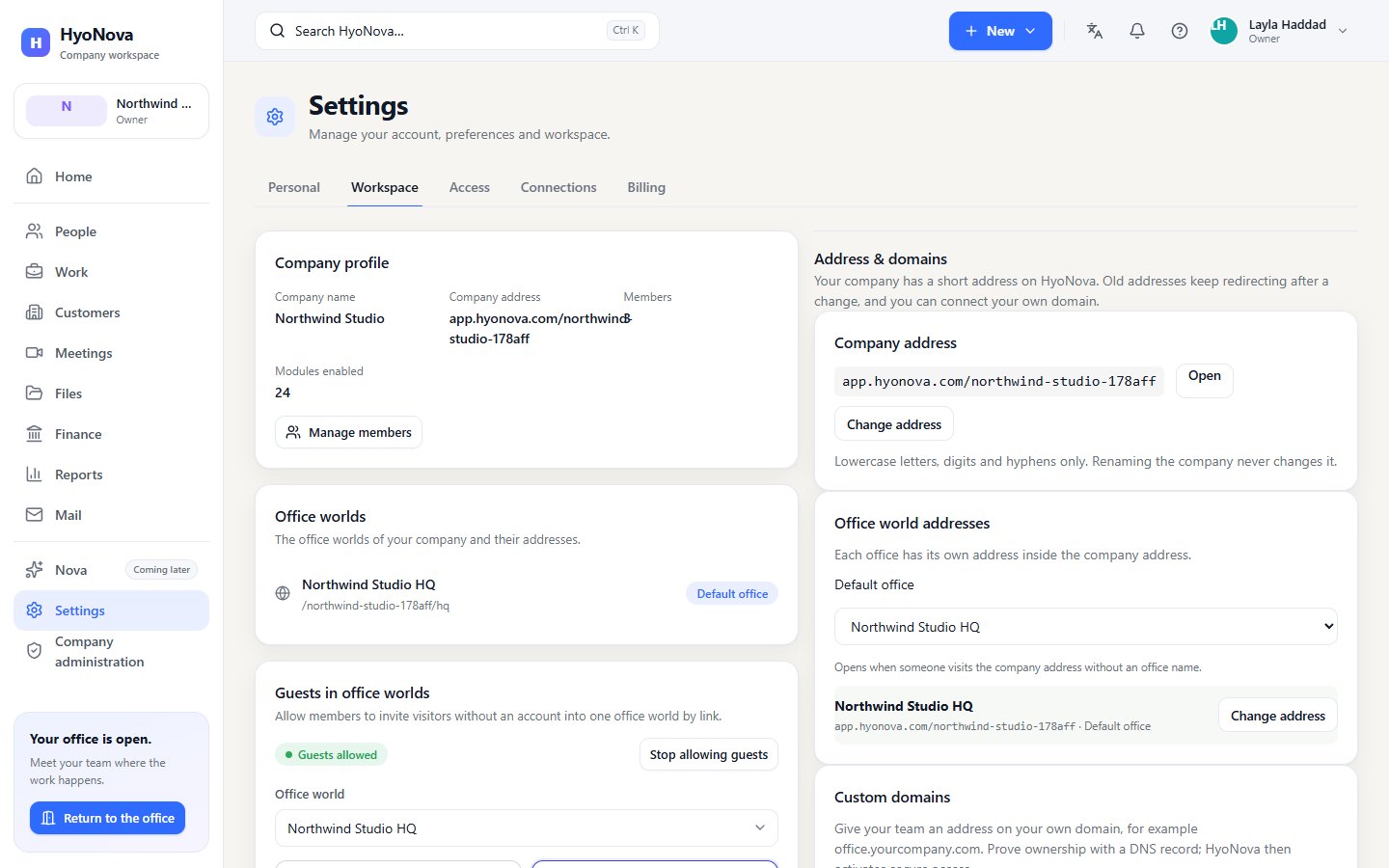
- Company profile — the company name, its Company address (
app.hyonova.com/your-company), the number of Members and Modules enabled. Owners and admins also get Manage members, which opens People. To change the company name, language, country or time zone, use Company administration › Company › Profile. - Office worlds — your company's office worlds and their addresses. The one marked Default office opens when someone visits the company address.
Guests in office worlds#
This card controls whether visitors without an account can enter your office worlds by link.
- The status shows Guests allowed or Guests not allowed. If your plan does not include guests, it shows Guest access is not included in your plan.
- Owners and admins select Allow guests or Stop allowing guests. Stopping guest access also removes guests who are inside. The same switch is in Company administration › Access › Guest policies.
- When guests are allowed, choose an Office world. You can create a guest link for it here, and see its Guest links with their status (Active, Revoked or Expired), when each Expires and when it was Last used. Select Revoke to stop new entries through an active link.
Managers see and revoke the guest links they created; owners and admins see all of them. Presets, host approval and every option are explained in Guest links.
Guest visits#
Guest visits lists everyone who visited your office by link — who they are, what they may do and when. From here you approve or decline waiting visitors, end visits and, as an owner or admin, promote a guest to employee. The same list is in Company administration › People › Guests. See Guests.
Address & domains#
Owners and admins manage the short web address of your company and of each office in the Address & domains card of the Workspace tab. The same card is in Company administration › Company › Domains and Addresses.
Company address#
Your company has an address of the form app.hyonova.com/your-company. Select Open to visit it or Change address to edit it.
- Use lowercase letters, digits and hyphens only.
- Renaming the company never changes the address.
- After a change, the previous address keeps redirecting to the new one.
Office world addresses#
Each office has its own address inside the company address, for example app.hyonova.com/your-company/main-office. Select Change address next to an office to edit it. Default office chooses which published office opens when someone visits the company address without an office name.
Custom domains#
The Custom domains card lets you ask for an address on your own domain, such as a subdomain you control.
- Connect a domain. Enter the Hostname and select Connect a domain.
- Add the DNS records. Under DNS records to add at your domain provider, copy the TXT and CNAME values into your DNS provider.
- Verify. Select Verify now. The status changes from Pending verification to Verified. DNS changes can take up to an hour.
- Wait for activation. After verification, HyoNova prepares secure access for the hostname. It shows Active once your team can open it. This step is completed by HyoNova and is not immediate.
You can Set as primary a verified domain or Remove a domain at any time. Until a domain is verified, Company administration › Overview shows A custom domain is not verified yet.
Access#
The Access tab is the same for every member:
- Sign-in & Security — see whether your password is set, change it, and see the state of Google sign-in. Changing your password signs out your other browsers. See Security.
- Your access — your role and how many permissions it gives you.
- Roles — the five standard roles with a one-line description each.
- Permission matrix — what each standard role may do in each area.
Custom roles are not shown here; owners and admins manage them in Company administration › Access. See Roles and permissions.
Connections#
Integrations and providers, as they really are. The tab lists Meetings and Files (Connected when the module is on for your company, otherwise Not configured), and Google Workspace, Microsoft 365, API access and Webhooks, which show Not configured. Nothing here is simulated: providers are connected by your HyoNova contact. See Integrations.
Billing#
The Plan card shows Modules enabled, the Capabilities your plan switches on and the Product stage — Internal test during early access. Plan changes and invoices are handled by HyoNova; this tab shows what is in effect. Payment method shows Not configured: no payment provider is connected to your company. See Plans & billing.
World settings inside the office#
Personal preferences for the 3D office are separate from company settings. Open Settings at the bottom of the left rail in the office, press Esc when nothing else is open, or search for Settings with Ctrl + K. The sections are:
- Appearance — theme, accent, interface scale and how much of the interface is visible.
- Audio & devices — microphone, camera and volume.
- World view — isometric, third-person or first-person camera.
- Graphics quality — quality level and effects for older computers.
- Controls — the keyboard and mouse shortcuts.
- Accessibility — reduced motion and contrast options.
These preferences save automatically on the device you are using. They do not change anything for your colleagues. See The world interface.
Company-wide settings#
Settings that belong to the whole company — the company profile, departments, working hours, roles and permissions, branding, meeting policy, the audit log and the detailed billing pages — live in Company administration, which owners, admins and managers open from the sidebar.
Status and limits#
| Feature | Status | Notes |
|---|---|---|
| Company settings | AvailableWorks today for workspaces whose plan includes it. | Your profile and language, guest access for office worlds, and your workspace address. |
| Company and office addresses | AvailableWorks today for workspaces whose plan includes it. | A short, readable address for your company and each office. Old addresses keep redirecting after a change. |
| Custom domains | PreviewA first, limited version you can use today. Important parts are still missing. | Connect a subdomain you own, such as office.example.com, and prove ownership with a DNS record. After verification, HyoNova completes the activation; it is not immediate. |
- Guest access depends on your plan. See Plans & billing.
- Custom domains are in Preview: activation after verification is completed by HyoNova.
Was this page helpful?
Thanks. Page ratings are not collected yet, so nothing was sent. If something is missing or wrong, see the Get help page.