Work in the world
Quick Work at your desk, tasks as sheets, project rooms with a live board on the screen, Work notifications in the office, and the way to the full dashboard.
On this page
- Quick work in the office, deep work in the dashboard
- Open a company area beside the office
- Quick Work
- Your work at your desk
- A task as a sheet
- Project rooms
- The board on the room's screen
- Go to a project room from the dashboard
- Notifications in the office
- Company overview in the lobby
- Meet here
- Open the full company workspace
- Who can use it
- What is not available yet
- Status
HyoNova's office is not only a place to meet. Your company's work is one click away from wherever you stand: check your tasks at your desk, see a project's board in its room, look up a colleague in People — without leaving the office. When you need the full picture, the company workspace opens in one step.
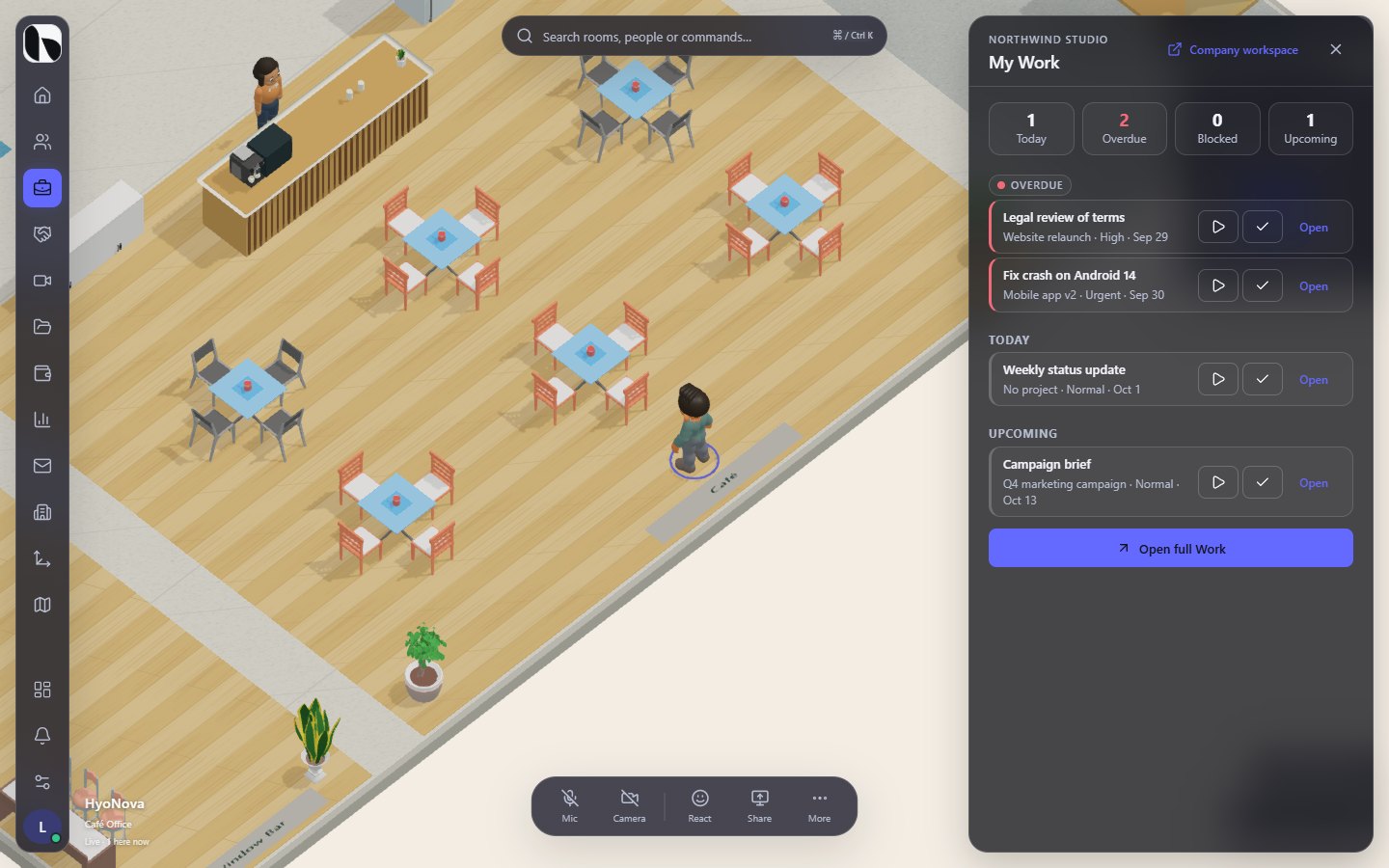
Quick work in the office, deep work in the dashboard#
| In the office | In the company workspace (dashboard) |
|---|---|
| See today's counts, start or complete a task, read a task, check a project in its room, look up a colleague, join a meeting. | Plan projects, use the board, flow, timeline and calendar, review all tasks, manage people, read customers, finance and reports in full. |
| Company areas open in a sheet beside the 3D view, so you stay in the office. | Full-width pages for longer sessions. |
Both show the same company, the same records and the same permissions. Nothing is copied between them.
Open a company area beside the office#
- Choose an area. Select an icon in the rail — People, Work, Customers, Meetings, Files, Finance, Reports, Mail or Company administration, as your role allows — or select the HyoNova logo to open the Company menu.
- Work in the sheet. The area opens in a sheet beside the office, with your company name above the title.
- Close it or go deeper. Close the sheet to return to the office, or select Company workspace at the top of the sheet to open the same area in the full dashboard.
People, Work and Meetings open in full in the sheet. Customers, Files, Finance, Reports and Mail show Summary. Open the dashboard for the full view. with Open in company workspace; Company administration opens only in the dashboard.
Quick Work#
Work in the rail opens Quick Work — a sheet titled My Work with your work at a glance:
- four counts — Today, Overdue, Blocked and Upcoming;
- a few of your Overdue, Blocked, Today and Upcoming tasks, each with its project, priority, due date and Waiting on when it has unfinished dependencies;
- Start, Complete and Resume buttons to move a task on the spot, and Open to read it;
- Open full Work, which opens My Work in the company workspace.
When nothing is open for you, Quick Work says You're all caught up.
Your work at your desk#
- Sit at a desk. Walk up to a desk chair and press E.
- Open Your work. While you are seated, Your work appears near the bottom of the screen. Select it.
- Check your tasks. Quick Work opens beside the office.
Your work appears for members whose role can see Work.
A task as a sheet#
Open on a task — in Quick Work, a project room, the room's board or a notification — opens the task in a sheet over the office: its project, status, priority, dates, Waiting on, assignees, milestone, description, subtask progress and the latest comments. Start, Complete and Resume work here too. For anything else — editing, comments, files, dependencies — select Open full task, which opens the task in the company workspace.
Project rooms#
A project can live in a room of your office. Anyone who can edit the project links it in the company workspace: Edit project › World and Project room. See Projects.
When you stand in that room (and are not seated), a Project room button with the project's name appears near the bottom of the screen. It opens the project's context:
- progress (for example "40% complete") and due date, and the description;
- counts of Tasks, Completed, Blocked and Overdue;
- up to four Milestones with their state;
- My tasks in this project — your open tasks in it, each opening as a sheet;
- Open full project, Open board and My Work.
You need to be able to see projects for the button to appear.
The board on the room's screen#
Walk up to a screen in a project room and press E (View screen). Above the usual screen content, members who can see projects get the project's board, read-only and marked Live view: the Open, In progress, Blocked and Completed lanes with up to six cards each, the names of the assignees and Open board for the full board. Select a card to open the task.
Go to a project room from the dashboard#
On a project's overview, Project room shows the linked room and office. Go to project room opens the office and walks you to the room when you arrive. You need access to the office for this button.
Notifications in the office#
Notifications at the bottom of the rail opens the office's notification sheet. Below room knocks, guest requests and your active meeting, a Work section lists your latest work notifications — assignments, mentions, comments, due-soon and overdue reminders — with how many are unread. Select one to open it: a task opens as a sheet, anything else in the company workspace. Mark all as read clears them. The number on the rail's bell counts knocks and guest requests only. See Work overview.
Company overview in the lobby#
When you stand in the lobby or reception, Company overview appears. It opens the company Home page beside the office — your tasks, what needs attention and your company at a glance, depending on your role.
Meet here#
In a meeting, focus or training room, Meet here starts or joins a meeting linked to that room. Meetings are in Beta and need the media service HyoNova provides. See Rooms and Meetings.
Open the full company workspace#
- Company workspace at the bottom of the rail,
- Company workspace at the top of any area sheet, or Open full Work, Open full task, Open full project in Work sheets,
- Open the dashboard in search (Ctrl + K).
To come back, select Return to the office in the sidebar of the company workspace, or on Home.
Who can use it#
Owners, admins, managers, employees and restricted members can open the company areas their role allows. Guests do not have company areas; they use the office itself and Messages. See World permissions.
What is not available yet#
Status#
| Feature | Status | Notes |
|---|---|---|
| Company workspace inside the world | AvailableWorks today for workspaces whose plan includes it. | Quick Work and task sheets beside the 3D office, Your work at your desk, and the full company workspace one click away. |
| Project rooms | AvailableWorks today for workspaces whose plan includes it. | Link a project to a room in your office so its work is one walk away. |
| Desk assignment | PlannedOn the HyoNova roadmap. Not built yet and has no release date. | Assigned, shared and bookable desks managed from the office. |
Was this page helpful?
Thanks. Page ratings are not collected yet, so nothing was sent. If something is missing or wrong, see the Get help page.