Sign-in and invitation problems
What to do when you cannot sign in, forgot your password, are signed in with the wrong account, or an invitation link says it expired, was withdrawn or was accepted.
On this page
This page covers problems with signing in to HyoNova, resetting a forgotten password, and joining a company through an invitation link. Most sections start with the message you see on screen.
You cannot sign in#
You sign in at https://app.hyonova.com/sign-in with your Work email and Password. HyoNova accounts use an email address and a password today.
| Message | What it means | What to do |
|---|---|---|
| Email or password is incorrect. | The email address or password does not match an account. For your privacy, HyoNova does not say which of the two is wrong. | Check the address for typos and check that Caps Lock is off. Passwords are case-sensitive. If you forgot the password, reset it. |
| Your account is not an active member of a company yet. | Your account exists, but you are not an active member of any company. This happens when an invitation was never accepted, or when you were removed from a company. | Open your invitation link and accept it. If you were removed, ask the company's owner or admin. |
| Too many attempts. Wait a minute and try again. | Sign-in is limited after many attempts in a short time. | Wait a minute before you try again. |
| Your session has ended. Sign in and try again. | You were signed out. See Your session ended. | Sign in again. |
| Your session needs a refresh. Reload the page and try again. | The page is older than your session's security check. | Reload the page. |
| HyoNova could not be reached. Check your connection and try again. | Your browser could not reach HyoNova. | Check your network, then try again. |
If you have never created an account and nobody invited you, you can create a company at https://app.hyonova.com/sign-up. You become its owner.
You forgot your password#
You can choose a new password yourself from the sign-in page. HyoNova emails you a reset link.
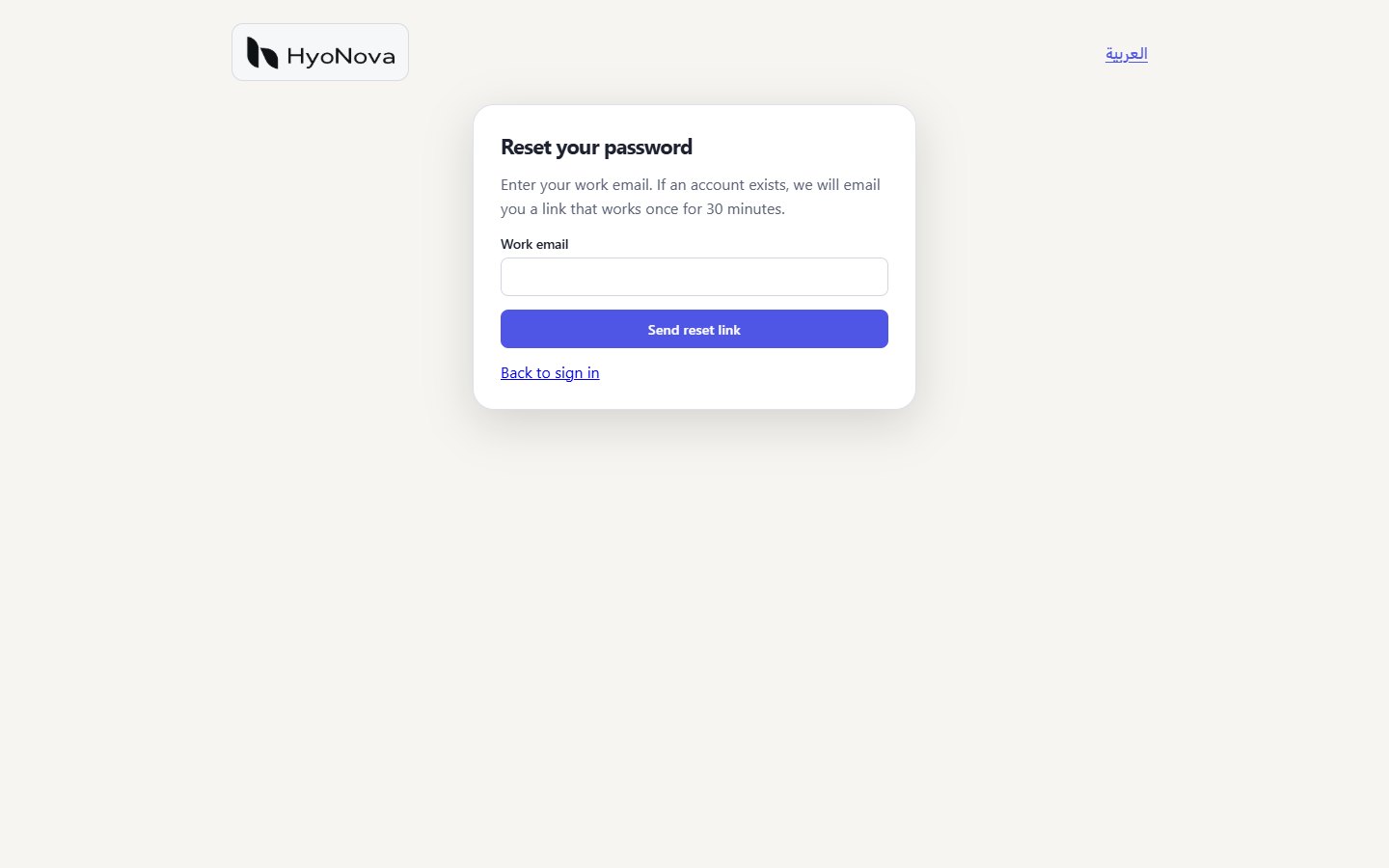
- Open the reset page. On the sign-in page, choose Forgot your password?. The page Reset your password opens.
- Enter your work email. Type the address you sign in with and choose Send reset link. HyoNova always answers "If an account exists for that address, a reset link is on its way. Check your inbox." — the same answer whether or not the address has an account, so nobody can use this page to find out who uses HyoNova.
- Open the email. The link in the email works once and for 30 minutes.
- Choose a new password. On Choose a new password, type your New password (at least 8 characters) and the same password again in Confirm password, then choose Save new password.
- Sign in. HyoNova says "Your password was changed. Sign in with it now." Sign in with the new password.
Changing your password this way signs you out everywhere — on every browser and device where your account was signed in. That also ends any session someone else might have had.
Other things to know:
- A reset email is sent only for an account that is already active. If you were invited but never accepted, open your invitation link instead — it lets you choose a password.
- HyoNova sends at most one reset email per minute for the same account. If you ask again straight away, wait a minute before you try once more.
- After several tries in a short time you see Too many attempts. Wait a minute and try again.
| Message on the reset page | What to do |
|---|---|
| This reset link is invalid, expired or already used. Request a new one. | The link is older than 30 minutes or was used already. Choose Reset your password on the page and ask for a new link. |
| This reset link is incomplete. Request a new one. | Part of the link is missing, often because it was cut when copied. Open the link straight from the email, or ask for a new one. |
| The passwords do not match. | New password and Confirm password differ. Type the same password twice. |
If you still know your password and only want a new one, you do not need the email: open Settings › Access › Sign-in & Security and choose Change password. See Security.
You are signed in with the wrong account#
HyoNova remembers your sign-in in each browser. If someone else used the browser, or you have two accounts, you may be signed in as the wrong person.
- In the company workspace: open the account menu in the top-right corner and choose Sign out, then sign in with the right account. To move between companies of the same account, choose Switch company instead.
- On an invitation page: the page says "You are signed in with a different account than the invited one." Choose Switch account. HyoNova signs the other account out and shows the form for the invited address.
- If an action still reports This invitation is for a different account than the one you are signed in with. Sign out and open the link again., sign out and open the invitation link again.
Your session ended#
To protect your account, a session ends:
- after 7 days without activity, and
- at the latest 30 days after you signed in, even if you were active;
- when you choose Sign out;
- when your password is changed or reset — changing it in Settings signs out your other browsers, and a reset signs you out everywhere.
Sign in again at https://app.hyonova.com/sign-in. While your session is valid, opening HyoNova takes you straight to your company without signing in again.
An invitation link does not work#
An invitation link opens a page that says You are invited to join followed by the company name. It shows who invited you, your role, when the invitation expires, and the address it was sent to, partly hidden. Use that exact address to accept. Invitation links are valid for 7 days.
| Message | What it means | What to do |
|---|---|---|
| This invitation link is incomplete. Ask your company to send it again. | Part of the link is missing, often because it was cut when it was copied. | Copy the whole link again, or ask for it to be sent again. |
| This invitation has expired. Ask your company to send a new one. | More than 7 days have passed since the invitation was created or renewed. | Ask the owner or an admin of the company. See the note below. |
| This invitation was withdrawn. Ask your company to send a new one. | An owner or admin revoked the invitation, or replaced it with a new link. | Ask the owner or admin for the current link. |
| This invitation was already accepted. Sign in to continue. | You, or someone using this link, already joined. | Select Sign in and use your password. |
| This invitation is for a different account than the one you are signed in with. Sign out and open the link again. | You are signed in with another HyoNova account. A link never adds a different person to a company. | Choose Switch account, or sign out, then open the invitation link again. |
| This invitation is invalid, expired, revoked or already used. | The link cannot be used for one of these reasons. | Ask the owner or admin for a new link. |
Accepting an invitation#
- New to HyoNova. Under Create a password for your account, type the full invited address, a password of at least 8 characters and Confirm password, then select Accept and continue. If the two passwords differ, you see The passwords do not match.
- You already have a HyoNova account. Under Enter your account password, enter the password of that account, not a new one. If it is wrong, you see Email or password is incorrect. If you forgot it, choose Forgot your password? on the same page.
- You are already signed in with the invited account. The page shows Signed in as with your name and a Join company button. Select it to join without typing your password.
After you accept, HyoNova signs you in and opens the welcome steps for your new company.
The Continue with Google button is missing#
Problems when you invite someone#
These messages appear to owners and admins who invite members.
| Message | What it means | What to do |
|---|---|---|
| Your company has used all of its seats. | Every seat on your plan is taken. Pending invitations also use a seat. | Revoke pending invitations that are no longer needed, or see Billing and plans. |
| This person is already a member or has a pending invitation. | The address belongs to a member, or an invitation for it is still open. | Check People › Members and the Invitations tab. Use New link or Copy invitation link on the open invitation. |
| You cannot grant a role above your own. | You can only give roles that you hold yourself. | Choose a lower role, or ask an owner to send the invitation. |
| This person cannot be invited at the moment. Try a different address or contact HyoNova. | The account for this address cannot join companies right now. | Use another address for this person. |
If the invitation was created but the email did not arrive, see Email delivery.
Status#
| Feature | Status | Notes |
|---|---|---|
| Forgot password | BetaWorks today in early-access workspaces. Behaviour and limits may still change. | Reset a forgotten password with a one-time email link. |
| Create a company workspace | AvailableWorks today for workspaces whose plan includes it. | Sign up with your name, email, password, company name and country, and create your company in one step. |
| Continue with Google | Requires setupBuilt, but works only after a supporting service is configured for your workspace. | Sign up and sign in with a Google account, linked to an existing account with the same email. Built but not switched on yet. The Continue with Google button appears once HyoNova turns it on. |
| Member invitations | AvailableWorks today for workspaces whose plan includes it. | Invite employees by email with a role. Invitees see the company, inviter and role, and join in one step. |
Related pages#
- Invitations explains the full invitation flow.
- Security explains sign-in, sessions and passwords.
- Roles and permissions explains who can invite whom.
Was this page helpful?
Thanks. Page ratings are not collected yet, so nothing was sent. If something is missing or wrong, see the Get help page.