Email builder and templates
Design responsive emails in Hyo Mail with the drag-and-drop builder or in HTML, start from Hyo Mail templates, preview, send tests and use your brand kit.
On this page
Every email in Hyo Mail is designed as a template. A template can be used by campaigns, by automations and by the transactional API. You design it with the drag-and-drop Builder or in Code mode, preview it on desktop and mobile, and send yourself a test before it reaches anyone else.
Creating and editing templates needs permission to create and edit in Mail. Anyone with access to Mail can view templates. See Hyo Mail.
Templates#
Open Mail › Campaigns. Templates have two tabs:
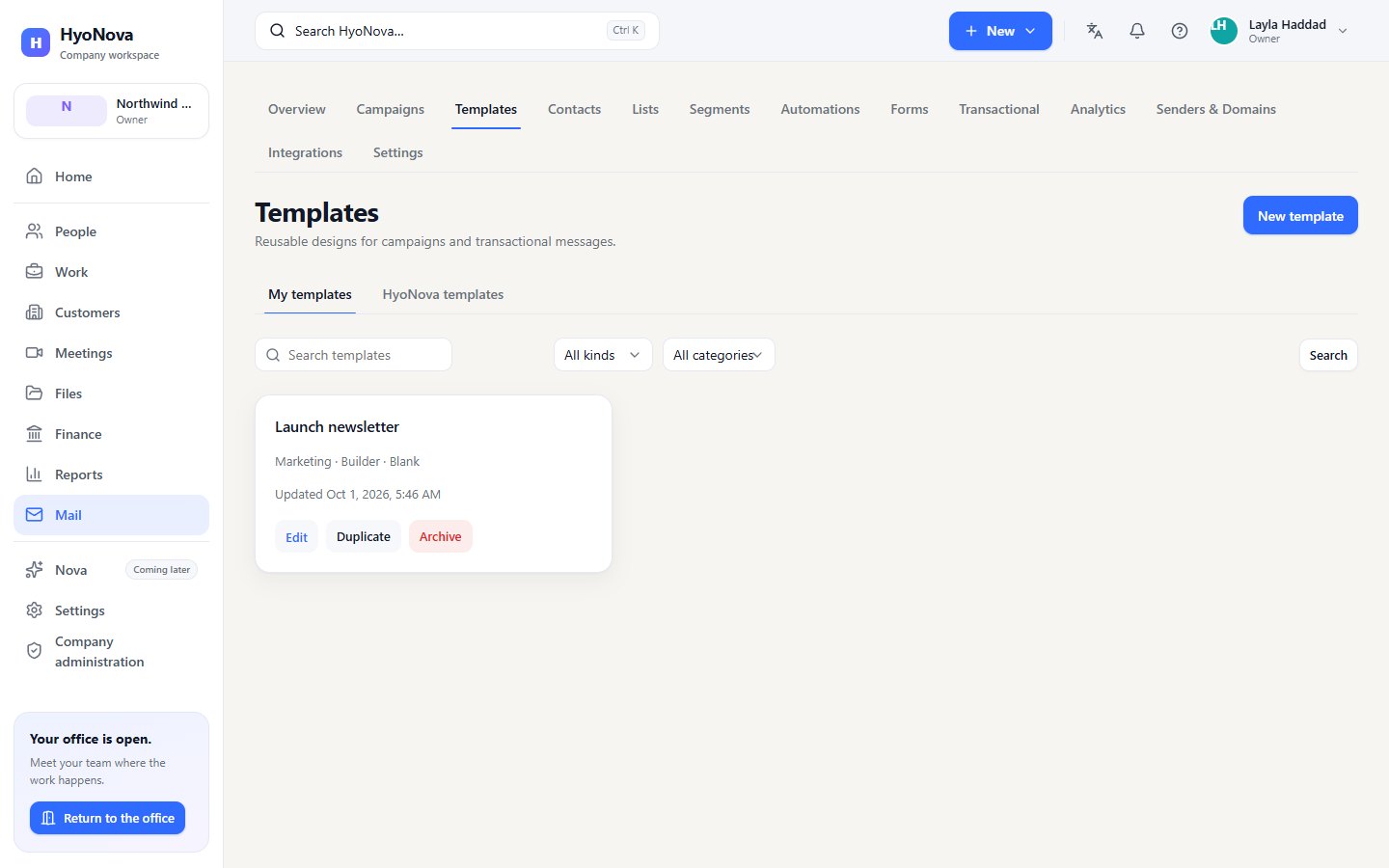
- My templates — your company's templates. Filter them by Kind (Marketing or Transactional) and Category, or search.
- Hyo Mail templates — ready-made designs in English and Arabic for newsletters, announcements, product news, sales, welcome emails, events and follow-ups. Using one creates a copy you can edit; the original is never changed.
To create a template, choose New template, then choose where to start: Blank, Gallery template or Paste HTML (code mode).
Archiving a template does not change campaigns that were already sent; they keep their own copy.
The editor#
The editor fills the whole window. Along the top:
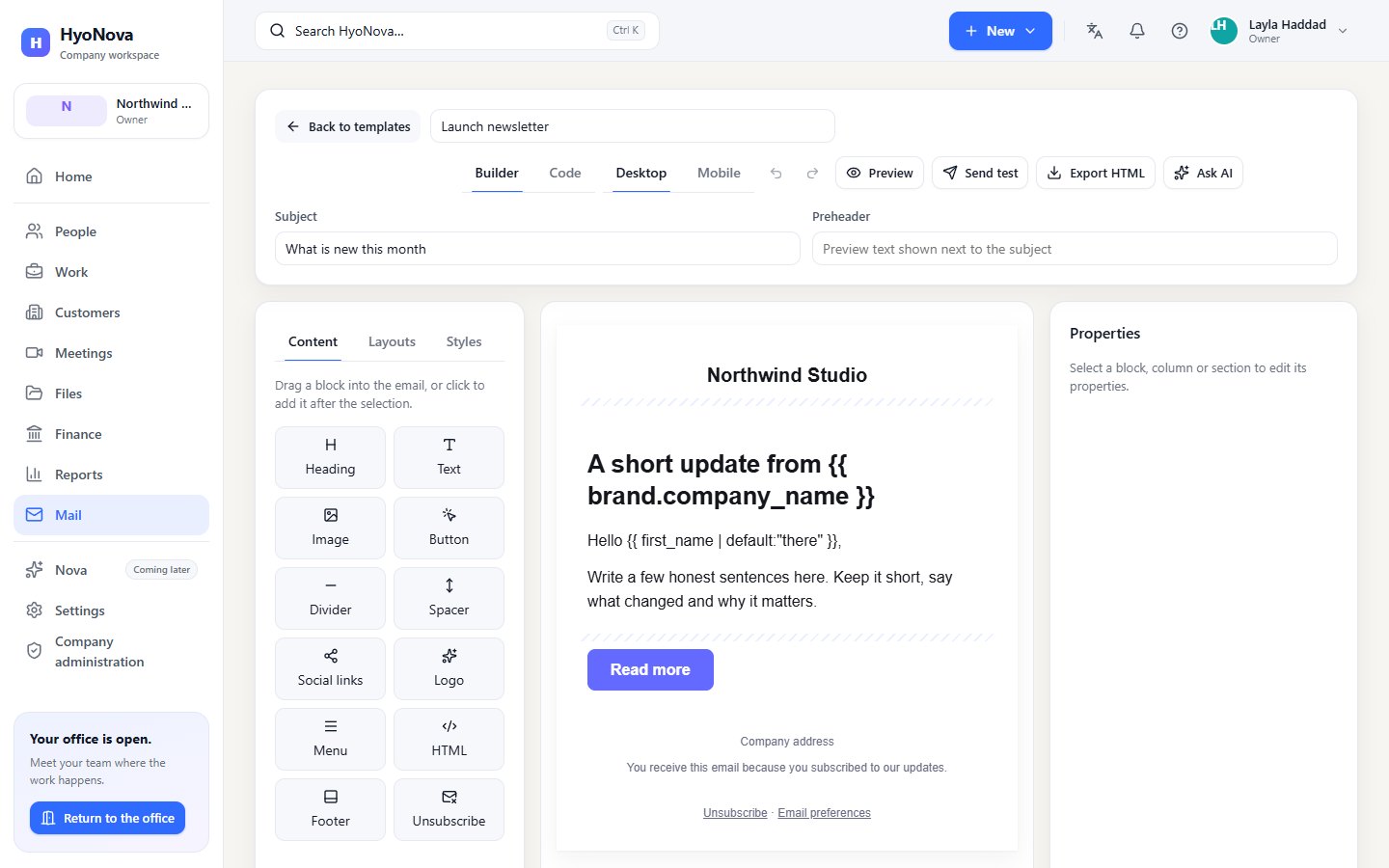
- Template name, Subject and Preheader — the preheader is the preview text that mailbox apps show next to the subject.
- Builder or Code — the editing mode.
- Desktop or Mobile — the device the canvas shows.
- Preview, Send test, Export HTML and Ask AI.
- Undo and Redo.
Your work is saved automatically a moment after each change; the top bar shows Saving… and then Saved with the time. Save now (or Ctrl + S) saves immediately. If someone else saved the same template in the meantime, the editor asks whether to Reload latest or Keep mine.
Build with blocks#
The left panel has three tabs:
- Content — the blocks: Heading, Text, Image, Button, Divider, Spacer, Social links, Logo, Menu, HTML, Footer and Unsubscribe. Drag a block into the email, or click it to add it after the selected one.
- Layouts — sections with 1 column, 2 columns 50/50, 2 columns 30/70, 2 columns 70/30, 3 columns or 4 columns. Columns stack on phones.
- Styles — the whole email: content width, backgrounds, text, heading and link colours, font, base font size, line height, button defaults, and the Direction (Left to right or Right to left) and Language.
Select a block, column or section to edit it in Properties on the right: text, alignment, colours, padding, links, image and alt text, button style, and Hide this block.
Personalise with variables#
In text, use Insert variable to add First name, Last name, Email, Company, Unsubscribe link, Preference centre link, Company address or Brand name. Variables look like {{ first_name }}, and you can give one a fallback: {{ first_name | default:"there" }}. Custom attributes work the same way, by their key.
Values are always inserted as plain text, so a contact's details can never add HTML or scripts to your email.
Code mode#
Choose Code to edit the HTML directly. Switching renders the builder version to HTML, and the HTML becomes the source of the template. The builder version is kept, so Return to builder brings it back and discards the code changes.
In code mode, Import HTML lets you paste a full email or a fragment and Check it first. Scripts, event handlers, iframes and other unsafe parts are removed, and the editor lists what it removed. A template that started as pasted HTML can only be edited as code.
Preview and test#
- Preview renders the email exactly as it will be sent. Choose a Sample contact to fill in the variables, or No contact to see them as tokens. Show without images checks how the email reads when images are blocked. The preview lists Variables without a value and Notes from the renderer.
- Send test sends the email to up to 5 addresses, one per line. The subject starts with "[Test]". Tests use your default sender. Test sends are free and do not use Mail credits, up to 100 a day.
- Export HTML downloads the final HTML of the email.
Marketing emails must contain an unsubscribe link. If yours does not, the editor warns you, and the campaign checks will stop the send. Add an Unsubscribe block or a {{ unsubscribe_url }} link.
Brand kit and media library#
Mail › Settings is where Mail administrators keep your company's identity for email:
- Brand kit keeps your Company name, Logo, Primary colour, Secondary colour, button colours and corner radius, Font, Website and Social links, so everyone designs with the same identity. The brand name is available in emails as the Brand name variable.
- Media library holds images for your emails: PNG, JPEG, GIF, WebP or SVG, each with Alt text. Every image gets a public address, so it displays in your recipients' mailboxes. In the editor, Choose from library inserts one. Deleting an image breaks it in emails that use it.
AI designer#
The AI designer is included in every plan and uses your company's Serene credits. Ask AI opens the AI designer:
- Create with AI — describe the email, then choose the Output (Full email (builder) or HTML (code mode)), the Language and the Tone.
- Modify this email — describe a change, such as "make the header smaller and add a second button".
- Quick commands for the selected block — Rewrite, Shorter, Longer, Professional, Friendly, Translate, Improve CTA and Fix grammar.
- Subject assistant — suggestions for the subject line. The campaign steps also offer AI subject ideas.
Suggestions are shown first — for a block, as Before and After — and nothing changes until you choose Apply. The AI writes and edits only; sending and scheduling always stay with you. Each request uses your company's Serene credits, counted from the work the request actually did; the AI designer shows the credits left.
Status#
| Feature | Status | Notes |
|---|---|---|
| Email builder and templates | AvailableWorks today for workspaces whose plan includes it. | Drag-and-drop builder, code mode, previews, test sends and HyoNova templates in English and Arabic. |
| AI email designer | AvailableWorks today for workspaces whose plan includes it. | Draft or edit an email and suggest subject lines. Each request uses Serene credits from your company's wallet. |
Was this page helpful?
Thanks. Page ratings are not collected yet, so nothing was sent. If something is missing or wrong, see the Get help page.