Projects
Create and run projects in HyoNova Work — progress, members, milestones, board, list, timeline, flow, files, activity, customers and an office room.
On this page
A project is a named piece of work with a team, dates and tasks — a client engagement, a product launch, an office move. Every project in HyoNova has its own workspace: an overview, the same tasks shown as a board, a list, a timeline and a dependency flow, its milestones, its files and its history.
Who can use projects#
- Owners, admins, managers and employees see every project and can create and edit projects, change their status and add milestones.
- Owners, admins and managers can add anyone to a project team; employees can add only themselves.
- Owners and admins can also archive a project.
- Restricted members do not see projects; they see their tasks in My Work.
The project list#
Open Work › Projects. Four counters at the top show Total projects, Active, Completed and Archived, and the tabs All projects, Active, Completed and Archived filter the list.
- Search projects… finds a project by name.
- Sort orders by Recently updated, Due date, Name or Progress.
- View switches between Grid (cards) and List (a table). Your choice is remembered on this device; you can also set it in Settings › Personal › Work preferences › Default project view.
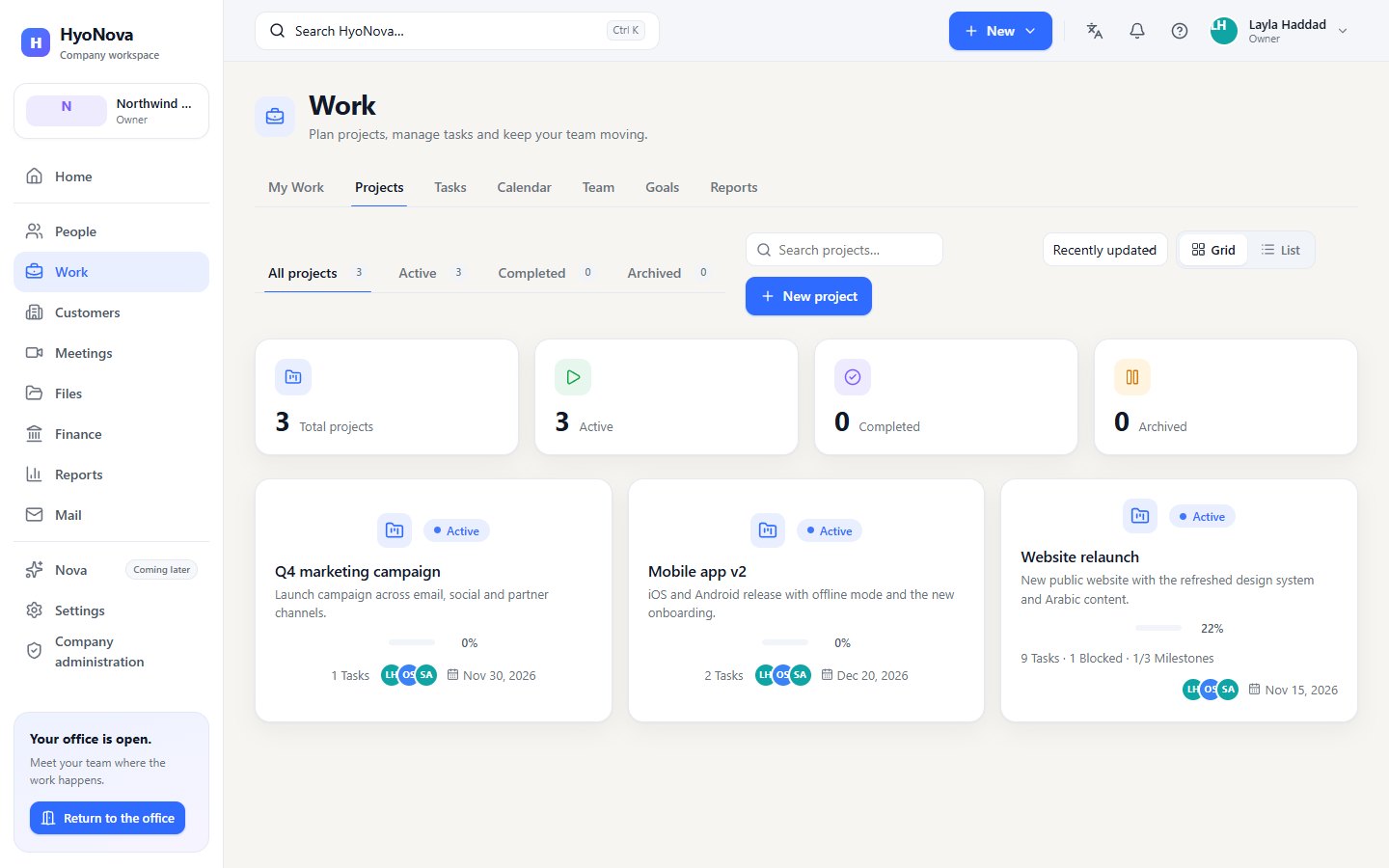
Each project shows its status, description, progress bar, number of tasks, blocked tasks, completed milestones, its team and due date. Progress is completed tasks ÷ all non-cancelled tasks; a project with no tasks shows No work defined yet rather than 0 %.
Create a project#
- Open the dialog. Select New project in Work › Projects, or New › New project in the top bar.
- Name it. Enter a Project name (up to 180 characters).
- Describe it (optional). Add a Description, a Start date and a Due date. The start date cannot be after the due date.
- Create it. Select Create project. The project opens straight away, with the status Active and you as its Project owner.
You can also create a project from a customer or a deal in Customers; it is then linked to that customer. See Customers & CRM.
Inside a project#
A project's tabs each have their own address, so you can bookmark or share them:
| Tab | What you find there |
|---|---|
| Overview | Dates, Owner, Overall progress with its formula, a Task summary (Total, Completed, In progress, Blocked, Overdue — select one to see those tasks), Milestones, Upcoming work, Recent activity, Project team, Linked business, Project room and Quick actions. |
| Board | The project's tasks in lanes by status. Drag a card to move it. |
| List | The project's tasks as a table, with the same filters, sorting and bulk changes as Tasks. |
| Timeline | Tasks as bars from start date to due date, milestones as markers and dependencies as connectors. |
| Flow | The dependency graph: which task waits on which. |
| Milestones | The project's milestones and their progress. |
| Files | Every file attached to the project's tasks, with Uploaded by, Linked to and Download. |
| Activity | Who changed what in the project, its tasks and milestones. |
Board, Timeline, Flow and Calendar are described on Views and planning.
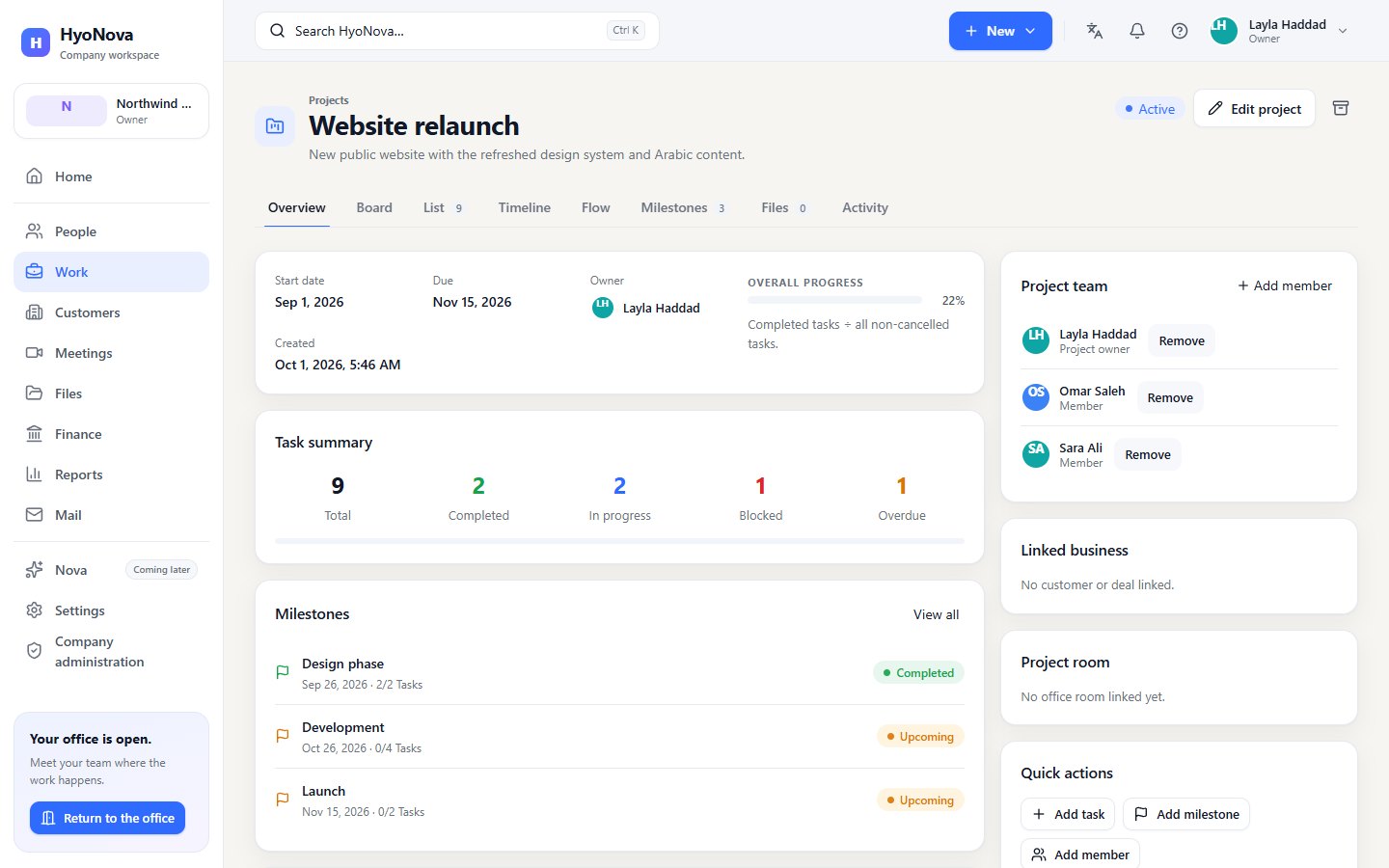
Edit a project and change its status#
- Edit project opens the project's Project name, Description, Start date and Due, and the links described below.
- The status chip next to the title is a menu: Move to Active, Completed or Archived. A completed or archived project can be made Active again.
- Archive (the box icon, owners and admins) takes the project out of Work altogether. There is no way to bring it back from the dashboard, so use the Archived status if you only want to put a project aside.
An archived project's board and flow are read-only.
Project team#
The creator of a project is its Project owner. In Overview › Project team, select Add member, choose a person and select Add; they are told by a notification. Remove takes someone off the team. Being on a project's team is what puts its tasks into your Team tasks view.
Milestones#
Milestones mark the checkpoints of a project — "Design approved", "Beta live".
- Add a milestone. In Milestones, select New milestone (or Add milestone on the overview).
- Describe it. Enter a Name, an optional Due date and a Description, then Save.
- Link tasks. When you create a task in the project, choose the milestone under More options › Milestone.
- Close it. Select Complete when it is reached; Reopen undoes it.
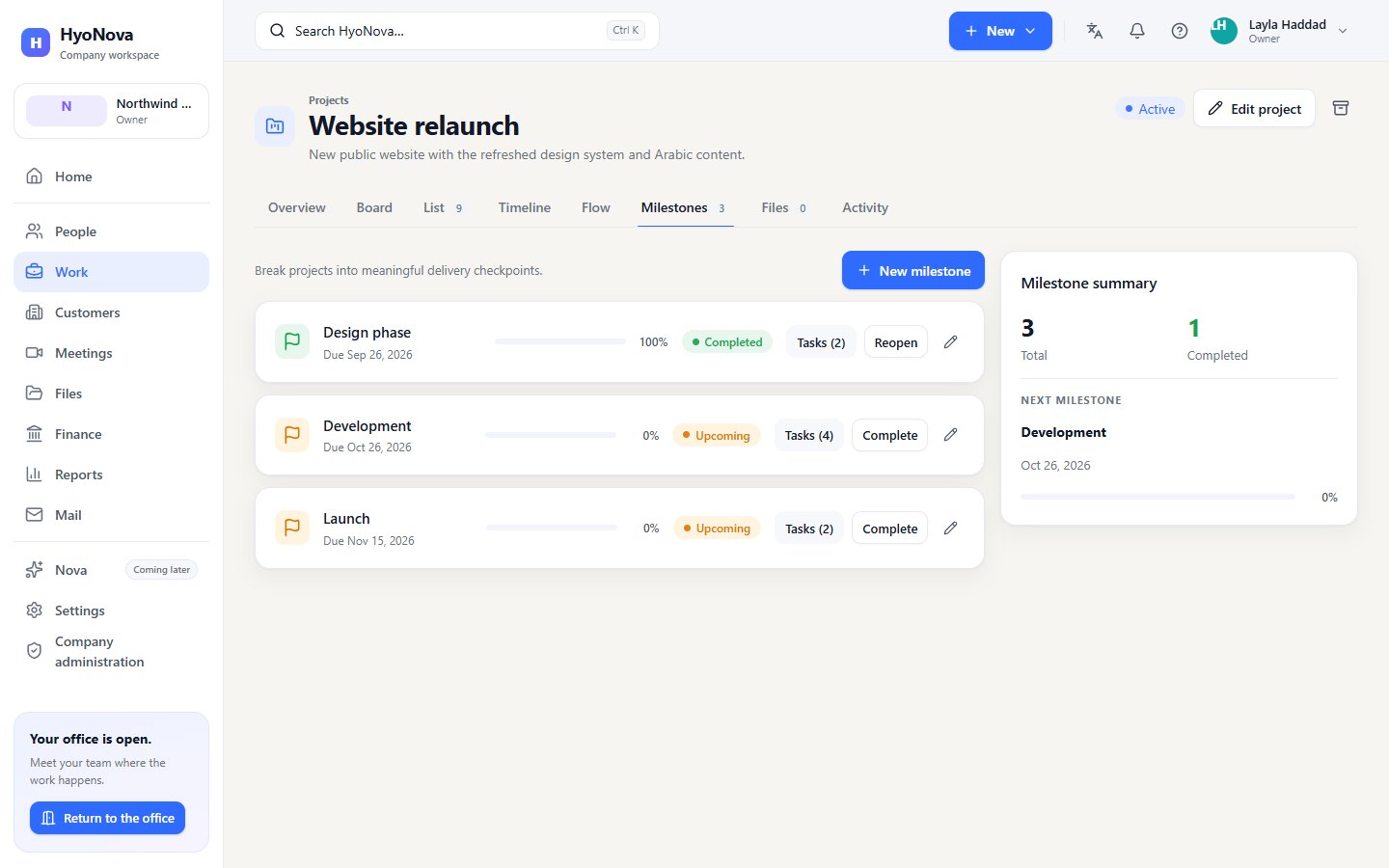
Each milestone shows its state: Completed once you complete it, Overdue when its due date has passed, In progress when at least one of its tasks is done, otherwise Upcoming. Milestone summary shows the totals and the Next milestone.
Link a customer, a deal and an office room#
In Edit project:
- Customer and Deal link the project to your customer records. They appear only for people who can see customers and deals. The overview then shows them under Linked business, with Open CRM.
- World and Project room place the project in a room of your office ("The office room where this project's context appears."). Members in that room see the project's progress and their tasks, and the room's screen shows the board. The overview then offers Go to project room, which opens the office and walks you there. See Work in the world.
Status#
| Feature | Status | Notes |
|---|---|---|
| Projects | AvailableWorks today for workspaces whose plan includes it. | Projects with a team, dates, milestones and tasks, and Overview, Board, List, Timeline, Flow, Milestones, Files and Activity tabs. |
Was this page helpful?
Thanks. Page ratings are not collected yet, so nothing was sent. If something is missing or wrong, see the Get help page.