Customers & CRM
Keep a shared list of business and individual customers, see each customer's deals and projects, and start a project from a deal. Contacts, leads and pipelines are planned.
On this page
Customers is where your company keeps the businesses and people it works for, the deals made with them and the projects that deliver them. Today it is a customer list with a detail panel. A fuller CRM — contacts, leads, pipelines and activity history — is planned.
Who can use Customers#
Customer and deal records are classified as confidential company data, which only the Owner and Admin roles can read.
| Role | What they see |
|---|---|
| Owner, Admin | The customer list, the customer panel, New customer and the Deals tab |
| Manager, Employee | Customers in the sidebar, but the list shows Not available for your role and Ask a company admin if you need access to this. |
| Restricted | Customers does not appear |
Open Customers#
- In the company workspace, select Customers in the sidebar, or search for a customer with Ctrl + K.
- In the office, select Customers on the left rail. A summary opens beside the office with Open in company workspace for the full page.
The customer list#
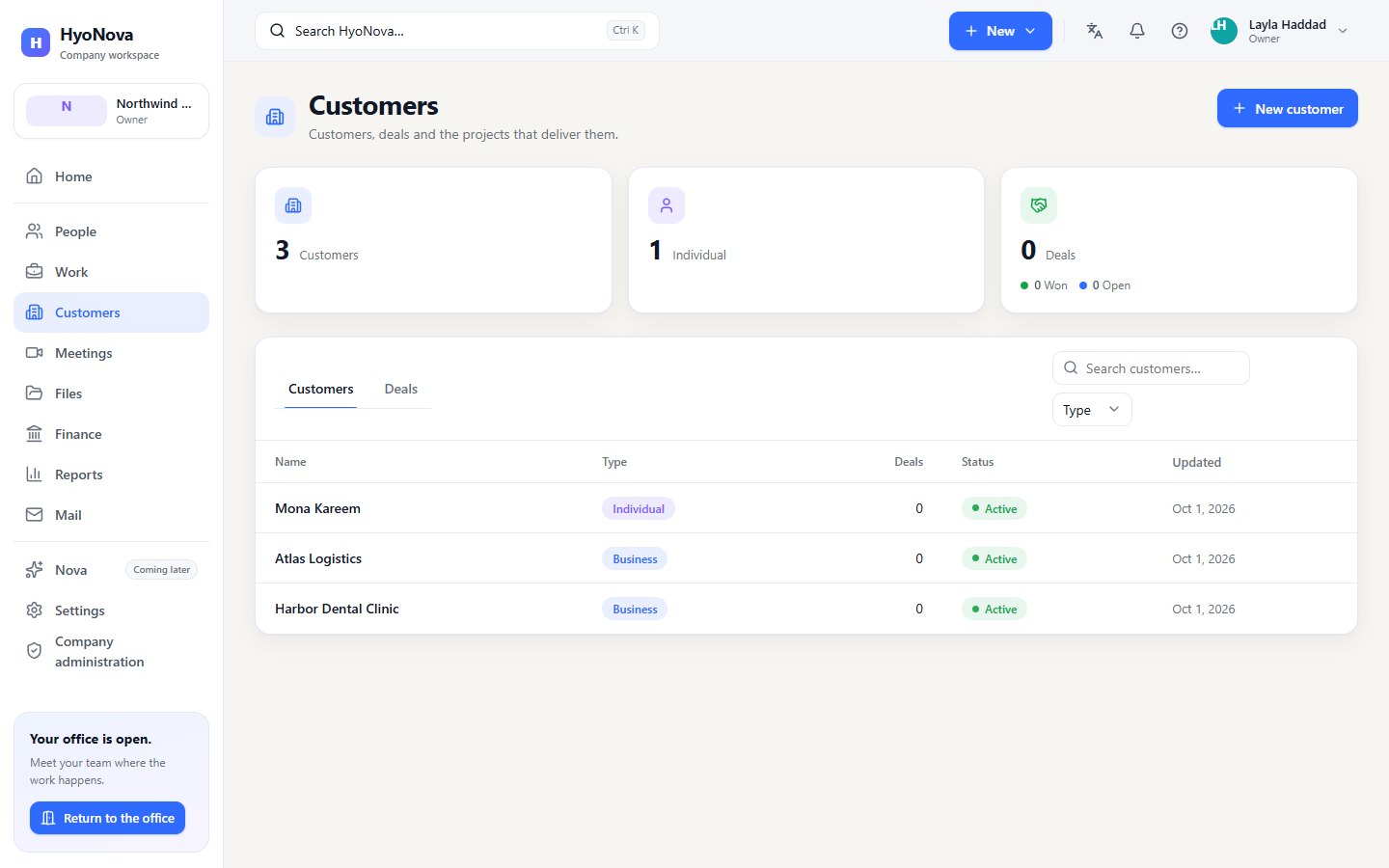
The page header reads Customers, deals and the projects that deliver them. Counters show the number of Customers, how many are Individual, and the number of Deals with how many are Won and Open.
- Search customers… finds a customer by name, and Type filters Business or Individual.
- The table shows Name, Type, the number of Deals, Status and Updated.
- The list loads a page at a time; select Load more to see the rest.
Add a customer#
- Open the dialog. Select New customer at the top of the page, or New › New customer in the top bar.
- Enter the name. Type the customer's Name (up to 180 characters).
- Choose the type. In Type, choose Business or Individual. The default is Business.
- Save. Select Save. The customer appears in the list with the status Active.
Customers cannot be renamed or removed from the dashboard yet, so check the spelling before you save.
The customer panel#
Select a customer to open its panel:
- Type, Status, Created and Updated.
- Deals — the customer's deals with amount and Open, Won or Lost. Next to a deal without a project, Create project starts a project linked to both the customer and the deal.
- Projects — the projects linked to this customer, with their status. New project creates one already linked to the customer; select a project to open it in Work.
The panel ends with the note Contacts, activities and files for customers arrive with the CRM module.
Deals#
The Deals tab lists each deal's Name, Customer, Amount and Status. It is read-only: deals cannot be created or edited in the dashboard yet. Selecting a deal opens its customer. See Sales and deals.
How Customers connects to other features#
| Connection | Status |
|---|---|
| Deals belong to a customer | Available (read-only, see Sales) |
| A project linked to a customer and a deal | Available — from the customer panel, or Edit project in Projects |
| Customers and deals in the company search | Available |
| Support conversations linked to a customer | Beta, with HyoNova Support — linked automatically only on a verified email or WhatsApp number, otherwise by an agent |
| Bookings linked to a customer | Beta, with Calendar & Bookings — linked by a member; a visitor is never attached to a customer because of the email they typed. See Bookings and customers |
| Google Drive and OneDrive files linked to a customer | Requires setup — see Google Drive and OneDrive files |
Status and limits#
| Feature | Status | Notes |
|---|---|---|
| Customers | AvailableWorks today for workspaces whose plan includes it. | Business and individual customers with their deals and linked projects, for owners and admins. |
| Contacts, leads and pipelines | PlannedOn the HyoNova roadmap. Not built yet and has no release date. | Customer contacts, leads, pipeline stages and activity history in the dashboard. |
What's planned for CRM#
Was this page helpful?
Thanks. Page ratings are not collected yet, so nothing was sent. If something is missing or wrong, see the Get help page.