Hyo Mail
Hyo Mail is the email product included in every HyoNova plan — contacts, an email builder, campaigns, automations, sign-up forms, store connections and a transactional email API.
On this page
Each company verifies its own sending domain before sending. Sending uses Mail credits. SMTP relay and a custom tracking domain are not available yet.
Hyo Mail is HyoNova's email product, included in every plan. It covers two jobs in one place:
- Email marketing — newsletters, announcements and campaigns to people who agreed to hear from you.
- Transactional email — messages your own product sends one at a time, such as receipts and confirmations, through an API.
Mail is part of your company workspace, not a separate product. It uses the same company, the same roles and the same sign-in.
Who can use it#
By default, Owners and Admins have full access to Mail. Managers, Employees and Restricted members do not see it in the sidebar.
To give other people access — for example a marketing team — an Owner or Admin can create a custom role with the Mail permissions in Company administration and assign it. See Roles and permissions.
Within Mail, the actions are split further:
| What someone can do | Needs |
|---|---|
| View contacts, campaigns, templates, reports and the message log | Permission to view Mail |
| Create and edit contacts, lists, segments, templates, campaigns, forms and automations | Permission to create and edit in Mail |
| Send or schedule a campaign, activate or pause an automation | Permission to approve in Mail |
| Export contacts and campaign reports | Permission to export from Mail |
| Manage domains and senders, Mail settings, API keys, webhooks and integrations | Mail administration |
Show technical details
Mail uses the marketing.* permission keys: marketing.read, marketing.create, marketing.update, marketing.delete, marketing.approve, marketing.export and marketing.admin. The company must also have the Mail module (module.marketing) on its plan. The server checks both on every request; hiding a menu item is never the protection.
Open Mail#
- In the company workspace, choose Marketing in the sidebar. Mail replaces the sidebar with its own sections, with a row to go back to the workspace on top.
- The sections are Home, Campaigns, Contacts, Automations, Reports and Settings. Each section has one row of tabs for the screens inside it. You see only what your role allows.
If your company does not have Mail, it shows Hyo Mail is not part of your plan. See Plans & billing.
What is in Mail#
| Section | What you do there | Guide |
|---|---|---|
| Home | Your setup checklist, audience size, recent campaigns and sending health at a glance | This page |
| Campaigns | Send campaigns step by step, test with A/B, and design emails in My templates or from Hyo Mail templates | Campaigns and analytics, Email builder and templates |
| Contacts | Contacts, lists, segments, sign-up forms, attributes and the suppression list | Contacts and audience |
| Automations | Email journeys, plus the transactional Messages, API keys, Webhooks and API guide | Automations, Mail API |
| Reports | Delivery, engagement and domain authentication across your campaigns | Campaigns and analytics |
| Settings | Sending defaults, brand kit, media, usage, Domains, Senders and Integrations | Senders, domains and settings, Connect your store |
Get started#
- Verify your domain. Open Mail › Settings › Domains, add the domain you send from and connect its DNS records — DKIM, SPF through a custom MAIL FROM domain, and DMARC. See Senders, domains and settings.
- Add a sender. Add a sender address on that domain and make it the default.
- Set your company address. In Mail › Settings › General, fill in Company physical address. It appears in the footer of every marketing email, and a campaign cannot be sent without it.
- Add contacts. Use Add contact, Import CSV, a sign-up form or a store connection. Record where each person's consent came from. See Contacts and audience.
- Design an email. Start from a Hyo Mail template or a blank email. See Email builder and templates.
- Send a campaign. In Campaigns, choose New campaign and follow the steps to Schedule & send. See Campaigns and analytics.
Home#
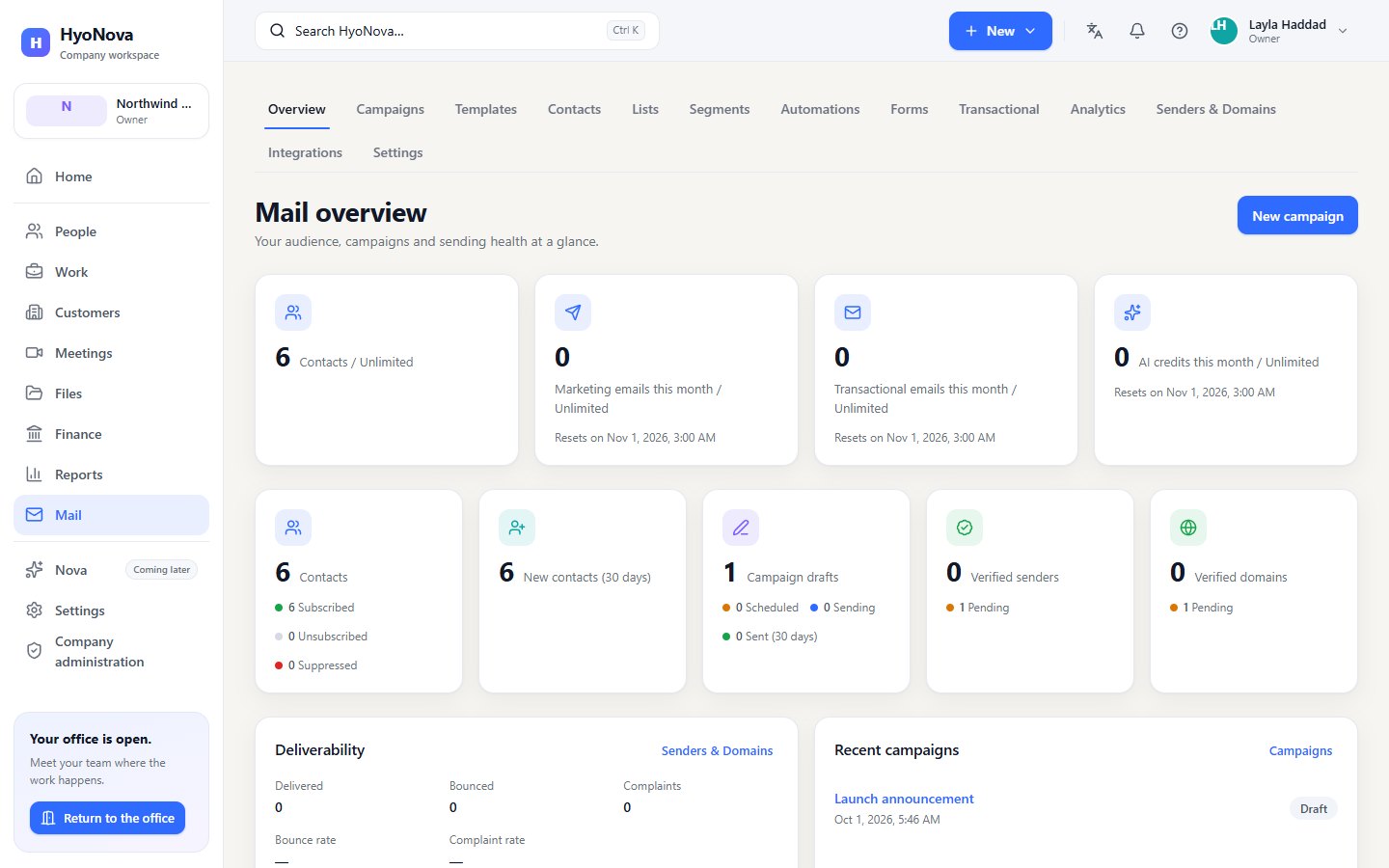
The home page shows your setup checklist until sending is ready, then your audience and campaigns, recent campaigns with their status, and deliverability — delivered, bounced and complaints, bounce and complaint rates, and how many senders and domains are verified.
A notice appears at the top when something affects sending. Sending is paused for your company by HyoNova means HyoNova has paused sending for your company — for example after a high bounce or complaint rate — and gives the reason. If HyoNova ever has to limit external sending for the platform, a notice says so here too.
How Mail connects to the rest of HyoNova#
- Your company. Contacts, campaigns and messages belong to your company and are isolated from every other company, like the rest of your HyoNova data.
- Roles. Who can see, send or administer Mail follows your company's roles and custom roles.
- Customers. Mail contacts are your email audience. They are kept separately from the customer records in Customers; adding a customer does not add a contact.
- Stores. WordPress, WooCommerce and Shopify can feed contacts, orders and products into Mail. See Connect your store.
- Marketing. Mail is the email channel of HyoNova's wider Marketing plans. Social publishing, WhatsApp and ads are planned separately.
- Automation. Mail automations are specific to email. Company-wide automation workflows are planned separately.
- Developers. The Mail API and signed webhooks are HyoNova's public API. See Developers.
Principles#
- Consent first. Marketing email goes only to subscribed contacts. Every marketing email carries an unsubscribe link, and unsubscribes, bounces and complaints are honoured automatically. A store connection never counts as consent.
- Your domain, verified. Each company verifies its own sending domain and a sender address before it sends campaigns.
- Nothing hidden. When a message is refused or a feature is not in your plan, Mail says so instead of pretending it worked.
Credits and limits#
- Sending uses Mail credits. One credit per email to one recipient, charged once when the message is handed to the email service. Every company receives promotional credits once — 500 on Free, up to 5,000 on Basic and 10,000 on Business — and you can buy packs that are valid for 12 months. There is no monthly allowance and no plan daily cap. See Mail and Sign capacity.
- Test sends are free, up to 100 a day.
- Delivery pace. HyoNova paces all sending to stay within its email provider's limits, so very large campaigns can be spread over more than one day. See Campaigns and analytics.
- The AI designer uses Serene credits. See Email builder and templates.
- Not available yet: an SMTP relay and a custom tracking domain.
| Feature | Status | Notes |
|---|---|---|
| Hyo Mail | AvailableWorks today for workspaces whose plan includes it. | Email marketing and transactional email: contacts, lists, segments, a drag-and-drop builder, campaigns, automation, forms and analytics. Each company verifies its own sending domain before sending. Sending uses Mail credits. SMTP relay and a custom tracking domain are not available yet. |
Was this page helpful?
Thanks. Page ratings are not collected yet, so nothing was sent. If something is missing or wrong, see the Get help page.