Invitations
Invite employees with a role, copy and share the invitation link, follow email delivery, resend, renew or revoke, and see what the invitee sees.
On this page
An invitation adds a person to your company with a role. HyoNova creates a personal link for them, emails it, and shows you what happened to the email. The person opens the link, sees which company invited them and with which role, sets or confirms their password, and joins in one step.
For visitors who should enter your office without becoming members, use a guest link instead.
Who can invite#
Only owners and admins invite members. You can give a role only if you hold every permission in it yourself:
| You are | Roles you can give |
|---|---|
| Owner | Owner, Admin, Manager, Employee, Restricted |
| Admin | Admin, Manager, Employee, Restricted |
| Manager, Employee, Restricted | None. Managers can create guest links, not member invitations. |
The invitation form offers the standard roles only. Custom roles cannot be chosen there — see Give a custom role after joining. If your role cannot invite, HyoNova says so instead of showing the form. See Roles and permissions.
Before you invite#
- Seats. Each invitation takes a seat on your plan until it is revoked. When all seats are used, HyoNova says "Your company has used all of its seats."
- The right address. The person must join with the email address you invite. If they already have a HyoNova account with that address, they join with it.
- One invitation per person. If the person is already a member or has a pending invitation, HyoNova says "This person is already a member or has a pending invitation."
Invite from the company workspace#
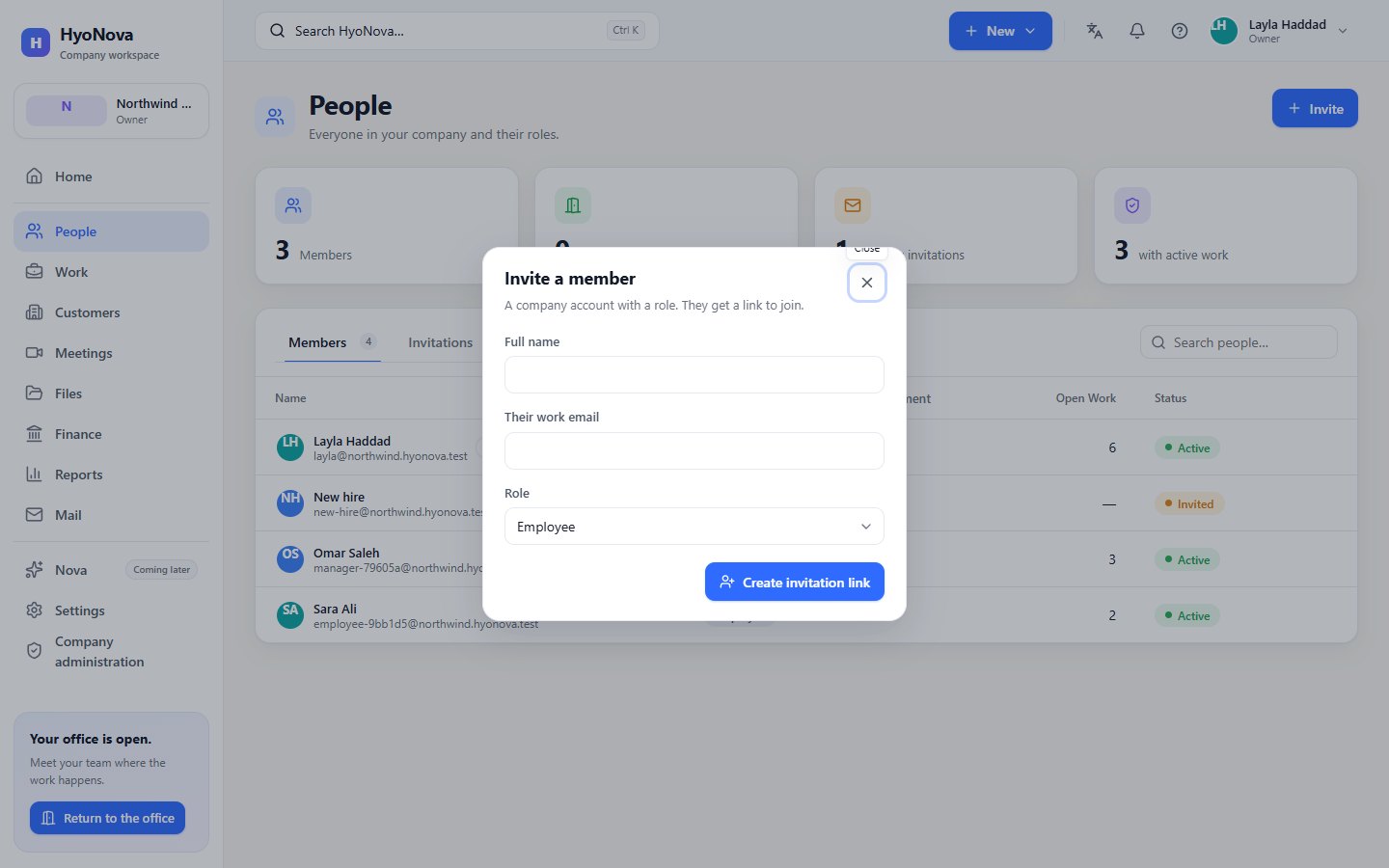
- Open the form. In the sidebar, open People and choose Invite at the top right. You can also choose New in the top bar › Invite person. Both open Invite a member.
- Enter their details. Type their Full name and Their work email.
- Choose a role. In Role, pick one of the roles you can give. Employee is selected by default.
- Create the invitation. Choose Create invitation link.
- Copy the link. HyoNova shows "Invitation link created. Copy it now — it will not be shown again." Choose Copy link and send it to the person.
Invite from Company administration#
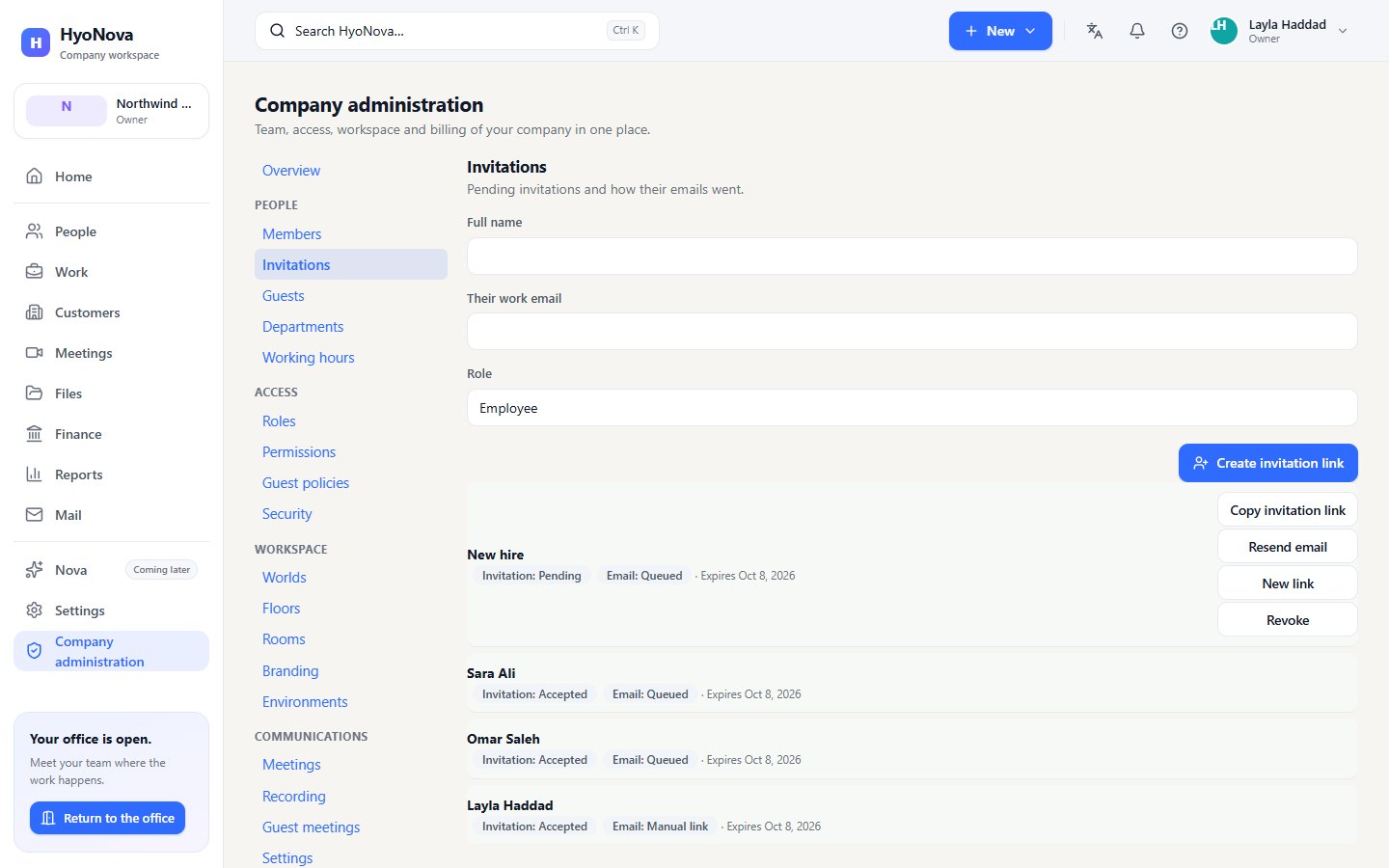
Owners and admins also find invitations in Company administration › People › Invitations — "Pending invitations and how their emails went." The same invitation form is at the top, and the list of invitations below it shows each invitation's status, email status and expiry, with the actions as buttons.
Invite from the office#
- Open the People sheet. In the office, open People in the left rail.
- Choose Invite. The button is next to the search field.
- Choose Invite employee. In Invite a member, keep Invite employee selected.
- Fill in the form. Enter Full name and Their work email, choose a Role, and choose Invite.
- Copy the link. Under Invitation created, copy the link and send it to the person.
Share the link#
The link is shown once, when you create the invitation. Copy it straight away.
During early access, each pending invitation also has Copy invitation link, so you can copy its link again later: "Invitation link copied. Send it to the person directly: they open it, choose their own password and sign in."
Treat the link like a key: someone who has it and knows the invited address could join as that person. Send it only to them, and do not post it in public places. If a link was shared by mistake, choose New link or Revoke.
Follow and manage invitations#
Invitations appear in three places:
- People › the Invitations tab, with a count of pending invitations. The Pending invitations card at the top of People shows the same count.
- Company administration › People › Invitations.
- Pending invitations in the People sheet inside the office.
Each invitation shows the person's name, the Invitation status, the Email status and when it Expires.
Invitation status: Pending, Accepted, Revoked or Expired.
Email status:
| Status | Meaning |
|---|---|
| Manual link | No email was sent, because email sending is off. Share the link yourself. |
| Queued | The email is waiting to be sent. |
| Sending | The email is being sent. |
| Sent | The email service accepted the email. |
| Delivered | The email reached the recipient's mail server. |
| Failed | The email could not be sent. The reason is shown under the invitation. |
| Bounced | The recipient's mail server refused the email ("The address bounced."). |
| Reported as spam | The recipient marked the email as spam. |
| Address blocked | Not sent, because this address bounced or complained before. |
Actions on a pending invitation — in the More actions menu of the row on People, or as buttons in Company administration:
| Action | What it does |
|---|---|
| Copy invitation link | Copies the same link again (early access). |
| Resend email | Sends the invitation email again with the same link: "The invitation email was queued again." |
| New link | Replaces the link. The old link stops working, a new link is shown for you to copy, a new email is sent, and the invitation is valid for another 7 days. |
| Revoke | Cancels the invitation. The link stops working, the person is removed from the list and their seat is freed. |
Company administration › Overview also lists invitation problems under Needs attention, for example "Invitation emails could not be delivered." or "Email sending is not enabled; share invitation links directly." Each has an Open button that takes you to the invitations.
Give a custom role after joining#
Invitations use standard roles. If your company created custom roles, invite the person with a standard role first. After they join, an owner or admin opens Company administration › People › Members and picks the custom role in the Change role column for that member.
Expiry#
An invitation is valid for 7 days. Its expiry date is shown in the list and on the invitee's page. If the person has not joined yet and the date is close, choose New link and send them the new link.
What the invitee sees#
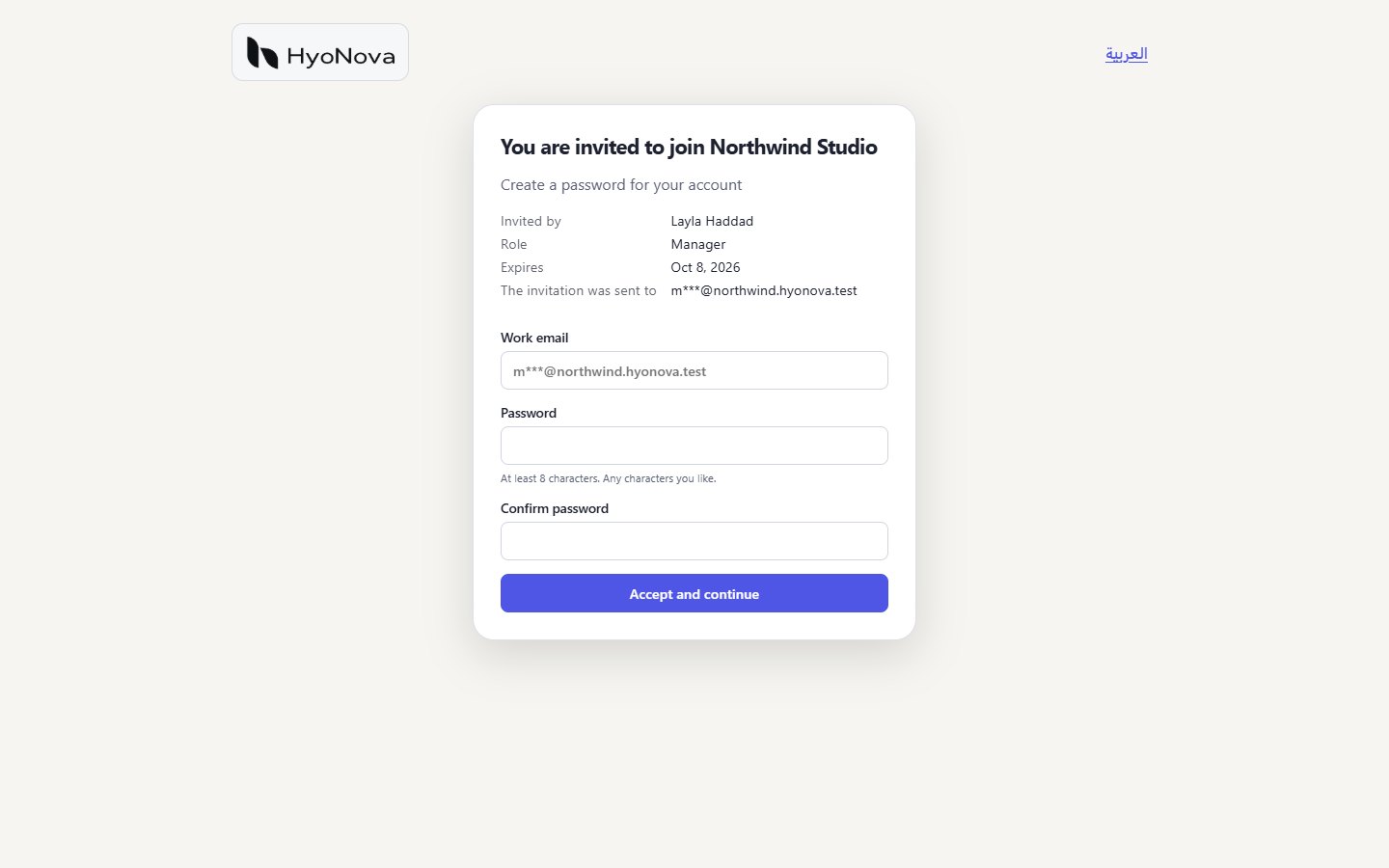
The link opens a single page titled You are invited to join and your company's name. It lists:
- Invited by — the name of the person who sent the invitation;
- Role — the role they will have;
- Expires — the date the invitation stops working;
- The invitation was sent to — the invited address, partly hidden.
Nobody is asked for a company ID, a role or an office. For safety, the link leaves the browser's address bar as soon as the page opens; reloading the page in the same tab before accepting still works.
The rest of the page depends on who opens it:
| Situation | What they see | What they do |
|---|---|---|
| Not signed in, new to HyoNova | Create a password for your account, with Work email, Password and Confirm password. | Type the full invited address and a password of at least 8 characters, then choose Accept and continue. |
| Not signed in, already on HyoNova | Enter your account password, with Work email and Password — "If you already have a HyoNova account, use its current password." | Type the invited address and their current password, then choose Accept and continue. Forgot your password? leads to a password reset. |
| Signed in with the invited address | Signed in as with their name and address, and one button: Join company. | Choose Join company. No password is needed. |
| Signed in with another account | "You are signed in with a different account than the invited one." and Switch account. | Choose Switch account. HyoNova signs the other account out and shows the form for the invited address. |
After joining, HyoNova signs them in and opens the welcome steps for an employee — Your profile, Your character, Microphone and camera — and they choose Enter HyoNova. On later visits, HyoNova takes them straight to your company while they stay signed in.
If the link cannot be used, they see one of these messages:
| Message | What to do |
|---|---|
| "This invitation has expired. Ask your company to send a new one." | Send a new invitation (see Expiry). |
| "This invitation was withdrawn. Ask your company to send a new one." | The invitation was revoked or replaced with New link. Send the current link. |
| "This invitation was already accepted. Sign in to continue." | They are already a member. They sign in at https://app.hyonova.com/sign-in. |
| "This invitation link is incomplete. Ask your company to send it again." | The link was cut off when it was copied. Copy it again in full. |
| "This invitation is invalid, expired, revoked or already used." | Send them a fresh link with New link. |
| "The passwords do not match." | The two password fields differ. They type the same new password twice. |
More help: Sign-in and invitations.
Status#
| Feature | Status | Notes |
|---|---|---|
| Member invitations | AvailableWorks today for workspaces whose plan includes it. | Invite employees by email with a role. Invitees see the company, inviter and role, and join in one step. |
| Invitation emails | BetaWorks today in early-access workspaces. Behaviour and limits may still change. | HyoNova emails the invitation link and shows whether it was delivered. If an invitation email does not arrive, use “Copy invitation link” and share the link yourself. |
Was this page helpful?
Thanks. Page ratings are not collected yet, so nothing was sent. If something is missing or wrong, see the Get help page.