Guest links
Create a guest link with a preset or advanced options, approve visitors, follow guest visits, end a visit, revoke a link and promote a guest to employee.
On this page
- Before you start
- Where to create a guest link
- Create a guest link
- The presets
- Advanced options
- After you create the link
- What your guest sees
- What guests can do inside
- Approve a visitor
- Follow guest visits
- End a visit
- Manage your guest links
- Revoke a link
- Promote a guest to employee
- When a visit ends
- Limits today
- Visitor links and Visitor Passes
- Status
A guest link lets a visitor without an account into one of your office worlds for a limited time. You choose what the guest may do with a preset, or option by option under Advanced; you can require your approval for each visitor, end a visit, and revoke the link at any moment.
Before you start#
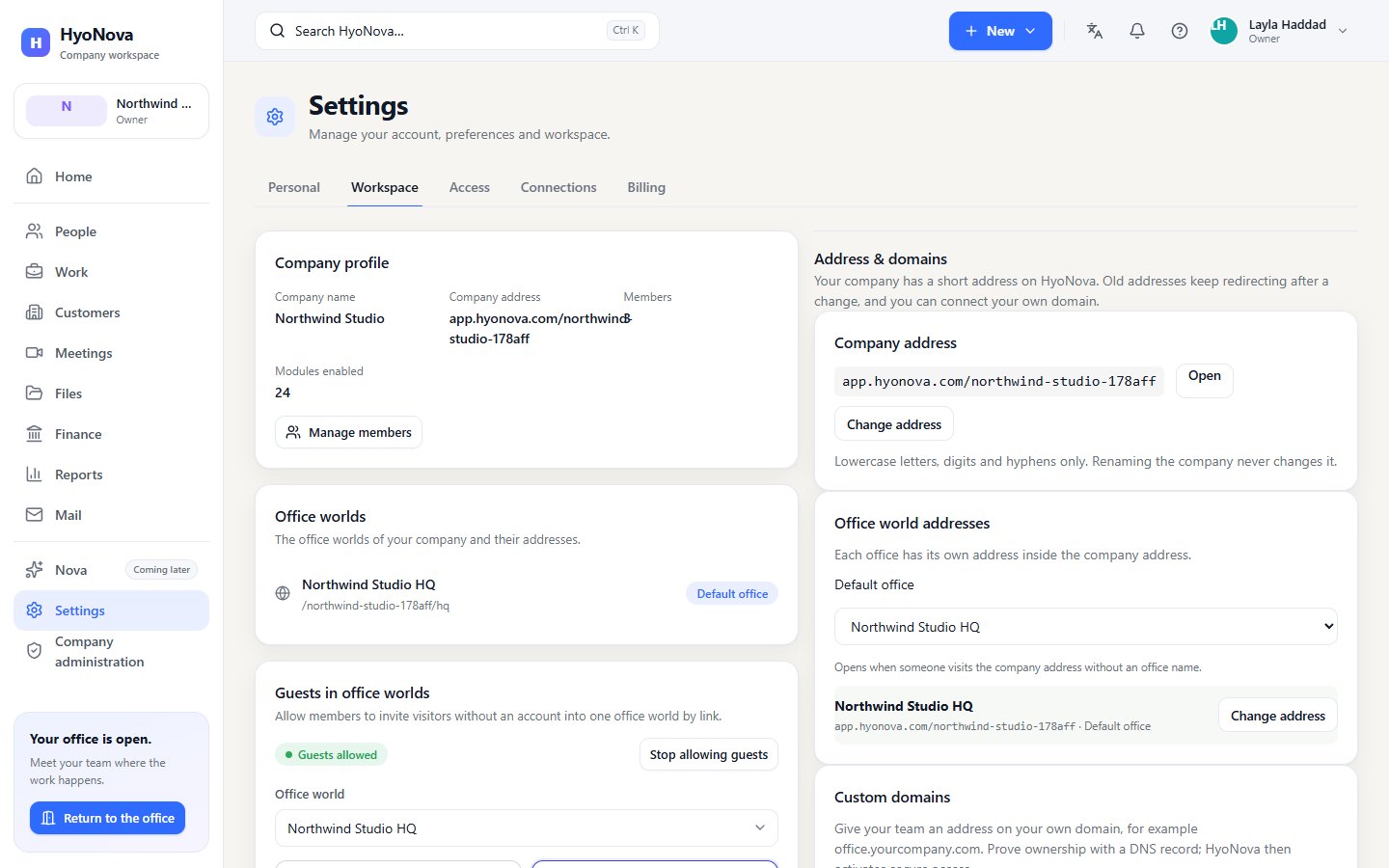
- Guests must be allowed. Settings › Workspace › Guests in office worlds must show Guests allowed. If it shows Guests not allowed, an owner or admin selects Allow guests. See Guests.
- Office visits need Visitor Passes. A guest who enters the office is an Office Visitor: your plan must include Office Visitors (Basic, Business or Enterprise), and each admitted guest uses one Visitor Pass. With no pass left, the guest is not admitted. Meeting only links are free.
- Your role must allow it. Owners, admins and managers can create guest links. Employees and restricted members cannot.
- The office must exist. If your company has no office world yet, you see No office world is available for your company yet.
Where to create a guest link#
- People › Guests tab — the link opens your company's first office world. Below the form, Existing guest links are managed in Settings → Workspace.
- Settings › Workspace › Guests in office worlds — choose the Office world first. The Guest links list for that office is right below the form.
- Company administration › Visitors & Events › Visitor links — the same form, plus Visitor details: the purpose of the visit, the visit length, the allowed visitor areas and what to ask the visitor. See Visit sessions.
Create a guest link#
- Choose a preset. Select one of the three cards. Workspace visitor is selected at first.
- Add details (optional). Guest name (optional) fills in the visitor's name for them and labels the link. Guest email (optional) records who the link is for and, when email sending is on, emails it to them.
- Choose how long it is valid. Under Valid for, choose 2, 8, 24, 72 or 168 hours (7 days). The default is 24 hours.
- Decide on approval. Leave Host approves each visitor on if you want to let each person in yourself.
- Adjust (optional). Select Advanced to change individual options, and Simple to go back to the cards.
- Create the link. Select Create guest link. HyoNova shows Guest link created. Copy it now — it will not be shown again.
- Copy and share it. Copy the link and send it to your visitor in any way you like.
The presets#
| Preset | What the guest gets | Host approval |
|---|---|---|
| Workspace visitor | Enters the office, walks around, uses seats and doors, talks with spatial voice, writes to the host. | On |
| Collaborator | Everything a visitor has, plus movement between allowed floors. To let them write to other members, choose them under Advanced › Selected members. | On |
| Meeting only | No office, no reception, free. Meant for meetings of the host, but it does not lead into a meeting yet — see Limits today. | Off |
Host approves each visitor follows the preset you pick, and you can switch it on or off for any preset.
Advanced options#
| Group | Option | What it does |
|---|---|---|
| World | Floor, Room or zone | Keeps the guest on one floor, or lets them enter only one room. Whole world means no limit. The lists come from the published office; floor choices matter only in offices with more than one floor. |
| World | Host | Me or another member. The host receives the approval requests and is the person the guest writes to under Host only. |
| Chat | Host only | The guest can write to the host in Messages. |
| Chat | Selected members | Members the guest may also write to. Channels are not available to guests. |
| Meetings | Join meetings, Camera, Microphone, Screen share, Meeting chat, Temporary files | What the guest gets in a meeting the host shares with them in chat. See Limits today. |
| World | Spatial presence | Needed to enter the office at all. |
| World | Interact | Using seats, doors and other objects, and talking with spatial voice. |
| World | Move between allowed floors | Changing floors in offices with several floors. |
| Validity | Maximum uses | How many people may enter with the link. Empty means Unlimited. |
Under the options, What this guest can do sums up the result. Options you do not hold yourself are disabled with You cannot grant this: you do not hold it yourself. — and if a preset contains one, Create guest link stays unavailable. This is why managers cannot create Collaborator links.
After you create the link#
If you entered an email address, the confirmation also shows the email status, such as Queued or Sent. If email sending is off, you see The link was created, but no email was sent because email sending is off. — share the link yourself. Email delivery is limited during early access, so copying the link is the most reliable way.
What your guest sees#
- The reception. The link opens Welcome to followed by your company name — Tell reception who you are. Your host will know you have arrived.
- Name, details and character. The guest enters Your name — already filled in and fixed if you gave a guest name — answers the questions your company or the link asks (email, company, phone, job title, purpose), and picks a look under Your character.
- Devices (optional). Check microphone and camera shows whether the browser can use them.
- Visit terms. The guest ticks I have read the privacy notice and I accept the visit terms. Without it, they cannot enter.
- Entering. The guest selects Enter and arrives in the office; admission uses one Visitor Pass. With host approval, the button is Request entry instead, and the guest waits on Waiting at reception — Your host has been told you are here. You will enter automatically as soon as they let you in. It shows your company and the host's name.
- The answer. When the host approves, the guest enters on their own. If the host declines, they see Your host declined — You cannot enter with this link now. Ask your host for a new one.
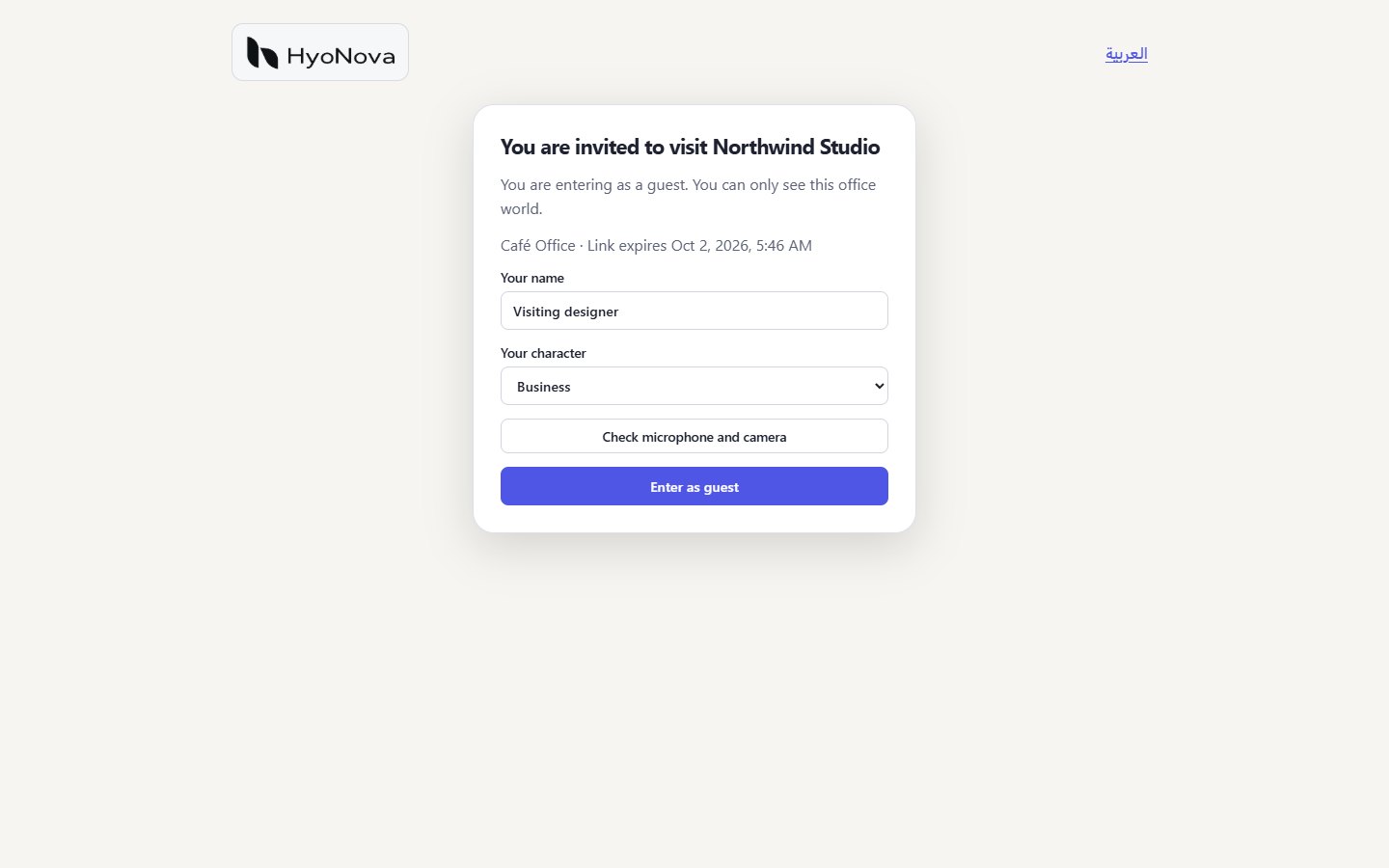
A Meeting only link keeps the short form: You are invited to visit, Your name, Your character and Enter as guest, with no reception and no Visitor Pass.
No account, password or installation is needed. The guest needs a desktop browser with WebGL and a screen at least 600 pixels wide. Reloading the page, or opening the link again in the same browser while the visit lasts, brings back the same visitor — not a new guest, and no new Visitor Pass. If the guest opened the link in a browser already signed in to HyoNova, the visit records that account.
What guests can do inside#
- Walk, enter the rooms their link allows, sit down and open doors.
- See who is here in People. Others see the guest's name with a Guest tag.
- Talk to people nearby with spatial voice, when it is available for your company.
- Write in Messages to Your host and to the members chosen in the link. Each contact shows In the office or Not in the office now.
- Use the visit panel: their host and whether the host is in the office, Message host, the places they may go, the time left — with a warning five minutes before the end — and Join host's meeting when the host shares a meeting in chat.
- Leave with Leave, which ends the visit: Your visit has ended.
Guests cannot use their camera in the office, call members, or open the company workspace or another office. Members cannot call guests, but they can talk to them nearby and reply to their messages.
Approve a visitor#
When a guest selects Request to join:
- In the office, the host — and owners and admins who are in the office — see a badge on Notifications in the left rail and "name asks to enter the office" with Approve and Decline.
- In the Guest visits list, the visitor appears as Waiting with Approve and Decline. The host and anyone who manages guests (owners, admins, managers) can decide there. Company administration › Overview also counts Guests waiting.
Approving admits only that visitor; others who used the same link keep waiting for their own decision.
Follow guest visits#
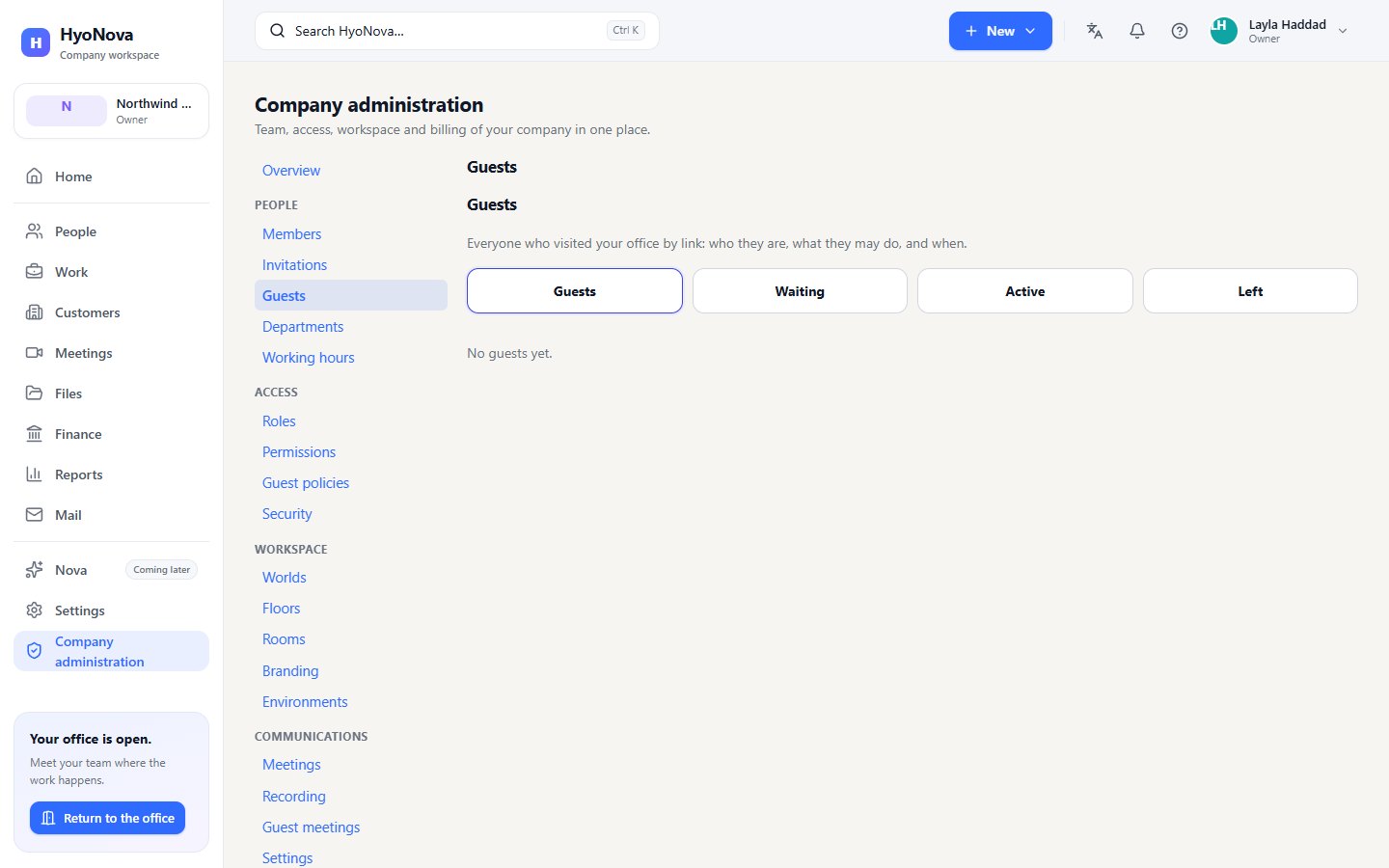
Guest visits in Settings › Workspace, and Company administration › People › Guests, list everyone who visited by link. Filter with Guests (all), Waiting, Active or Left.
| Column | Meaning |
|---|---|
| Visitor | The guest's name, and their account email if they were signed in |
| Status | Waiting, Approved, Declined, Active, Left or Ended by host |
| Host | Who hosts the guest |
| Link | The preset of the link they used |
| Expires | When the visit ends at the latest |
Select a visitor's name for Details: What this guest can do, HyoNova account (No account or Verified account), History (requested, decided, arrived) and Last seen. Members who do not manage guests see only the visits of links they created or host.
End a visit#
Select End visit next to an Active visitor. They are removed from the office and the visit shows Ended by host. The host and anyone who manages guests can end a visit.
Manage your guest links#
Settings › Workspace › Guests in office worlds › Guest links lists the links of the selected Office world. Owners and admins see every link; managers see the links they created.
| Column | Meaning |
|---|---|
| Name | The guest name, the guest email, or Guest link if neither was given |
| Status | Active, Revoked or Expired |
| Expires | When the link stops working |
| Last used | When someone last entered with it, or Never |
Revoke a link#
Select Revoke next to an active link. The link stops working at once, and anyone inside the office with it is removed immediately. Owners and admins can revoke any link; managers can revoke their own. A link cannot be extended — create a new one instead.
Promote a guest to employee#
Owners and admins can turn a visitor who is Waiting, Active or has Left into a company member.
- Open the dialog. In Guest visits, select Promote to employee next to the visitor, or in their Details. The guest becomes a member of your company with the role you choose. Their visit ends now.
- Choose the role. Pick a standard Role you can grant; Employee is preselected.
- Give an email if needed. If the guest has no HyoNova account, enter their Email — an employee invitation is emailed to this address. If they signed in with a HyoNova account, they become a member immediately.
- Add optional details. Department (optional), Working schedule (optional) with Start and End, and Seat (optional).
- Confirm. Select Confirm promotion. You see Done. The guest is now a member. or Done. An invitation was created; the membership starts when it is accepted. with the invitation link to copy.
The list then shows Member or Invitation sent. A promotion needs a free seat (Your company has used all of its seats. otherwise), and it is recorded in the audit log. The guest's earlier visit messages stay with the visit; they do not move to the new account. Email delivery is limited during early access, so copy the invitation link from the dialog and send it yourself. See Invitations.
When a visit ends#
A visit ends when:
- the guest leaves — they select Leave and see Your visit has ended.;
- you end it — End visit in the Guest visits list;
- its time is up — each visit lasts its visit length (2 hours unless your company or the link sets another), and never longer than the link;
- the link is revoked;
- the guest is promoted to employee;
- guests are switched off — Stop allowing guests removes every guest in your offices.
A guest who opens an expired or revoked link sees This guest link is invalid, expired or revoked. Ask the person who invited you for a new link. If guests are switched off, they see Guest visits are not available for this company right now. For other problems, see Guest access troubleshooting.
Limits today#
- Meetings need a shared meeting. A guest whose link has Join meetings and Host only joins a running meeting of their host only when the host shares it in their chat, and the meeting screen has no share button yet — see Files, meetings and signatures. A Meeting only link has no office and no chat, so it does not lead into a meeting yet. To bring someone into one meeting, use the meeting's Create guest invitation — see Guests.
- Managers and Collaborator. Managers cannot grant temporary files, so they cannot create Collaborator links; they use Workspace visitor, adjusted under Advanced if needed.
- Messages only to allowed people. A guest writes only to the host and the selected members. Without any chat option, the guest has no Messages button.
Visitor links and Visitor Passes#
A guest link that lets someone into the office is a visitor link of Visitors & Events. In Company administration › Visitors & Events › Visitor links you also choose the visit's purpose and length, the visitor areas and the reception questions. Each admitted Office Visitor uses one prepaid Visitor Pass ($1); meeting-only guests stay free, and re-entry during a visit costs nothing.
Status#
| Feature | Status | Notes |
|---|---|---|
| Guest links to your office | AvailableWorks today for workspaces whose plan includes it. | Invite visitors into one office world with a link that expires, and revoke it at any time. |
| Guest access presets | BetaWorks today in early-access workspaces. Behaviour and limits may still change. | Meeting only, Workspace visitor and Collaborator presets with advanced options for rooms, chat, devices and files. An office guest whose link allows meetings can join a meeting the host shares in the visit chat, but the app has no button to share a meeting yet. A Meeting only link does not lead into a meeting yet; to invite someone to one meeting, use the meeting's guest invitation. |
| Host approval for guests | BetaWorks today in early-access workspaces. Behaviour and limits may still change. | Guests ask to join and a host lets them in or declines. |
| Promote a guest to employee | BetaWorks today in early-access workspaces. Behaviour and limits may still change. | Turn a trusted guest into a company member, with an audit record. |
Was this page helpful?
Thanks. Page ratings are not collected yet, so nothing was sent. If something is missing or wrong, see the Get help page.