Choose your world
Pick one of twelve office templates, or start empty. Template sizes, what the cards show, who can create an office and how your plan limits worlds.
On this page
Your world is your company's 3D office: the place where your team appears, meets and opens its work. You start it from a template — a ready-made office layout with rooms, desks and furniture already in place.
Why the template matters#
The template decides the rooms your team has on day one: how many meeting rooms, whether there is a lounge, a focus room or a large training space, and how many people fit. Pick the one closest to how your team works today. The team sizes below are recommendations, not limits on your plan.
The templates#
| Template | Recommended team size |
|---|---|
| Café Office | 1–10 |
| Executive Suite | 1–10 |
| Minimal Workspace | 1–10 |
| Modern Office | 11–25 |
| Startup Loft | 11–25 |
| Creative Studio | 11–25 |
| Garden House | 11–25 |
| Majlis Office | 11–25 |
| Social Hub | 26–50 |
| Training Center | 26–50 |
| Events Venue | 51–100 |
| Company Campus | 101–250 |
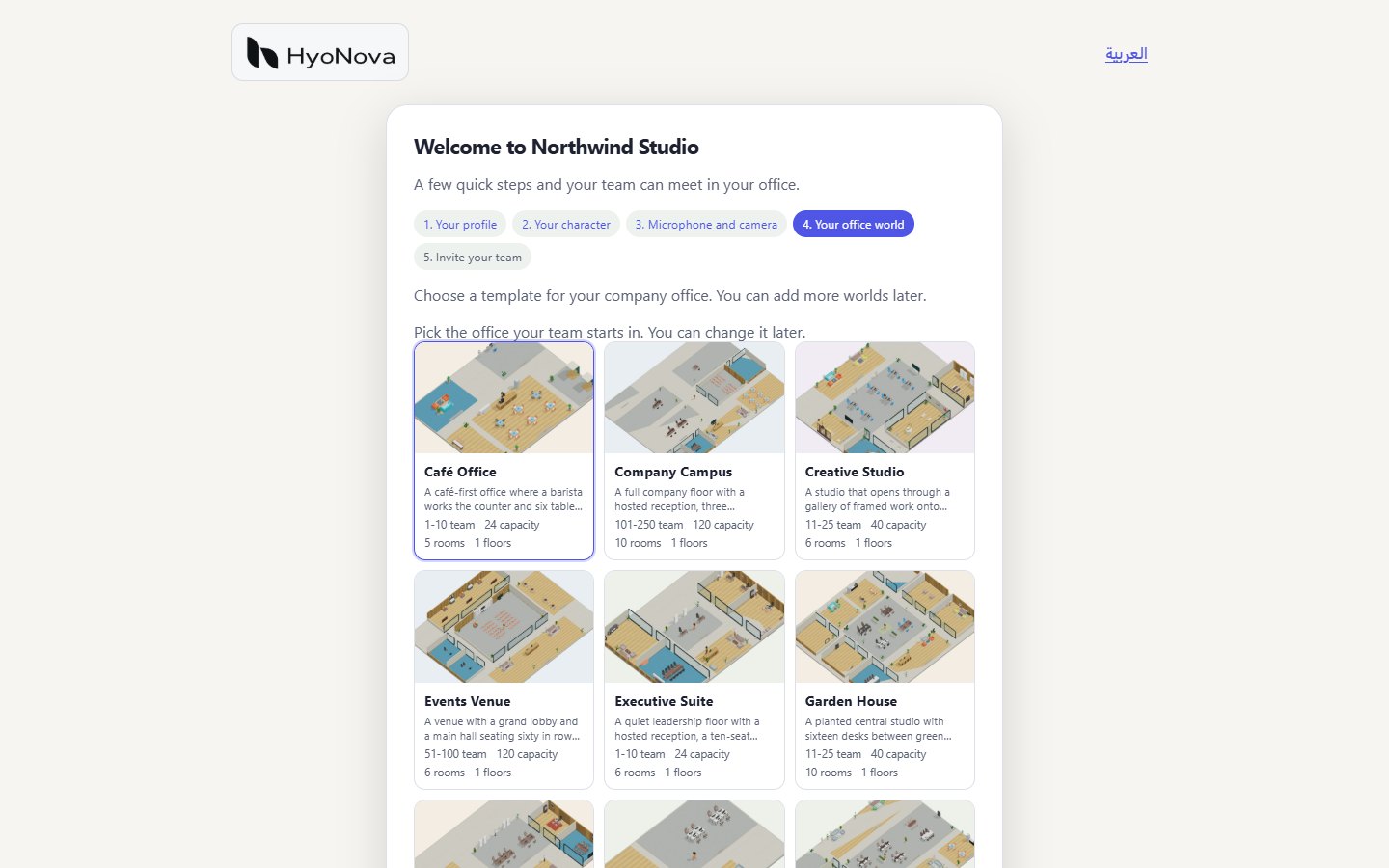
Each template card shows its recommended Team size, its Capacity (how many people the office holds), the number of Rooms and the number of Floors. Many cards also have a picture of the office.
Start empty#
If you would rather design the office yourself, start with an empty floor. In the trial, choose Start empty. In the welcome steps, the empty office appears in the list as Your new office. An empty office has no rooms or furniture until someone adds them in the office builder, which is in Preview.
Where you choose#
| Where | How |
|---|---|
| The trial at https://app.hyonova.com/start | On Choose your office, select Choose, Preview in 3D or Start empty. Anyone can try this, and claiming the trial keeps the office. |
| The welcome steps after sign-up | On Your office world, select a template, enter a World name and choose Create office. |
- Pick a template. Select the card that matches your team. The larger preview shows the one you selected.
- Name the office. HyoNova suggests your company name followed by "HQ". Change it if you like.
- Check your allowance. Worlds used shows how many office worlds your company has and how many your plan allows.
- Create it. Choose Create office. When you see "Your office is ready.", continue with the welcome steps.
Who can create a world#
Only Owners and Admins can create a company office. Other members never see the Your office world step; they enter the office an owner or admin created.
Today, a company office is created in the welcome steps or by claiming a trial office. The company workspace does not have a screen for adding further offices yet. If you skipped the step, contact HyoNova through Get help.
World allowance by plan#
Your plan sets how many office worlds your company can have. A claimed trial office counts toward the same allowance. When the allowance is used up, the welcome step shows "Your plan has no more office worlds." instead of the template list.
Floors today#
Every template has one floor today. Multi-floor offices are planned.
After you choose#
Your whole team enters the same office. Owners and admins can later rearrange it in the office builder — see Customize your office to understand what the builder can and cannot do today. For rooms, room types and capacity, see Worlds and spaces.
Was this page helpful?
Thanks. Page ratings are not collected yet, so nothing was sent. If something is missing or wrong, see the Get help page.