Create your company
Sign up or claim a trial office to create your HyoNova company, then follow the welcome steps. You become the company's Owner.
On this page
A company is your organization in HyoNova. It owns its members, its offices, its work and its data, and it is kept separate from every other company. Creating one gives you a company workspace and makes you its Owner.
Who can create a company#
Anyone can create a company from the sign-up page or by claiming a trial office. You do not need an invitation. If your company already uses HyoNova, do not create a second one — ask an owner or admin to invite you instead.
Two ways to create it#
Sign up#
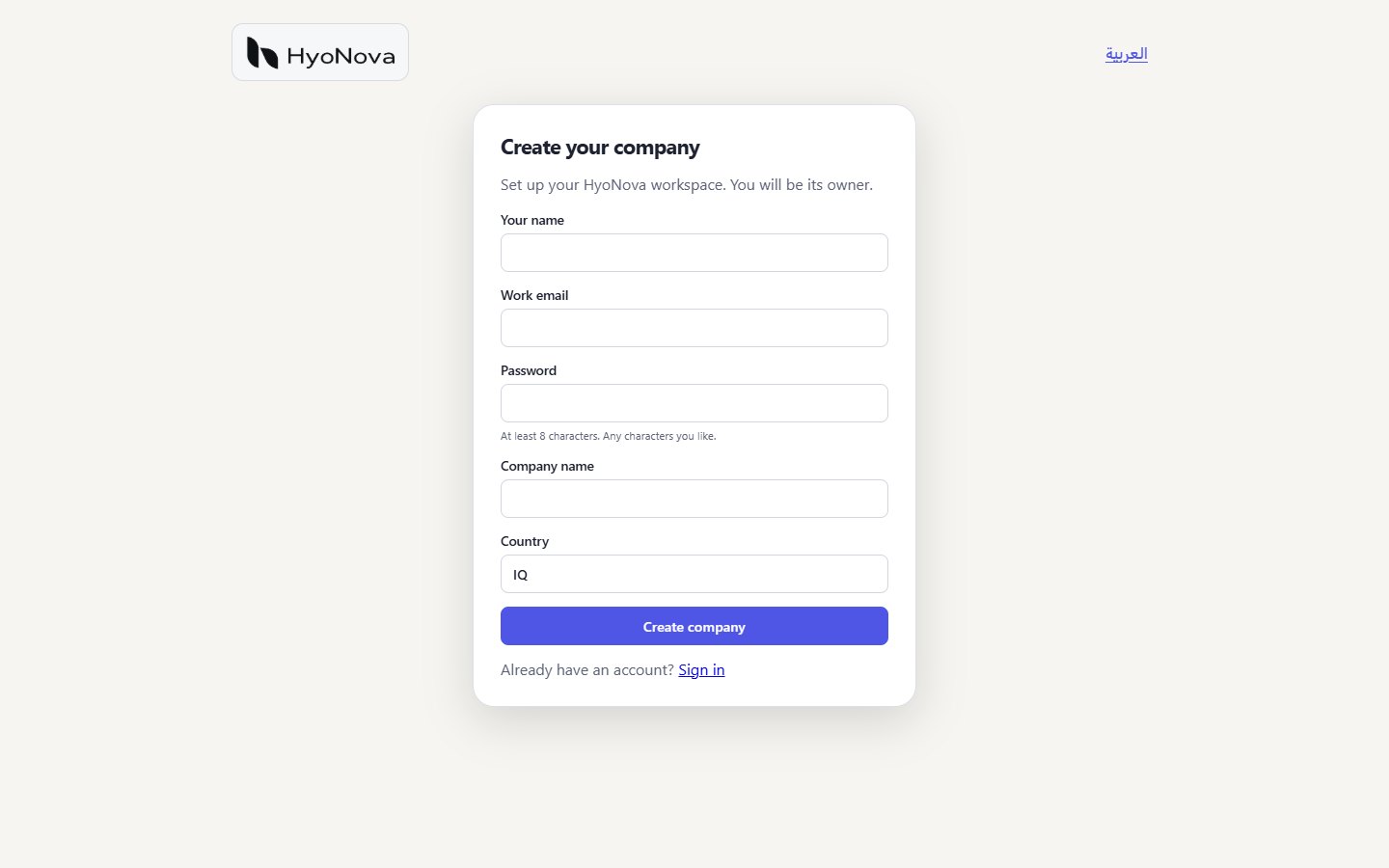
- Open the sign-up page. Go to https://app.hyonova.com/sign-up, or choose Create your company on the sign-in page.
- Fill in your details. Enter Your name, your Work email and a Password. The password needs at least 8 characters, and any characters are allowed.
- Describe your company. Enter the Company name and check Country. Country is a two-letter country code, such as
IQorAE, and it is filled in for you — change it if your company is elsewhere. - Create the company. Choose Create company. HyoNova creates the company with you as its Owner and opens the welcome steps.
HyoNova also takes two settings without asking: the company's time zone comes from your browser, and its language from the language the page is shown in. Owners and admins can change the company name, language, country and time zone later in Company administration › Company › Profile. See Company settings.
If the address already has a HyoNova account, the page says "An account with this email already exists. Sign in instead." Sign in with that account rather than creating a new one.
Claim a trial office#
If you started with the trial at https://app.hyonova.com/start, you already chose an office, a name and a character. Claiming keeps all of it.
- Choose Claim your workspace. It is on the side card while you walk around the trial office.
- Enter your details. Enter your Work email and a Password. Company name is filled in for you from your name — change it to your company's real name.
- Claim. Choose Claim workspace. The trial office becomes your company's office.
- Invite your team or skip. On Invite your team, create invitations, or choose Skip and enter workspace. You go straight into your office.
A claimed workspace skips the welcome steps below, because you already made those choices in the trial.
The welcome steps#
After you sign up, HyoNova opens Welcome to your company with a short set of steps. What you see depends on your role.
| Step | What you do | Who sees it |
|---|---|---|
| Your profile | Check your Display name — the name colleagues see. | Everyone |
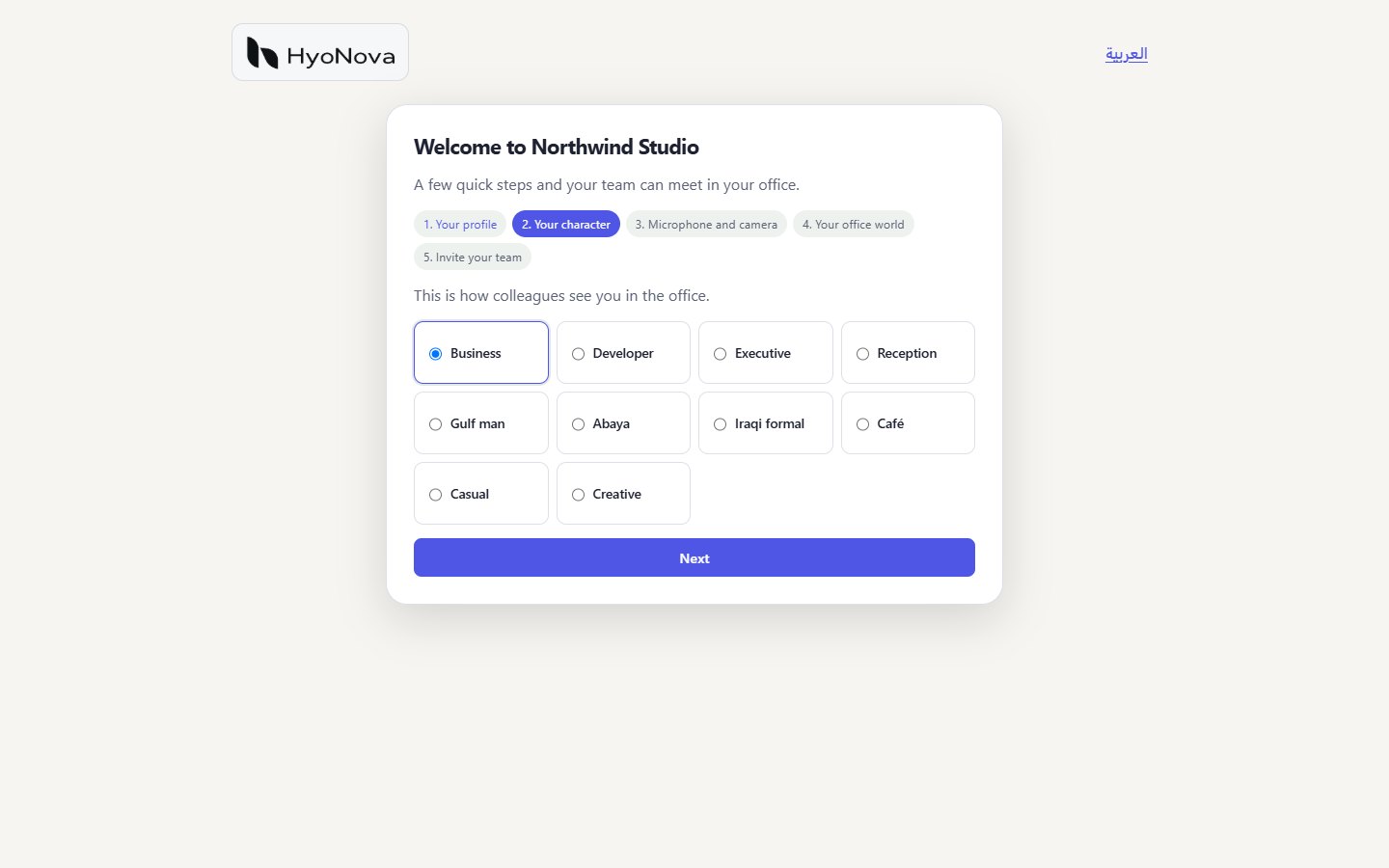
| Your character | Pick one of ten starting looks, such as Business, Developer, Executive or Casual. You can change clothes and details later. | Everyone |
| Microphone and camera | Optionally choose Check microphone and camera. Skipping or failing the check never blocks you. | Everyone |
| Your office world | Pick a template, give the office a World name, and choose Create office — or Skip for now. | Owners and admins |
| Invite your team | Invite colleagues now, or later from People. | Owners and admins |
Choose Next to move on. The last step has Enter HyoNova, which takes you into your new office, or into the company workspace if no office exists yet.
People who join through an invitation see only the first three steps.
What the Owner is#
The person who creates the company becomes its Owner. The Owner holds every permission, including payroll and restricted finance records. The Owner can:
- invite members and choose their roles, including other admins;
- create the company's office;
- allow or stop guests in office worlds;
- open Company administration to manage people, roles, access, the workspace and company settings.
An Admin can do almost everything an Owner can, except see payroll and restricted records. See Roles and permissions.
Signing in later#
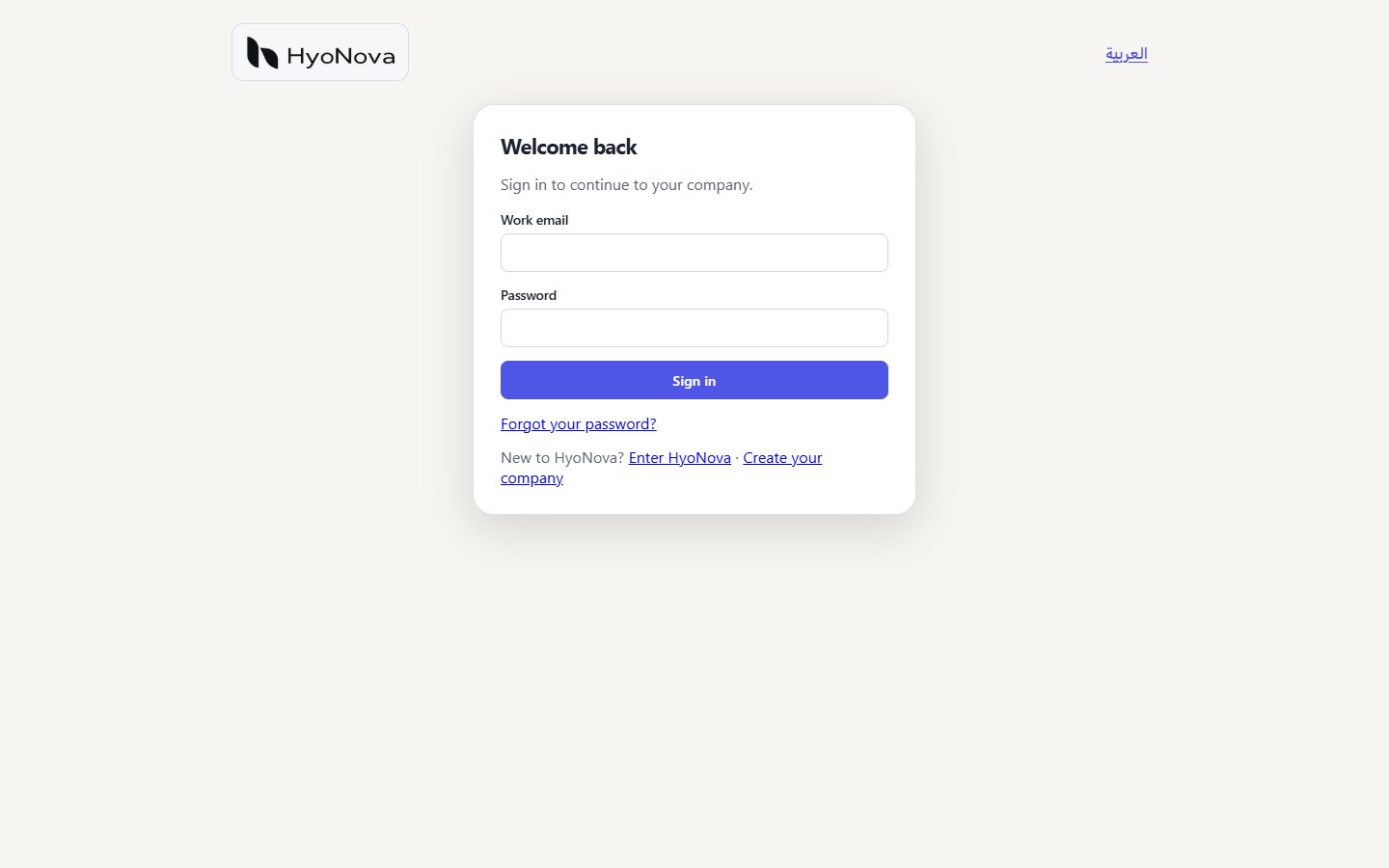
- Open the sign-in page. Go to https://app.hyonova.com/sign-in. The page says Welcome back.
- Enter your details. Type your Work email and Password, and choose Sign in.
- Pick a company if asked. If you belong to more than one company, HyoNova shows Choose a company. Select the one you want to work in.
When you come back in a browser where you are still signed in, HyoNova takes you straight to your company — you do not sign in again. Your session ends after 7 days without activity, and at the latest 30 days after you signed in.
To move to another of your companies, open the account menu in the top-right corner and choose Switch company. Sign out is in the same menu.
If you forgot your password, choose Forgot your password? on the sign-in page. HyoNova emails you a link to choose a new one. If it does not arrive, check your spam folder. See Sign-in and invitations.
Continue with Google#
Status#
| Feature | Status | Notes |
|---|---|---|
| Create a company workspace | AvailableWorks today for workspaces whose plan includes it. | Sign up with your name, email, password, company name and country, and create your company in one step. |
| Continue with Google | Requires setupBuilt, but works only after a supporting service is configured for your workspace. | Sign up and sign in with a Google account, linked to an existing account with the same email. Built but not switched on yet. The Continue with Google button appears once HyoNova turns it on. |
| Forgot password | BetaWorks today in early-access workspaces. Behaviour and limits may still change. | Reset a forgotten password with a one-time email link. |
Was this page helpful?
Thanks. Page ratings are not collected yet, so nothing was sent. If something is missing or wrong, see the Get help page.