Senders, domains and settings
Verify your sending domain with DNS records, add senders, read deliverability, and set Hyo Mail defaults, tracking, unsubscribe behaviour and usage.
On this page
Before Hyo Mail can send on your company's behalf, you prove that you control the domain it sends from. You do that once per domain with a few DNS records — they set up DKIM, SPF (through a custom MAIL FROM domain) and DMARC for your domain — then add senders — the names and addresses your emails come from. Settings holds the defaults every email uses.
Who can do what#
- Adding and verifying domains, adding senders and choosing the default sender, and changing Settings and Integrations need Mail administration. By default, Owners and Admins have it.
- Anyone with access to Mail can see the senders, the domains and their DNS records.
If your DNS is managed by someone else — an IT team or an agency — share the records from this page with them.
Verify a sending domain#
- Add the domain. Open Mail › Settings › Domains and choose Add domain. Enter the domain your emails will come from, for example
example.comornews.example.com. A subdomain keeps your main domain untouched. - Connect the DNS. Choose how the records get there:
- Authenticate the domain automatically — where your DNS provider supports it, you approve the change at the provider and the records are added for you.
- Authenticate the domain yourself — copy each record (usually the Hyo code, the DKIM record and the DMARC record) into your DNS provider's account. Mail shows where to add them at common providers.
- Ask someone else to do it — share a link, valid for 7 days, with whoever manages your DNS.
- Verify. Choose Verify records. Mail checks the records in public DNS and with the sending provider, and shows the state — for example Waiting for DNS, Verifying at the sending provider or Ready to send. DNS changes can take a while to appear; verify again later.
- Add a sender. Continue to the sender step and add the address your emails come from (below).
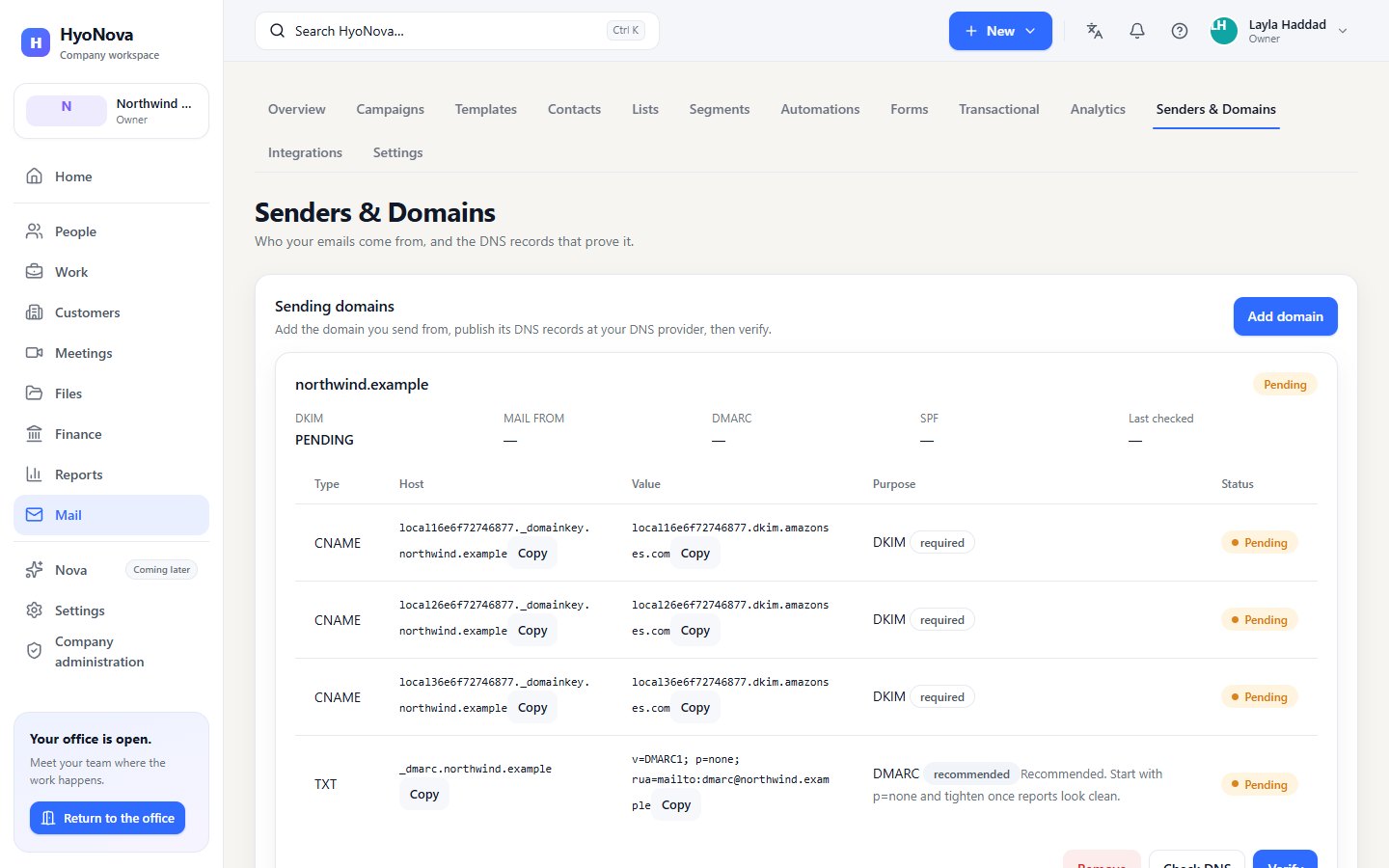
Conflict usually means a different record already exists at that host — for example an SPF record that does not include the service HyoNova uses. Edit the existing record rather than adding a second one.
DMARC is recommended rather than required. Without it, Recommendations reminds you to publish one, because mailbox providers trust authenticated domains more.
Removing a domain stops the senders on it from working.
Add senders#
A sender is a name and an address, such as "Example Studio" at name@example.com.
- Add the sender. Under Senders, enter the Name and Email, then choose Add sender.
- Verification. If the address is on a verified domain, the sender is verified straight away. Otherwise HyoNova sends a verification email to the address. Open the link in it, then choose Verify next to the sender.
- Make it the default. Choose Make default. Campaigns, tests and automations use the default sender when no other is chosen. Only verified senders can be the default.
A sender that is not verified shows why: Verify the domain first., A verification email was sent to this address. or Verification failed. Check the domain records or the address and verify again.
Deliverability#
Mail › Reports shows how your sending is doing:
- Deliverability — delivered, bounced and complaints, with the Bounce rate and Complaint rate over the Messages measured.
- Domain authentication — whether DKIM, SPF and DMARC are in place for each domain.
- Recommendations — what to fix, such as verifying your domain, publishing DMARC, choosing a default sender, or cleaning your lists when the bounce or complaint rate is high.
If the bounce or complaint rate of your company becomes too high, HyoNova pauses sending to protect your reputation and every other sender's. Mail then shows Sending is paused for your company by HyoNova with the reason. Contact HyoNova through Get help to resume.
Settings#
Mail › Settings has the tabs General, Brand kit, Media library and Usage, next to Domains, Senders and Integrations.
General#
- Sending defaults — the Default sender, the Reply-to address, the Default language and the Footer text.
- Company physical address — required in every marketing email and shown in the footer. Campaigns cannot be sent until it is set.
- Tracking — Track opens and Track clicks. When tracking is off, analytics show Not tracked for that metric.
- Unsubscribe link — Unsubscribe from everything or Open the preference centre. See Contacts and audience.
Brand kit and Media library#
Your company's name, logo, colours, font and social links for emails, and the images you use in them. See Email builder and templates.
Usage#
What your company has sent in the current Period, and your Mail credits. Sending is limited only by your Mail credits — there is no monthly allowance and no plan daily cap. Features lists each Mail feature and where it comes from. See Mail and Sign capacity.
Integrations#
Mail › Settings › Integrations lists the ways to connect Mail to your own systems:
| Connection | Status |
|---|---|
| WordPress, WooCommerce, Shopify | See Connect your store |
| REST API | Available. See Mail API |
| Webhooks | Available. See Webhooks |
| SMTP relay | Not available yet. Use the API instead |
| Custom tracking domain | Not available yet. Tracked links use HyoNova's own address |
Sending notices#
If HyoNova ever has to limit external sending, the app shows a notice on the Mail home page. If HyoNova pauses sending for your company, Mail shows Sending is paused for your company by HyoNova with the reason.
Status#
| Feature | Status | Notes |
|---|---|---|
| Senders and sending domains | AvailableWorks today for workspaces whose plan includes it. | Verify your domain with DNS records, add senders and follow deliverability. |
| Custom tracking domain | PlannedOn the HyoNova roadmap. Not built yet and has no release date. | Serve tracked links from your own domain. |
Was this page helpful?
Thanks. Page ratings are not collected yet, so nothing was sent. If something is missing or wrong, see the Get help page.