Campaigns and analytics
Send email campaigns with Hyo Mail — audience, sender, subject, design, pre-send checks, scheduling and A/B tests — and follow delivery, opens and clicks.
On this page
A campaign sends one email to an audience of subscribed contacts — a newsletter, an announcement or an offer. Hyo Mail walks you through each step, checks everything before anything is sent, and then shows what happened to every message.
Who can do what#
- Creating and editing a campaign needs permission to create and edit in Mail.
- Send now, Schedule, Pause, Resume and Cancel campaign need permission to approve in Mail. Without it, the last step says that sending and scheduling need that permission, so someone can prepare a campaign and someone else can send it.
- Export report CSV needs permission to export from Mail.
By default, Owners and Admins have all of these. See Hyo Mail.
Before your first campaign#
You need a verified sender, your company's physical address in Mail settings, subscribed contacts and a design. See Get started with Hyo Mail.
Create and send a campaign#
- Start the campaign. Open Mail › Campaigns and choose New campaign. Enter a Campaign name and choose the Type: Regular campaign or A/B test.
- Audience. Choose Include lists and Include segments, and optionally Exclude lists and Exclude segments. Exclusions win over inclusions, and unsubscribed and suppressed contacts are always left out. Preview audience shows the eligible recipients, duplicates removed, exclusions, and the estimated Mail credits against your balance.
- Sender. Choose who the email comes From and, optionally, a Reply-to address. Only verified senders can send.
- Subject. Write the Subject and the Preheader. If the AI designer is set up for your company, AI subject ideas suggests subject lines.
- Design. Choose the Design source: an Existing template, a template from Hyo Mail templates, or Start blank. Edit design opens the email in the builder. A Hyo Mail template is copied for the campaign. An existing template is edited in place, so Duplicate it in Templates first if you want to keep the original unchanged.
- Review. Mail runs the Pre-send checks (below). Fix anything that failed, then Run checks again. Use Send test to send the email to up to 5 addresses.
- Schedule & send. Choose Send now, or set a Date, Time and Time zone and choose Schedule. The screen shows when the campaign will be sent, also in UTC. To cancel a scheduled send before it starts, choose Remove schedule.
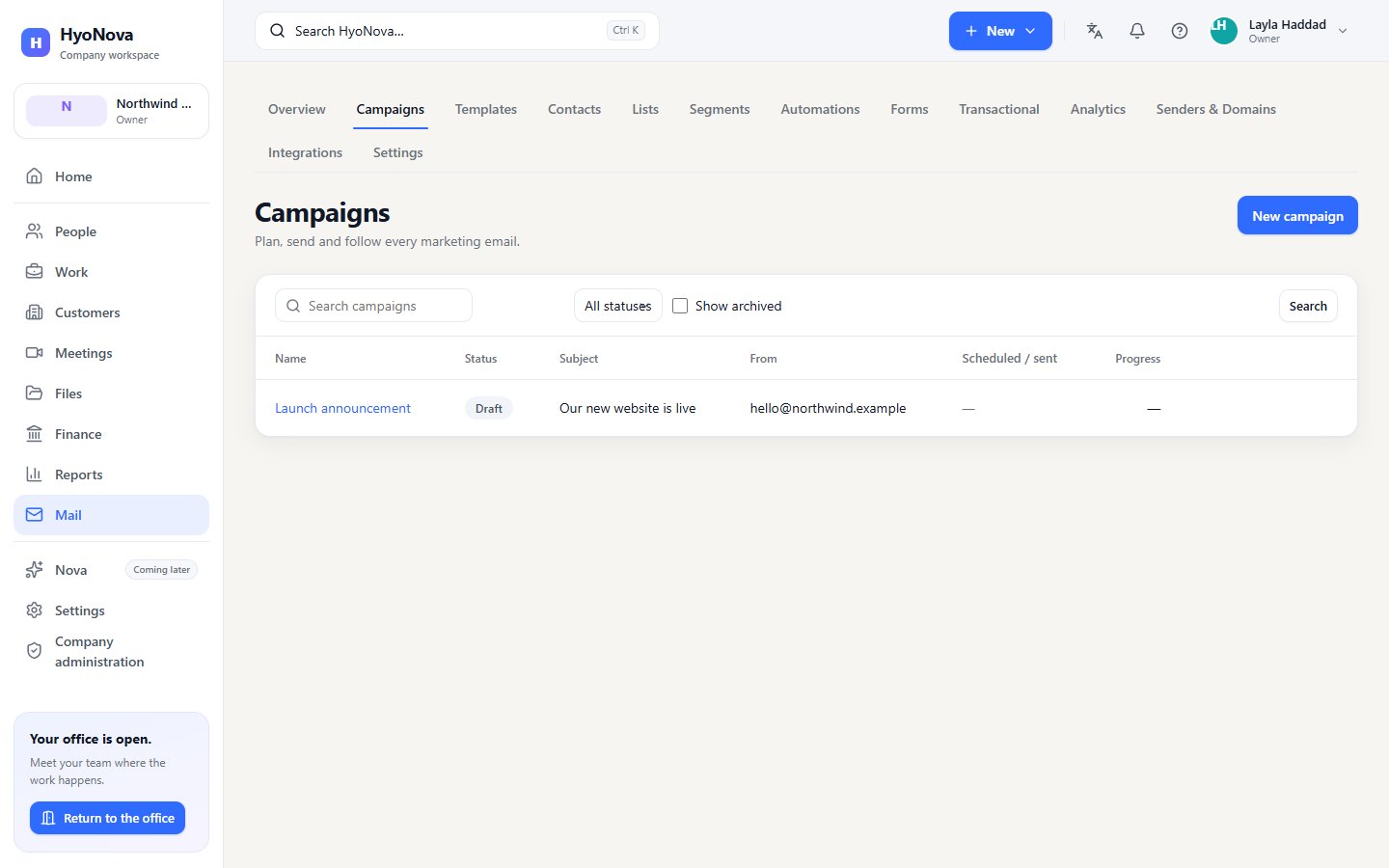
Each step is saved with Save & continue, so you can leave a draft and come back.
Pre-send checks#
A campaign can be sent or scheduled only when every check passes:
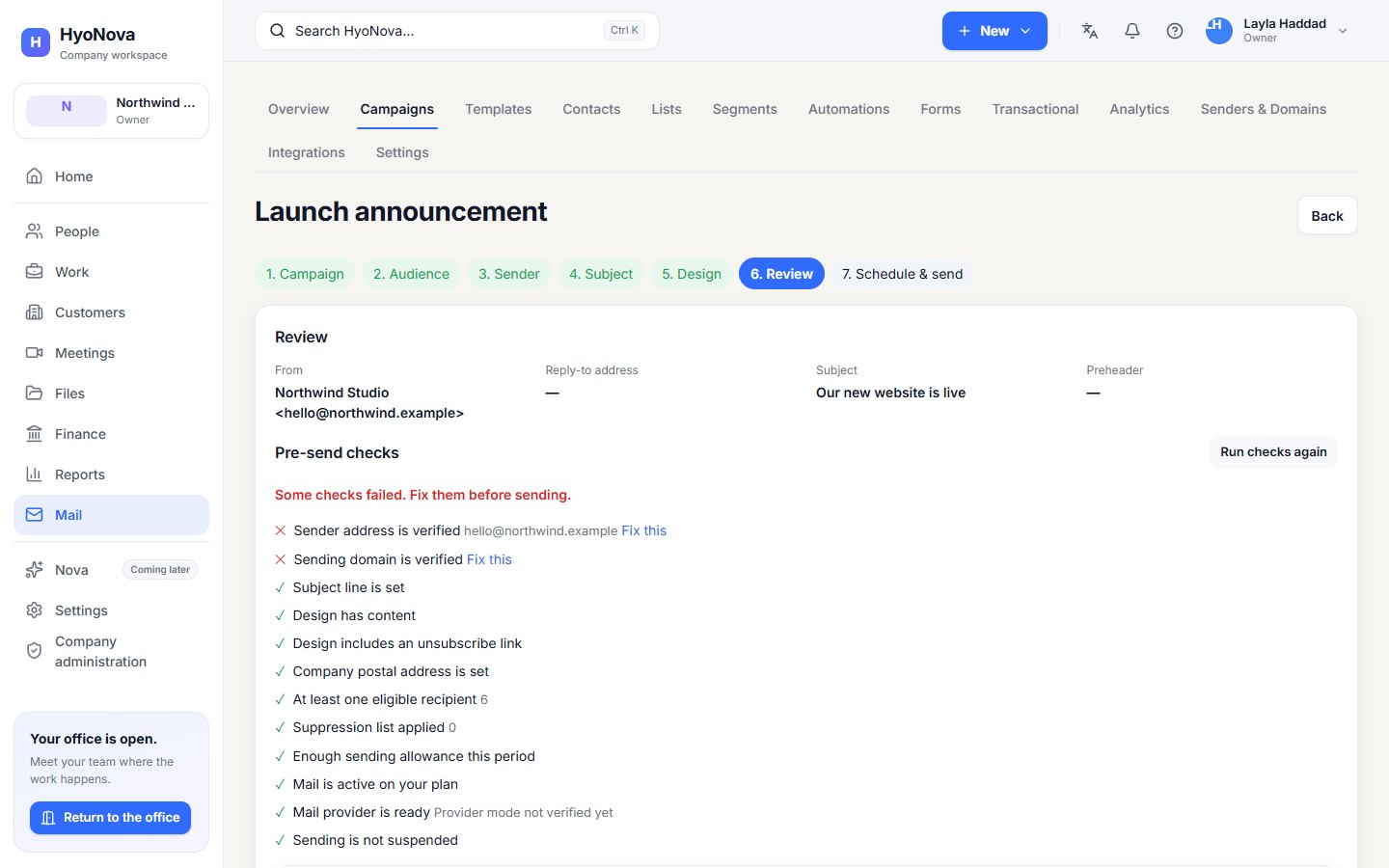
| Check | What it means |
|---|---|
| Sender address is verified | The From address is verified |
| Sending domain is verified | The sender's domain, or the address itself, is verified |
| Subject line is set | The subject is not empty |
| Design has content | The design exists and renders without problems |
| Design includes an unsubscribe link | The email has an Unsubscribe block or an {{ unsubscribe_url }} link |
| Company postal address is set | Company physical address is filled in under Mail › Settings |
| At least one eligible recipient | The audience has at least one subscribed, unsuppressed contact |
| Suppression list applied | Suppressed addresses are removed from the audience |
| Enough Mail credits for every eligible recipient | Your Mail credit balance covers the audience |
| Sending pace is applied automatically | Information only: HyoNova spreads the sending to stay within its email provider's limits |
| Hyo Mail is active on your plan | Your company has Hyo Mail |
| Mail provider is ready | The email service is available |
| Sending is not suspended | HyoNova has not paused sending for your company |
When you send or schedule, Mail freezes the campaign: the content and sender are fixed, and the list of recipients is taken at the moment sending starts. Later changes to a template or a list do not affect a campaign that is already on its way.
A/B tests#
An A/B test sends two variants to a sample of the audience, waits, and then sends the better variant to everyone else.
- Create the campaign with the type A/B test.
- Under What to test, choose Subject line, Sender or Design, and set variant B — Subject for variant B, Sender for variant B or Template for variant B.
- Set the Test sample (% of audience), the Test duration (hours), and whether the winner is decided by Clicks or Opens.
After the test period, the variant with more unique clicks or opens goes to the rest of the audience. Clicks are the more reliable measure: some mailbox providers open emails automatically for privacy, which inflates opens.
A/B testing is a plan feature. If it is not in your plan, Mail shows Not in your plan.
While a campaign is sending#
The campaign page shows a Sending panel that updates every few seconds with how many messages have been processed. You can:
- Pause — stop sending after the current batch. Resume continues where it stopped.
- Cancel campaign — stop for good. Messages the email service already accepted cannot be recalled.
HyoNova paces all sending to stay within its email provider's limits — currently 14 messages per second across the whole platform. Mail sends in batches at a steady rate, so a large campaign takes time, and a very large campaign can be spread over more than one day. Each recipient's credit is charged when their message is handed to the email service.
Campaign results#
Open a sent campaign to see:
- Counts — submitted, delivered, rejected, bounced and complaints, unique and total opens, unique and total clicks, and unsubscribes.
- Rates — Delivery rate, Open rate, Click rate, Click-to-open rate and Unsubscribe rate.
- Links — each tracked link with its clicks and CTR.
- Deliveries, opens and clicks per hour.
- A/B variants with the Winner, for A/B tests.
- Recipients — every recipient with their status and activity, filterable by status and activity.
Export report CSV downloads the report. Duplicate creates a new draft from the campaign, and Archive hides it from the list while keeping its report.
Analytics#
Mail › Reports shows sending health and performance across your account: delivered, bounced and complaints with the bounce and complaint rates, Domain authentication (DKIM, SPF and DMARC) for each sending domain, Recommendations for anything to fix, and your latest Sent campaigns with their open and click rates.
Limits#
Each recipient uses one Mail credit from your company's wallet, charged once when their message is handed to the email service — retries never charge again, and a message the email service permanently rejects, or a recipient left unsent when you cancel, gets its credit back. A bounce after the email was accepted does not return the credit. If credits run out during a send, the campaign pauses with MAIL_CREDITS_EXHAUSTED; add credits and resume it. There is no monthly allowance and no plan daily cap: your Mail credits are the only sending limit. Test sends are free, up to 100 a day. See Mail and Sign capacity.
To protect deliverability, HyoNova can set a daily safety limit for a company whose bounce or complaint rates are too high, and pause sending if they stay high. Mail then tells you why.
Status#
| Feature | Status | Notes |
|---|---|---|
| Email campaigns | AvailableWorks today for workspaces whose plan includes it. | Step-by-step campaigns with pre-send checks, scheduling, A/B tests and analytics. |
Was this page helpful?
Thanks. Page ratings are not collected yet, so nothing was sent. If something is missing or wrong, see the Get help page.