Reports
Work reports on task completion, on-time delivery and project progress, and the company finance metrics — who sees what and how each figure is counted.
On this page
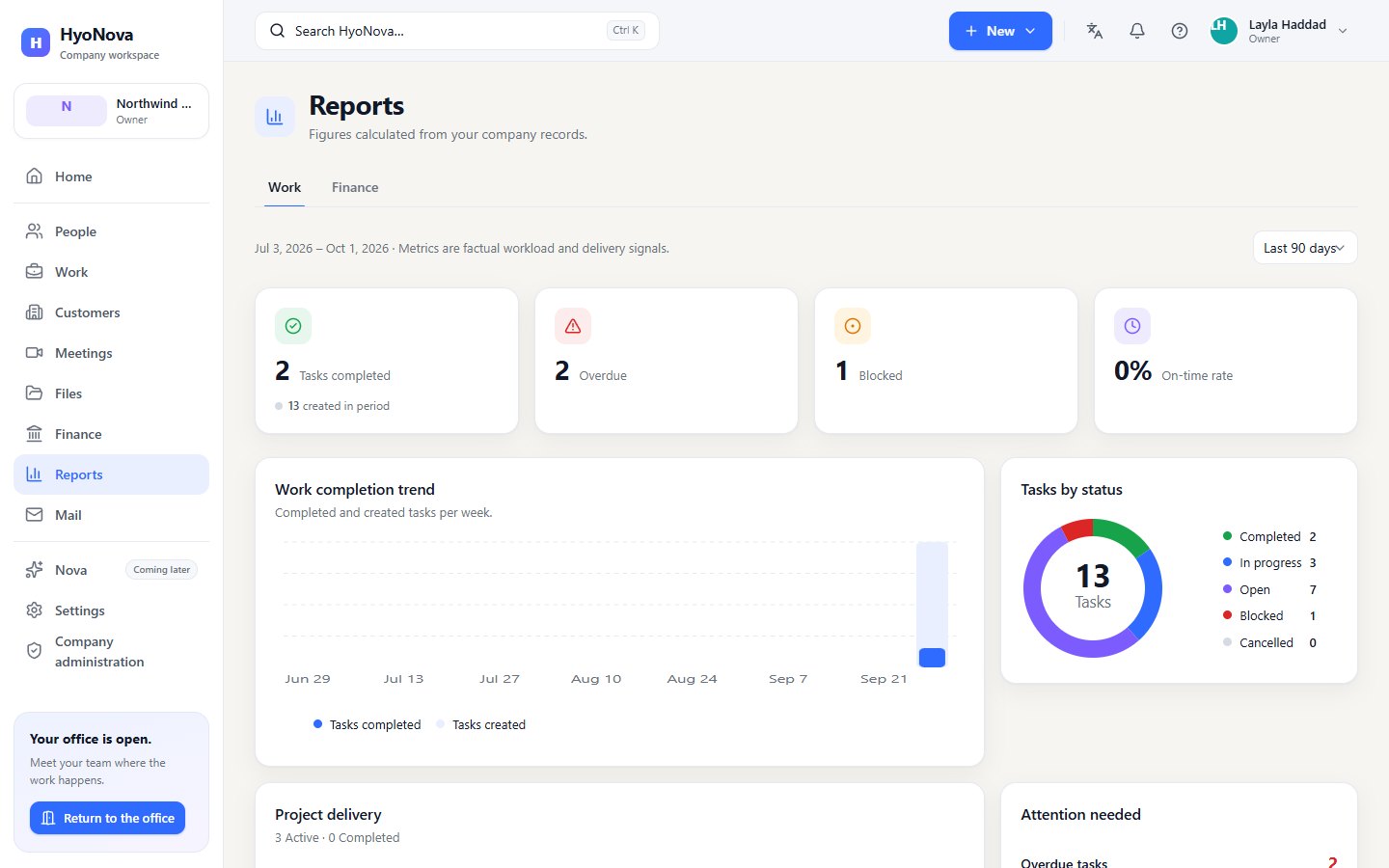
HyoNova has two kinds of reports, both calculated from your company's own records: Work reports, about tasks and projects, and finance metrics — invoiced, received and expenses. Nothing is estimated or invented; when there is nothing to count, the page says so.
Where to find reports#
| Where | Who sees it | What it shows |
|---|---|---|
| Reports in the sidebar | Owners, admins and managers | A Work tab with the Work reports, and a Finance tab with the finance metrics. You see only the tabs your role allows. |
| Work › Reports | Everyone who can see projects and tasks: owners, admins, managers and employees | The same Work reports. |
The page header says Figures calculated from your company records. In the office, Reports on the left rail opens a summary beside the 3D view, with Open in company workspace for the full page.
Work reports#
Choose a Period: Last 30 days, Last 90 days (the default), Last 6 months or Last year. The dates of the period are shown at the top with the note "Metrics are factual workload and delivery signals."
| Figure | What it counts |
|---|---|
| Tasks completed | Tasks completed in the period, with the number created in period underneath. |
| Overdue | Open tasks past their due date today, in your company's time zone. |
| Blocked | Tasks marked Blocked today. |
| On-time rate | Of the tasks completed in the period, the share completed on or before their due date (a task without a due date counts as on time). With no completions it shows no completions in period. |
Below the figures:
- Work completion trend — "Completed and created tasks per week."
- Tasks by status — how many tasks are Completed, In progress, Open, Blocked and Cancelled right now.
- Project delivery — up to 12 active projects, soonest due first, with tasks done, blocked tasks and a progress bar. Select a project to open it.
- Attention needed — Overdue tasks, Blocked tasks and Projects at risk (projects with overdue or blocked work). As the page says, this is "never an employee score".
Work reports count every task and project in the company, whoever it is assigned to. Subtasks are not counted separately.
Finance metrics#
The Finance tab of Reports shows Invoiced, Received and Expenses for This month, This quarter or This year — each period from its first day to today, in your company's time zone.
| Metric | What it counts |
|---|---|
| Invoiced | The total of invoices issued in the period, excluding drafts and cancelled or void invoices. |
| Received | The total of payments recorded in the period. |
| Expenses | The total of approved or reimbursed expenses incurred in the period. |
Each metric shows one figure per currency; HyoNova does not convert or add currencies together. A dash (—) means there is nothing to show, or that your role cannot read the records behind the figure.
Invoices, payments and expenses are restricted records that only the Owner can read. Admins and managers may see the cards, but with a dash instead of a figure. For most companies the figures are empty today, because invoices, payments and expenses cannot yet be added in the product. See Finance.
How Reports connects to other features#
- Work. Work reports read the same tasks and projects as Work; select a project to open it.
- Finance. The finance metrics use the same records as Finance, which also shows them for the current month.
- Sales. Invoiced sums issued invoices, not deals. See Sales and deals.
Status and limits#
| Feature | Status | Notes |
|---|---|---|
| Work reports | AvailableWorks today for workspaces whose plan includes it. | Tasks completed, on-time rate, tasks by status and project delivery for a period. |
| Company reports | AvailableWorks today for workspaces whose plan includes it. | Invoiced, received and expenses for this month, quarter or year, next to the Work reports. |
Reports cannot be customised, exported or scheduled.
Was this page helpful?
Thanks. Page ratings are not collected yet, so nothing was sent. If something is missing or wrong, see the Get help page.