Files
Upload and download company files up to 10 MB, checked for integrity on every download, attach files to tasks and meetings, and see each project's files.
On this page
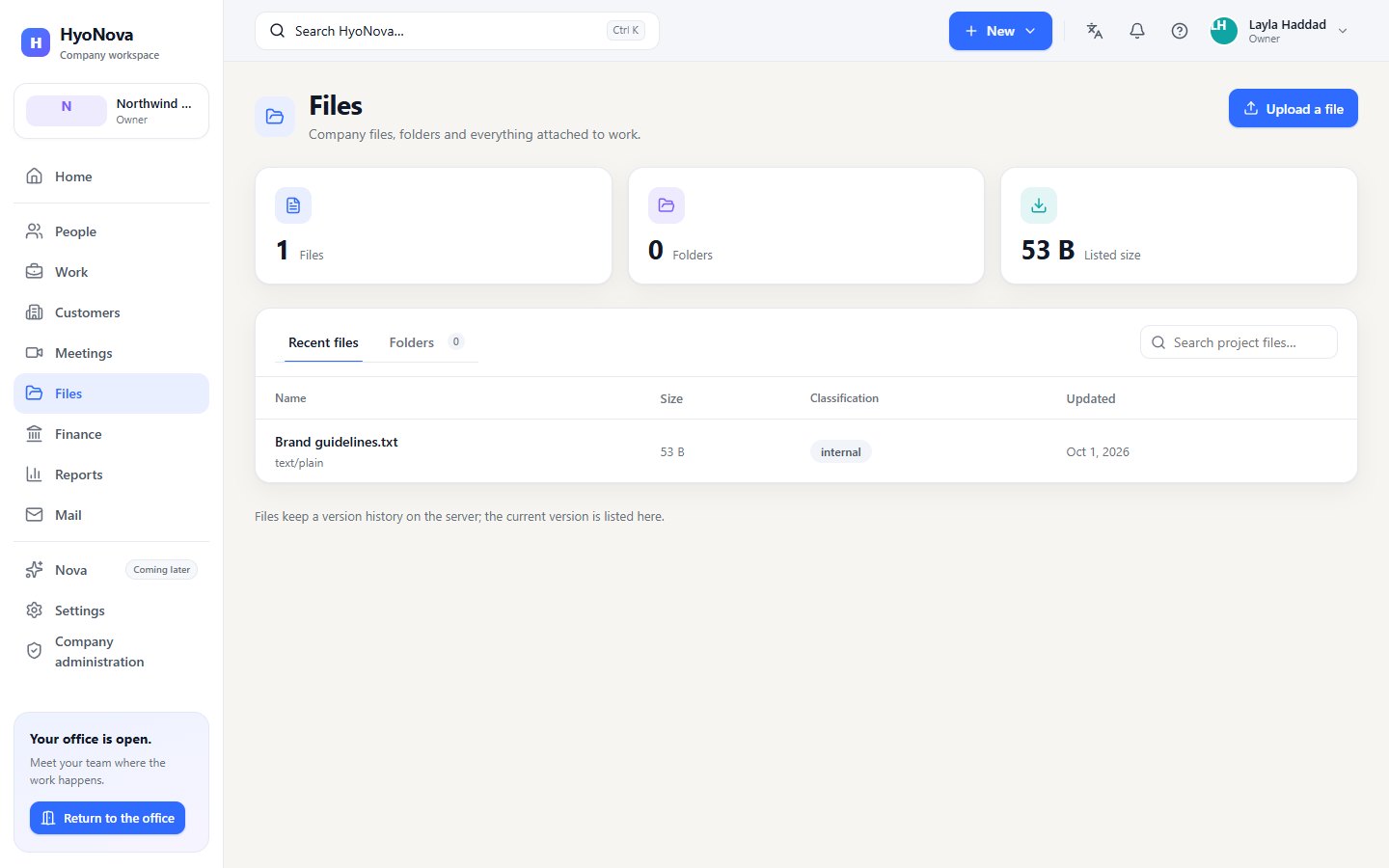
Files is your company's shared file store: "Company files, folders and everything attached to work." Upload a document once and everyone who can read company files can download it — from the company workspace, from a task, from a meeting or from the Files sheet inside the office.
Who can use files#
| Role | See and download | Upload and attach |
|---|---|---|
| Owner, Admin | Yes | Yes |
| Manager, Employee | Yes | Yes |
| Restricted | Yes | No |
| Guest (office visitor) | No | No |
Each file has a classification. Files you upload start as internal, which every member who can read files may see. A file linked to a more sensitive record is raised to that record's level and is visible only to people with the matching clearance.
Open Files#
- In the company workspace, select Files in the sidebar. New › Upload file in the top bar opens Files and the file picker in one step.
- In the office, select Files on the left rail. A summary opens beside the office; Open in company workspace takes you to the full page.
Three counters show the number of Files, of Folders and the Listed size of the files shown. Two tabs follow:
- Recent files — each file's Name and type, Size, Classification and Updated, with Download on each row. The search box above the list finds files by name. Select Load more to see more.
- Folders — the company's folders, read-only.
Upload a file#
- Open Files. Select Files in the company workspace.
- Choose Upload a file. The button is at the top of the page. It appears only if your role can create files.
- Pick the file. Select one file from your device. The button shows Uploading… while it is sent.
- Find it in the list. When the upload finishes, the file appears under Recent files.
One file is uploaded at a time. A file must be larger than 0 bytes and at most 10 MB; a bigger file is refused with "Files can be up to 10 MB."
Attach files to tasks#
In a task's panel, the Files tab has Attach file. The file is uploaded to company Files and linked to the task — "Attachments live in HyoNova Files with the same permissions." The same 10 MB limit applies. Remove unlinks the attachment from the task. You need permission to edit tasks and to upload files; restricted members cannot attach files.
Every project has a Files tab that lists the files attached to its tasks, with Uploaded by, Linked to (the task, or the project) and Download. See Tasks and Projects.
Download a file#
Choose Download on the file's row. Your browser saves it with its original name.
Every download is checked for integrity: when a file is uploaded, HyoNova records a fingerprint of its contents, and on each download it compares the stored file with that fingerprint. If they do not match, HyoNova refuses the download instead of giving you a damaged or altered file.
Storage and limits#
- File size: up to 10 MB per file.
- Company storage: the total storage for your company is set by your plan. When it is full, new uploads are refused with "Your company has reached a limit of its plan, such as file storage." See Billing and plans.
- Storage security: files are stored encrypted and are only reachable through HyoNova with a signed-in member's permissions. See Security.
Meeting files#
Each meeting has a Files tab. While the meeting has not ended, admitted participants can Attach a file (up to 10 MB) there, and everyone in the meeting can download it. Meeting files are company files: the same size limit, storage limit and permissions apply ("Company permissions apply."). See Meetings.
Files from Google Drive and OneDrive#
Companies with the Integration Hub see a third tab, Linked from Drive and OneDrive. A linked file stays at Google or Microsoft: HyoNova keeps a link, never a copy, and opening it opens it at the provider. Linked files do not count against company storage and are not covered by the download integrity check. Google Drive and OneDrive each need to be set up by HyoNova before they can be connected. See Google Drive and OneDrive files.
What Files does not do yet#
- Folders are listed, but you cannot create folders or move files into them.
- Versions: the page lists the current version of each file. Uploading a file with the same name adds a new file; it does not replace the old one.
- You cannot rename, move or delete a file from the product yet.
- Files cannot be attached to chat messages.
- There is no preview in the browser and no search inside a file's contents.
Status and what is next#
| Feature | Status | Notes |
|---|---|---|
| Company files | BetaWorks today in early-access workspaces. Behaviour and limits may still change. | Upload and download company files up to 10 MB, checked for integrity on every download. |
| Meeting files | BetaWorks today in early-access workspaces. Behaviour and limits may still change. | Attach files to a meeting for its participants. |
| Task attachments | BetaWorks today in early-access workspaces. Behaviour and limits may still change. | Attach files up to 10 MB to tasks; each project lists its files. |
| Folders and file versions | PlannedOn the HyoNova roadmap. Not built yet and has no release date. | Create folders, move files into them and upload new versions. |
Was this page helpful?
Thanks. Page ratings are not collected yet, so nothing was sent. If something is missing or wrong, see the Get help page.