Map and search
Use the minimap, the full office map and search (Ctrl/⌘ K) to find people, rooms, other offices and commands in HyoNova.
On this page
Offices grow quickly, and you rarely want to wander to find someone. HyoNova gives you three tools: a minimap that is always in view, a full map of rooms and people, and search, which finds people, rooms, other offices and commands from the keyboard.
The minimap#
The minimap sits in the lower corner of the screen and shows the current floor from above: the rooms, the room you are in and your own position, with north marked.
- Press M to show or hide it, or select the minus button on the minimap to hide it. When it is hidden, a map button takes its place to bring it back.
- The button at the bottom of the minimap opens the full map.
- In the trial, selecting a room on the minimap moves you there. In a live office, use the full map and Go there instead.
You can also turn the minimap off permanently in Settings › Appearance › On-screen controls.
The full map#
Open the map in any of these ways:
- Map in the rail,
- Explore map in the lower corner,
- the button at the bottom of the minimap,
- Open the map in search.
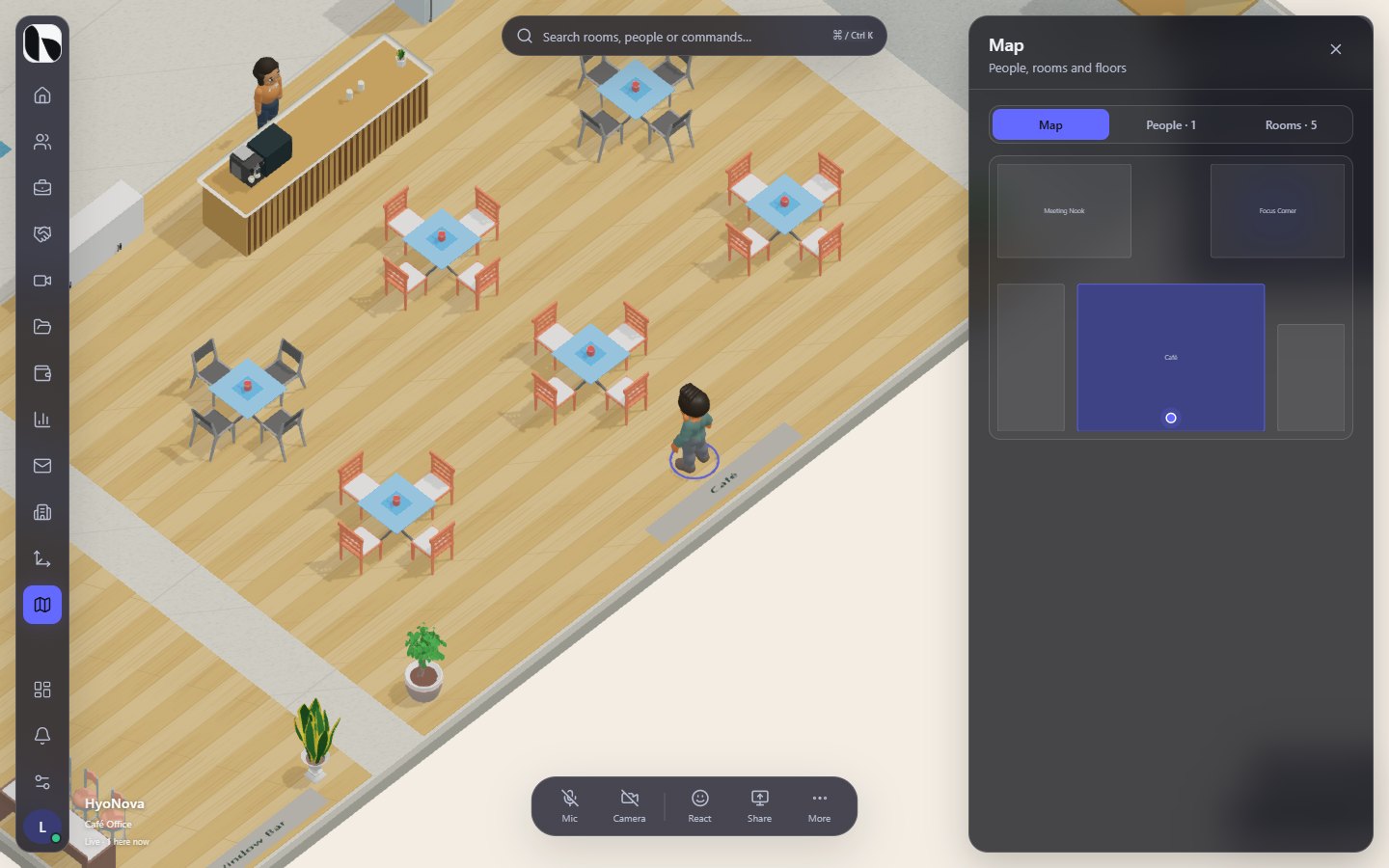
The map has three tabs:
| Tab | What it shows |
|---|---|
| Map | The floor plan with every room, each person as a dot with their first name and status colour, and you highlighted. |
| People · N | Everyone in the office right now and the room they are in. |
| Rooms · N | Every room with its floor, its N seats and how many people are here now. The room you are in is marked You. |
Buttons for each floor appear on the map only when the office has more than one floor. Today every office has one floor, so you do not see them. See Multiple floors.
Act on a room or a person#
Select a room or a person on the map or in a list. A card shows the name (and, for rooms, the seats and who is here now) with the actions you can use:
| Action | What it does |
|---|---|
| Go there | For a room: your character walks along a route to the room's entrance. For a person: moves you next to them where possible — in a live office, walk over instead. |
| Teleport | Moves you into the room instantly. Works in the trial only; in a live office HyoNova asks you to walk to the room entrance. |
| Meet here | For members, on meeting, focus and training rooms. Opens the meeting options for the room. See Rooms. |
Search#
Search finds anything in the office from the keyboard.
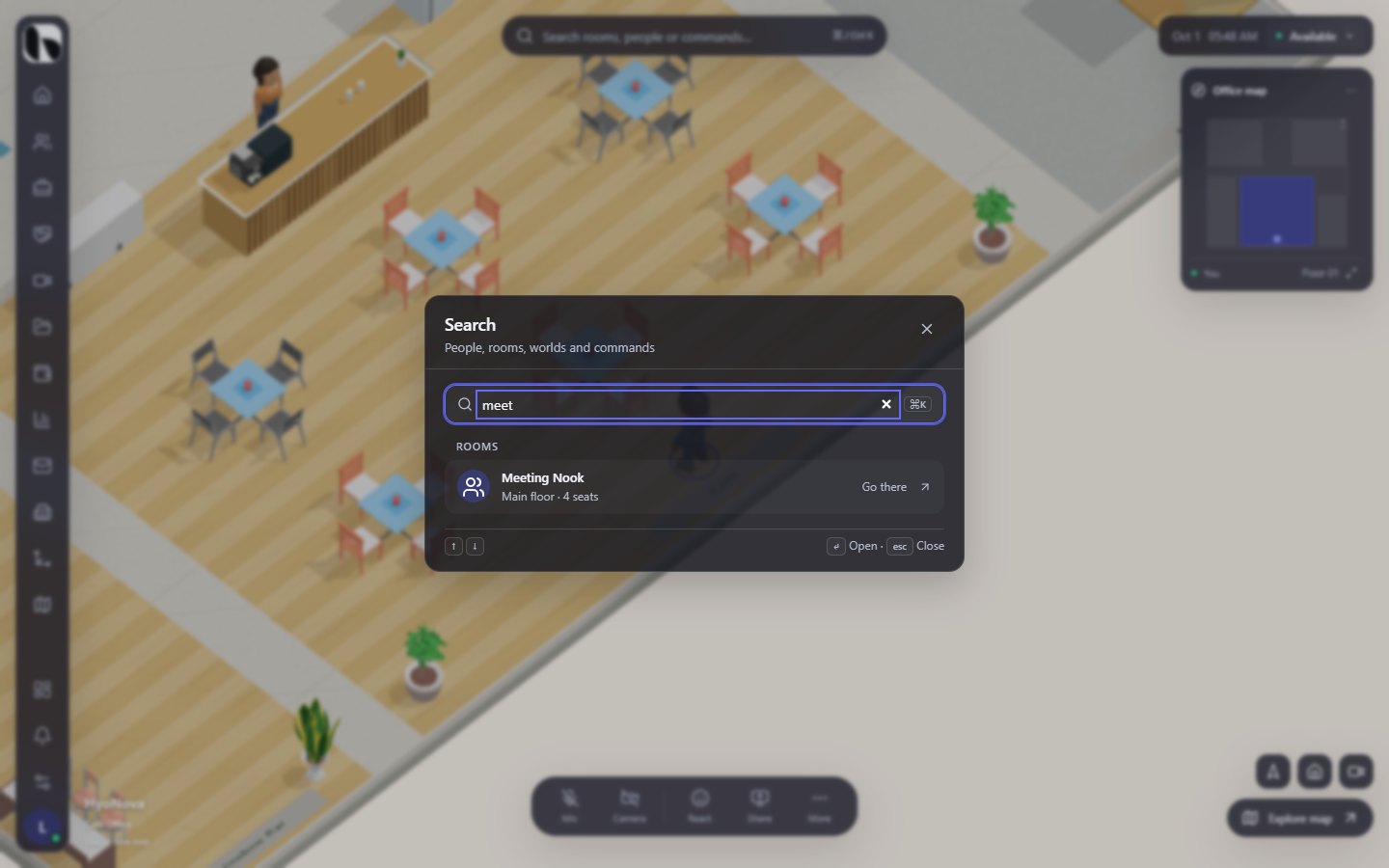
- Open search. Press Ctrl + K (⌘ + K on a Mac), or select the Search rooms, people or commands… bar at the top.
- Type. Enter part of a name, a room or a command. Results update as you type and tolerate small typos.
- Choose a result. Use ↑ and ↓ to move, Enter to run the highlighted result, or click it. Press Esc to close.
With an empty search box, results you used recently appear first under Recent.
What search finds#
| Section | Results | Action |
|---|---|---|
| People | Everyone in the office, marked Team member or Guest visit | Go to |
| Rooms | Every room, with its floor and seats | Go there — moves you into the room in the trial; in a live office, use the map |
| Worlds | Your company's other offices, if it has several | Open world |
| Commands | Actions in the office | Open |
If nothing matches, search shows Nothing matches — try a name, a room or a command.
Commands#
| Command | What it does | Who sees it |
|---|---|---|
| Start build mode | Opens the office builder. | Owners and admins; everyone in the trial |
| Open the map | Opens the full map. | Everyone |
| Change my character | Opens My character. | Everyone |
| Company home | Opens the company Home page beside the office. | Members |
| Open the dashboard | Opens the full company workspace. | Members |
| Focus mode | Turns Do not disturb on or off. | Everyone |
| Return to reception | Takes you back to the arrival point. In a live office, walk there instead. | Everyone |
| Settings | Opens your personal settings. | Everyone |
Who can use these tools#
Everyone who can enter an office — members, guests and trial visitors — can use the minimap, the map and search. Guests see the office they visit, not your company's other offices. Members see other offices under Worlds only when their role lets them enter the office.
Status#
| Feature | Status | Notes |
|---|---|---|
| Search and company chat | AvailableWorks today for workspaces whose plan includes it. | Find people, rooms and commands with Ctrl/⌘ K and walk there; open the company chat from the office. |
Was this page helpful?
Thanks. Page ratings are not collected yet, so nothing was sent. If something is missing or wrong, see the Get help page.