Meetings
Create or schedule meetings, meet in an office room, use the waiting room, video, screen sharing, meeting chat, notes, files and host controls.
On this page
A meeting is a call with several people. It has a title and agenda, a list of invited colleagues, a waiting room, its own chat, shared notes and files, and host controls. You can hold it from a meeting room in your office, where a shared screen also appears on the room's screens, or from the company workspace.
How a meeting works#
Who can do what#
| Action | Who |
|---|---|
| Create or schedule a meeting and invite colleagues | Owner, Admin, Manager, Employee |
| Join a meeting | The people invited to it |
| Talk, use video and share a screen | Admitted participants (not observers) |
| Let people in, mute, change meeting roles, remove, lock, end | The host and co-hosts — and only if their company role is Owner, Admin or Manager |
| Save notes and create tasks from them | The host and co-hosts with the Owner, Admin or Manager role |
Only the people invited to a meeting can see it or open it. Restricted members do not have meetings. Camera video and screen sharing also depend on your company's plan.
Where to find meetings#
- In the office: open More › Meetings & calls. Or walk into a meeting room and choose Meet here — see Meet in an office room.
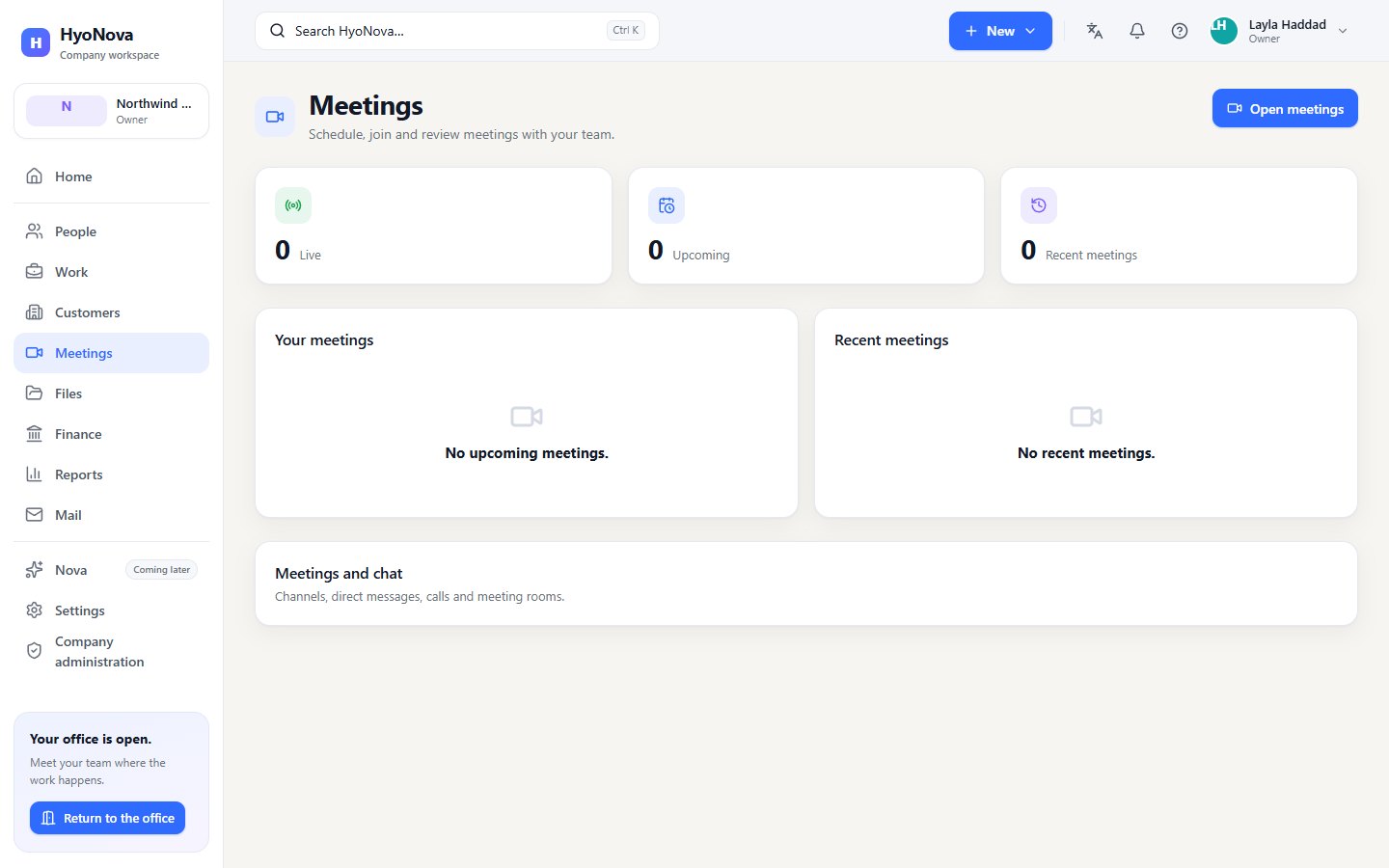
- In the company workspace: open Meetings. The page lists Your meetings with their date and status. Open meetings opens the meetings panel.
The meetings panel shows Your meetings & calls — your most recent 100 meetings and calls — with Search meetings and notes to find one by its title or notes.
Create a meeting#
- Open the meetings panel. Use More › Meetings & calls in the office, or Meetings › Open meetings in the company workspace.
- Start a new meeting. Choose New meeting.
- Describe it. Enter a Meeting title (it starts as "Team catch-up"), and optionally a Description and an Agenda.
- Choose when. Leave Start time (leave empty to start now) empty for a meeting now, or pick a date and time to schedule it.
- Invite colleagues. Under Invite colleagues, select the people who should attend.
- Create it. Choose Create meeting — or Schedule meeting if you set a start time.
You are the meeting's Host. Everyone you invited sees the meeting in their own list.
Scheduled meetings and replies#
A scheduled meeting shows its start time and the status Scheduled. Each invitee can answer under Your reply: Attending, Maybe or Not attending. Invitees are not emailed and nothing is added to external calendars, so tell people about the meeting yourself.
The meeting does not start by itself at its start time: it starts when the host joins. Until then, invitees who join see "Ready. Join when the host starts the meeting."
Meet in an office room#
Meeting rooms in your office are places to meet. When you stand in or near one, its prompt shows the room name, its seats and Meet here. You can also select a room in Map › Rooms and choose Meet here.
Meet here opens Meetings with the room at the top — "Start or join a meeting in this room." — and a Meet here button that opens the meetings panel. A meeting you create while you are in the room is linked to it:
- A screen shared in the meeting appears on the room's screens in the office.
- To join a meeting linked to a room, you must be allowed to enter that room.
Join a meeting#
- Open the meeting. Select it in Your meetings & calls.
- Join. Choose Join with microphone and camera off. Your microphone and camera always start off.
- Wait to be let in. Meetings have a waiting room. You see "Waiting for the host to let you in…" until a host selects Let in. When you are admitted, choose Join meeting.
- Turn on your devices. Use Mic, Camera and Share screen when you are ready.
A meeting holds up to 25 participants by default. If it is full, HyoNova says "This meeting is full."
In the meeting#
The controls are the same as in a call: Mic, Camera, Share screen, Raise hand, Devices, Leave and Hold to talk, with the layouts Spatial, Grid, Speaker and Presentation. See During a call. Reactions (👋 ❤️ 👏 🎉 👍 ☕) appear briefly for everyone in the meeting.
The meeting header shows its status, Encrypted in transit, how many people are connected, and Locked if the host has locked it.
Below the call, the meeting has six tabs:
| Tab | What it holds |
|---|---|
| Chat | The meeting's chat. "Messages shared here are saved with this meeting." Only admitted participants can write. |
| People | Everyone invited, their meeting role and whether they are connected, waiting or admitted. Hosts moderate from here. |
| Notes | The agenda, and Meeting notes & decisions. |
| Devices | Microphone, speaker and camera choice and tests. |
| Files | Files attached to the meeting. |
| Recording | Recording and transcripts. These are not available yet — see Recording and transcripts. |
Notes and tasks#
Hosts and co-hosts with the Owner, Admin or Manager role write in Meeting notes & decisions and choose Save notes. Everyone else can read the notes. Saved notes are searchable from Search meetings and notes.
To turn a decision into work, type it in Create a Work task from this meeting and choose Create task. The task is created in Work and linked to the meeting. Assign it and set its due date there. See Tasks.
Files#
While the meeting has not ended, admitted participants can Attach a file (up to 10 MB). Files are stored with your company files: "Company permissions apply", and they count towards your company's storage. Select a file to download it. See Files.
Host controls#
In the People tab, the host and co-hosts can act on each participant:
| Control | Effect |
|---|---|
| Let in / Deny | Admit or refuse someone who is waiting. |
| Mute | Turns the person's microphone off. They cannot turn it back on until you choose Allow mic. |
| Allow mic | Lets a muted person use their microphone again. |
| Role | Makes the person a Co-host, Presenter, Participant or Observer. |
| Remove | Takes the person out of the meeting. They cannot rejoin it. |
At the bottom of the meeting:
- Lock meeting stops anyone else from joining ("This meeting is locked. Ask the host to let you in."). Unlock meeting reopens it.
- End for everyone ends the meeting and disconnects everyone. For a meeting that has not started, Cancel meeting cancels it.
Meeting roles#
| Role | Can |
|---|---|
| Host | Everything, including host controls. The host cannot be muted, removed or have their role changed. |
| Co-host | The same host controls as the host. |
| Presenter, Participant | Talk, use video and share their screen. |
| Observer | Listen and watch only: no microphone, camera or screen sharing. |
Meeting roles apply inside one meeting. Host controls also need the Owner, Admin or Manager company role.
Status and limits#
| Feature | Status | Notes |
|---|---|---|
| Meetings | BetaWorks today in early-access workspaces. Behaviour and limits may still change. | Start or schedule meetings, join from a room in the office or from the dashboard, with a waiting room and host controls. |
| Camera video in meetings | BetaWorks today in early-access workspaces. Behaviour and limits may still change. | Turn your camera on in calls and meetings, with Grid, Speaker and Presentation layouts. |
| Screen sharing | BetaWorks today in early-access workspaces. Behaviour and limits may still change. | Share your screen in a call or meeting. In an office room it also appears on the room screens. |
| Meeting notes to tasks | BetaWorks today in early-access workspaces. Behaviour and limits may still change. | Hosts keep shared notes and turn a note into a task in Work. |
| Scheduled meetings | PreviewA first, limited version you can use today. Important parts are still missing. | Give a meeting a start time and let invitees answer Attending, Maybe or Not attending. No calendar invitations, email reminders or recurring meetings yet. |
Meetings are in Beta. Today there are no calendar invitations, reminders or recurring meetings, no breakout rooms, and no dial-in by phone.
People outside your company cannot join meetings yet. Hosts may see Create guest invitation in the People tab, but guest access to meetings is switched off, and HyoNova answers "Guests are not allowed in meetings of this company." To meet a visitor, invite them into your office with a guest link and talk with spatial voice.
Was this page helpful?
Thanks. Page ratings are not collected yet, so nothing was sent. If something is missing or wrong, see the Get help page.