People
See everyone in your company with their role, department and status, manage members and roles, and set up departments and working hours.
On this page
People is your company's member directory. It shows who belongs to your company, what role each person has and who is in the office right now. Owners and admins also invite people, change roles and remove members from here. More administration — custom roles, departments and working hours — lives in Company administration → People.
Who can open People#
Owners, admins, managers and employees see People in the sidebar and can see every member with their role. Restricted members do not see the member directory. Email addresses, pending invitations and the member actions for roles are shown only to owners and admins.
What the People page shows#
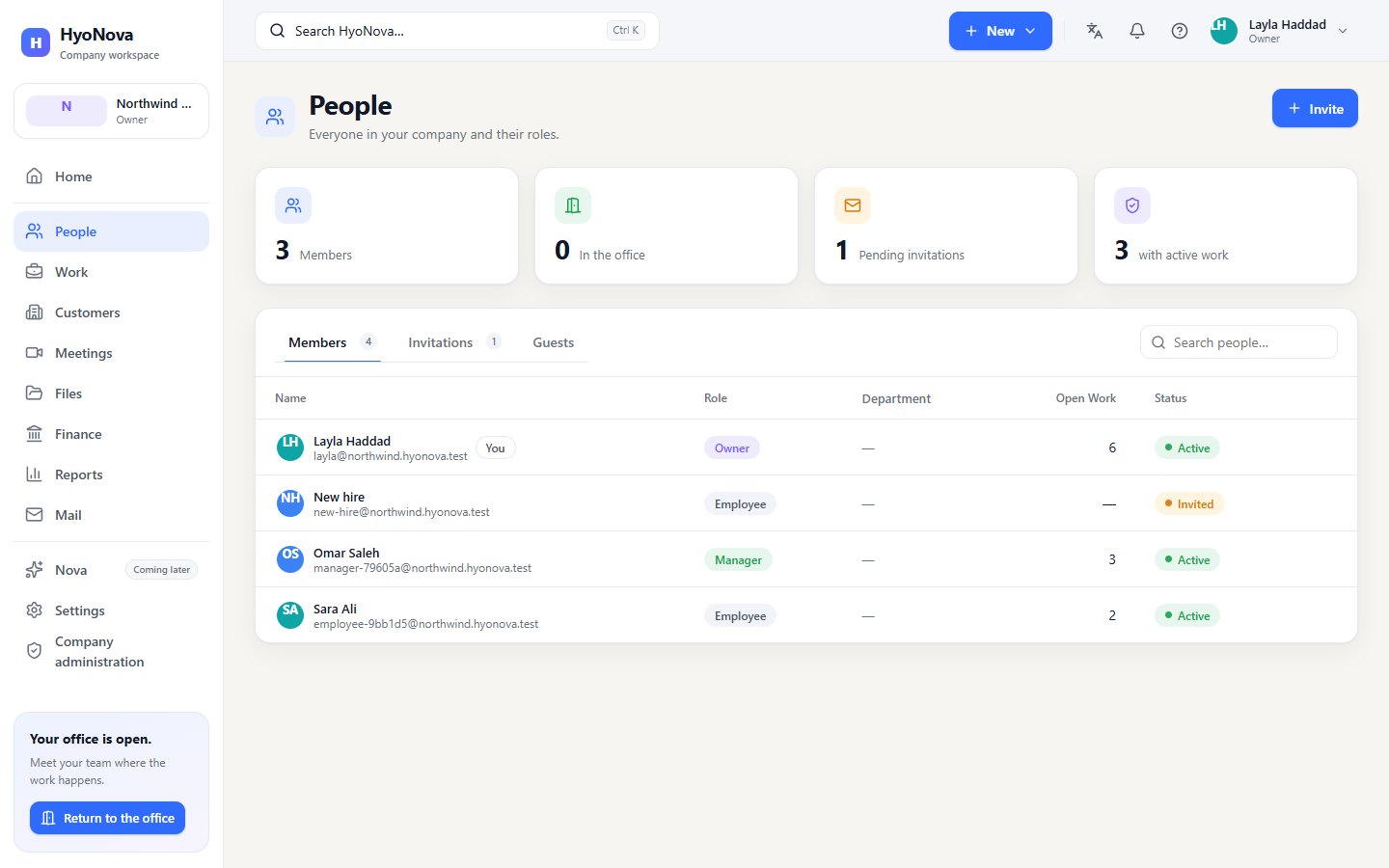
Open People in the sidebar. The page starts with stat cards:
| Card | What it counts | Shown to |
|---|---|---|
| Members | Active members of your company | Everyone who can open People |
| In the office | Members who are online in the office right now | Members who can see presence in the office |
| Pending invitations | Invitations that have not been accepted yet | Owners and admins |
| with active work | Members with open, in-progress or blocked tasks | Owners, admins and managers |
Below the cards are three tabs:
- Members — the directory. Its columns are the name (with the work email for owners and admins, and You on your own row), Role, Department, Open Work (owners, admins and managers: the person's open, in-progress and blocked tasks) and Status.
- Invitations — pending and past invitations with their Invitation status, Email delivery status and expiry date. Owners and admins only. See Invitations.
- Guests — the form for creating a guest link to your company's first office world. Shown to owners, admins and managers. Existing guest links are managed in Settings → Workspace. See Guest links.
Use Search people… to filter the list by name or email.
Department shows a member's department and position when your company has recorded them, and — when it has not. HyoNova has no screen yet for putting a member into a department, so this column usually shows —.
A member's profile#
Select a row, or choose Profile in its menu, to open the member's profile on the side of the page. It shows their name, role, presence, email (when you may see it), Status, Department and Position.
Owners, admins and managers also see Active work: the person's Open, In progress, Blocked and Overdue tasks, Done (30 d) and Projects. The note "Factual workload only — no productivity scores." describes what this is: counts of tasks, nothing more.
Actions on a member#
Every row has a More actions menu:
- Message opens a direct chat with the person. See Chat.
- Go to the office opens your office and takes you to the person.
- Profile opens their profile.
Owners and admins also see Change role and Remove from company on every row except their own.
Member status#
| Status | Meaning |
|---|---|
| Active | The person has joined and can sign in to your company. |
| Invited | An invitation was created and has not been accepted yet. |
| Pending | The person's membership is not active yet. |
Invited and pending people already take a seat. To invite someone, owners and admins select Invite at the top of the page, or New → Invite person in the top bar. See Invitations.
Change a member's role#
Owners and admins can change a role in two places:
- On the People page. Open More actions on the member's row. Under Change role, choose Owner, Admin, Manager, Employee or Restricted. The current role is ticked, and the change is saved immediately.
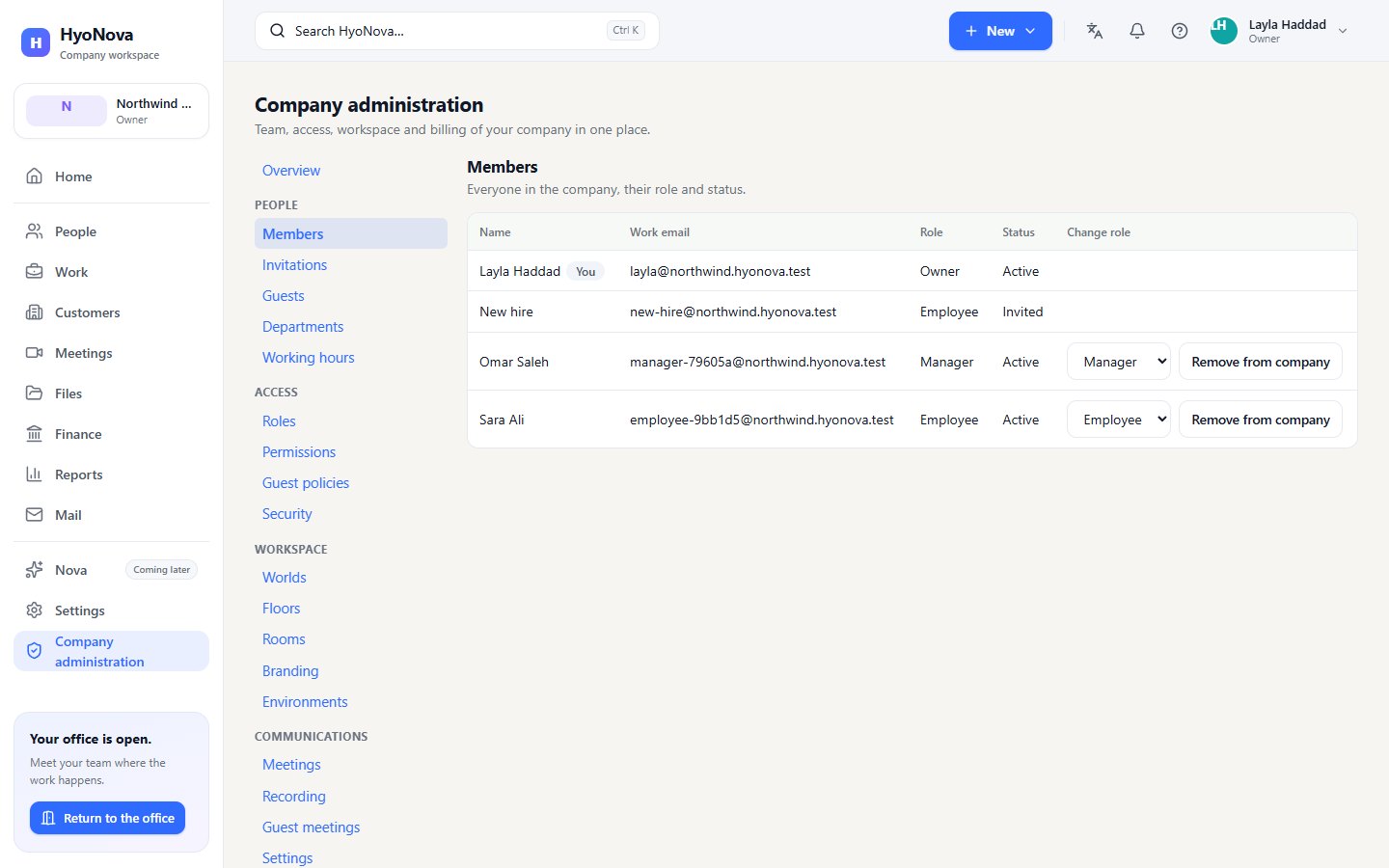
- In Company administration. Open Company administration → People → Members. In the Change role column, choose a role from the list. This list also contains your company's custom roles.
The People page menu offers only the five standard roles. To give someone a custom role, use Company administration → People → Members. On the People page, a member with a custom role currently appears with the Employee label; the Members page in Company administration shows the custom role's name.
The server enforces these rules wherever you change a role:
- You can only give roles whose permissions you hold yourself. An admin cannot make someone an owner. If you try, HyoNova says "You cannot grant a role above your own."
- You cannot change the role of someone whose role carries permissions you do not hold, and you cannot change your own role — ask another owner or admin.
- A company always keeps at least one owner.
The change takes effect at once: the server checks permissions on every request. Role changes are recorded in the audit log. What each role can do is on Roles and permissions.
Remove a member#
- Find the member. On the People page, open More actions on their row. Or open Company administration → People → Members.
- Remove them. Choose Remove from company. In Company administration, confirm "Remove this member?".
The person is signed out, loses access to your company and their seat is freed. You cannot remove yourself or someone whose role is above yours, and the last owner cannot be removed. Work they created — tasks, files, messages — stays in the company.
People in Company administration#
Owners, admins and managers see Company administration in the sidebar. Its People section has five pages; each shows only what your role allows. See Admin for the whole area.
Members#
"Everyone in the company, their role and status." The table shows Name, Work email (owners and admins), Role, Status, and for owners and admins a Change role list and a Remove from company button for each active member other than yourself. When there is no role you may give, the page says "No role you can grant." Managers can open this page to read it.
Invitations#
"Pending invitations and how their emails went." The invitation form and the list of invitations, with Copy invitation link, Resend email, New link and Revoke as buttons. Owners and admins only. The invitation form offers standard roles only; give a custom role after the person joins.
Guests#
The list of guest visits: who visited your office by link, what they may do, and when. Owners, admins and managers can approve or decline waiting visitors and end visits; owners and admins can promote a guest to employee. See Guests.
Departments#
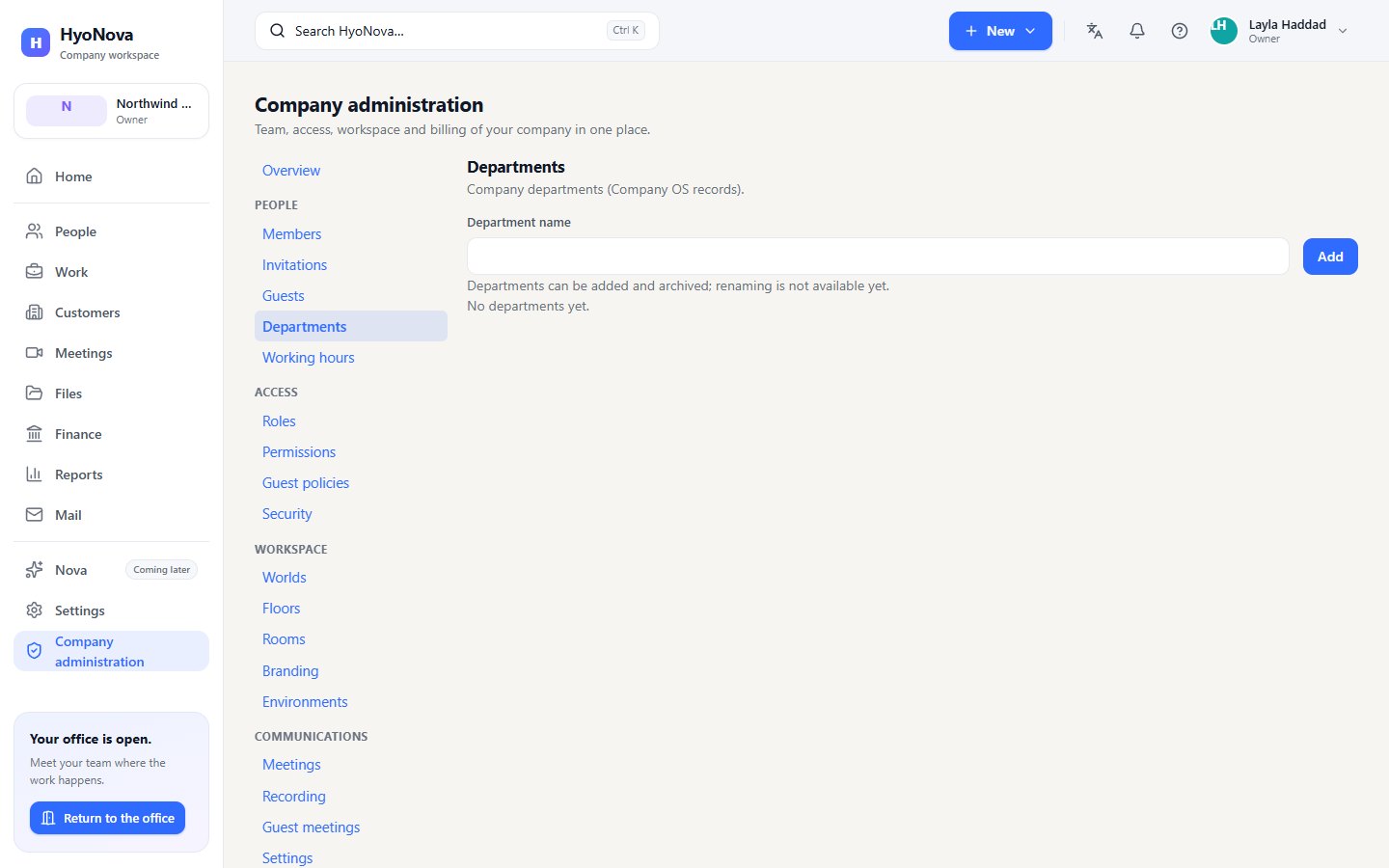
Departments are your company's list of teams, such as Sales or Design.
- Open Departments. Go to Company administration → People → Departments.
- Add a department. Type the Department name and select Add. It appears in the list with the date it was created.
- Archive one you no longer need. Select Archive on its row.
Owners and admins can add and archive departments; managers can read the list. The page says it plainly: "Departments can be added and archived; renaming is not available yet." There is also no screen yet for putting members into a department. The only place that records a department for a person today is the Promote to employee dialog for a guest.
Working hours#
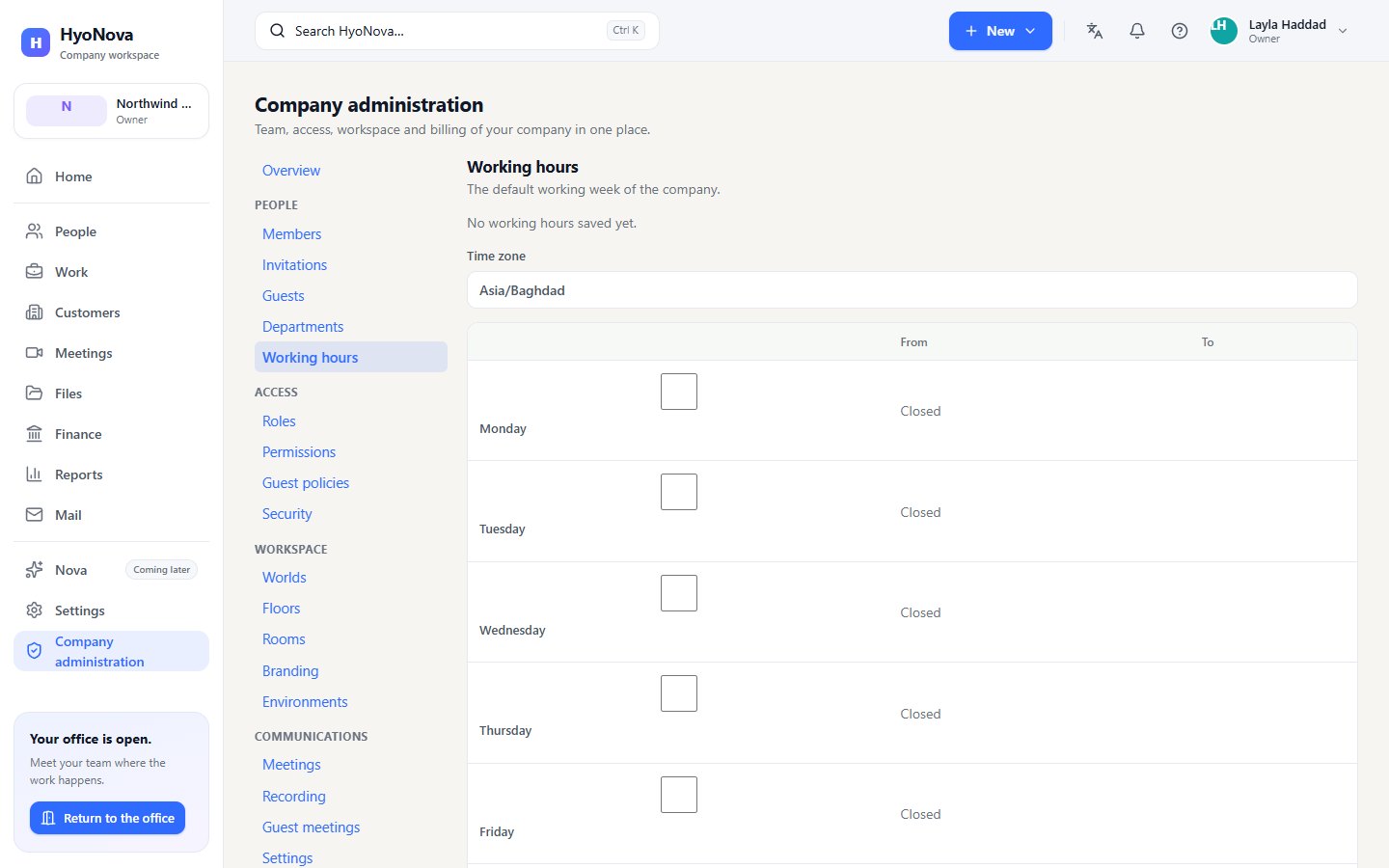
"The default working week of the company."
- Open Working hours. Go to Company administration → People → Working hours. Until the first save, the page says "No working hours saved yet."
- Set the time zone. Type it in Time zone, for example
Asia/Baghdad. - Choose the working days. Tick each working day and set From and To (09:00–17:00 to begin with). A day you leave unticked is Closed.
- Save.
Owners and admins can edit working hours; managers see the page as Read-only. The working week is saved for your company only: no other part of HyoNova uses it yet. For example, presence in the office does not change with working hours.
The People sheet in the office#
Inside the office, People in the left rail lists the same members with live presence — Available, Away, Do not disturb or Offline — and the room each person is in. Point at a row to see Go to, Call (hidden on Do not disturb) and Message. More shows their email to owners and admins, and lets owners and admins change the person's role or remove them. Both views read the same list, so a change made in one appears in the other. See Presence.
Seats#
Every member takes one seat on your company's plan, and so does every open invitation. When all seats are used, new invitations are refused with "Your company has used all of its seats." Revoking an invitation or removing a member frees a seat. See Billing and plans.
Guests are not members#
Office visitors who enter with a guest link do not appear in the member directory and do not take a seat. In the office they carry a Guest tag on their nameplate. See Guests.
Status and limits#
| Feature | Status | Notes |
|---|---|---|
| Member directory | AvailableWorks today for workspaces whose plan includes it. | Everyone in your company with their role and status, in the dashboard and in the office. |
| Departments and working hours | PreviewA first, limited version you can use today. Important parts are still missing. | Organise members into departments and set company working hours. Departments can be added and archived; renaming and assigning members are not available yet. Working hours are saved but not used by other features yet. |
Was this page helpful?
Thanks. Page ratings are not collected yet, so nothing was sent. If something is missing or wrong, see the Get help page.