Roles and permissions
The five standard roles, what each can do across HyoNova, custom roles with an editable permission matrix, and how data clearance protects sensitive records.
On this page
- Roles are enforced by the server
- The standard roles
- Where you see roles
- What each standard role can do
- People
- Company administration
- Work
- Customers, finance and reports
- Files
- Communication
- Office (world)
- Guests
- Data clearance
- Custom roles
- Create and manage custom roles
- The permission matrix
- Give a custom role to a member
- Rules that always apply
Every member of your company has a role. The role decides what they can see and do — in the company workspace, in the office, in calls and meetings, and in Company administration. Every company has five standard roles, and owners and admins can create custom roles with exactly the permissions a team needs. You choose a standard role when you invite someone and can change it later.
Roles are enforced by the server#
HyoNova checks permissions on the server for every request, not only in the interface. Hiding a button is never the protection: if someone tries an action their role does not allow, the server refuses it. When an area is not available to you, HyoNova shows "Not available for your role" and "Ask a company admin if you need access to this." A member who loses a permission loses it at once, on their next action.
The standard roles#
| Role | Meant for |
|---|---|
| Owner | The person responsible for the company. Every permission, including payroll, restricted financial records and billing changes. The person who creates the company is its first owner. |
| Admin | Runs the company day to day: people, invitations, roles, worlds, guests, settings and the audit log. Everything except payroll, restricted records and changing billing. |
| Manager | Leads work and meetings: assigns tasks to others, hosts meetings, creates guest links and manages guests, manages rooms. Sees the overview and read-only pages of Company administration. |
| Employee | The standard member: projects, tasks, files, chat, calls and meetings. |
| Restricted | Limited access for people who need to see work but not take part in it: reads tasks and files and can enter the office. |
A company always has at least one owner. Standard roles cannot be edited or deleted.
Where you see roles#
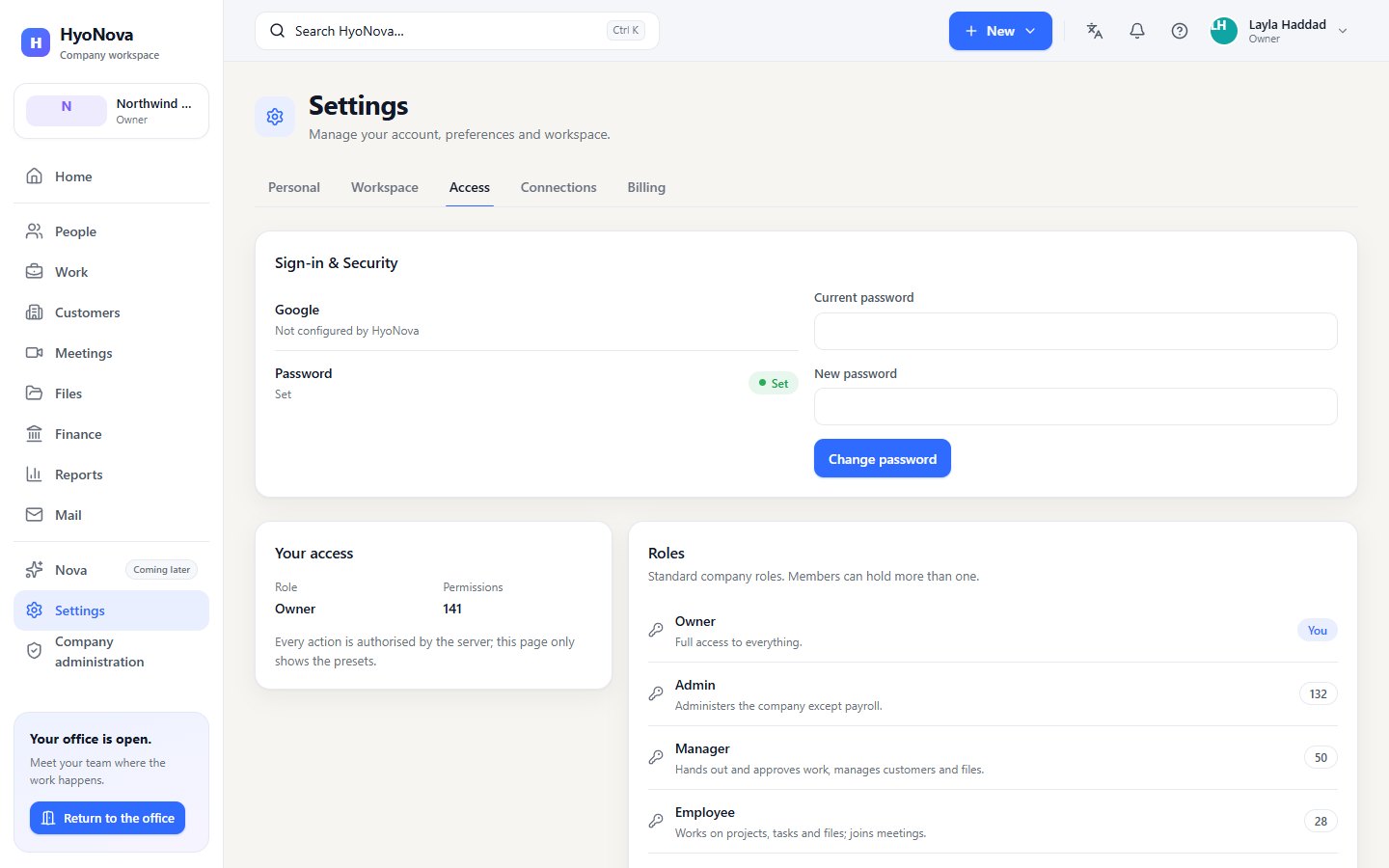
- Settings → Access (every member). The Your access card shows your Role and how many Permissions you hold, with the note "Every action is authorised by the server; this page only shows the presets." The Roles card lists the five standard roles with a one-line description, and the Permission matrix shows each standard role against each area as Full, Read, Create, Update, Delete, Approve, Export or Admin. Custom roles do not appear here.
- Company administration → Access → Roles and Permissions (owners and admins). Standard and custom roles together, with the permissions each one carries. See Custom roles.
What each standard role can do#
✓ means the role can do it. — means it cannot.
People#
| Owner | Admin | Manager | Employee | Restricted | |
|---|---|---|---|---|---|
| See the member directory | ✓ | ✓ | ✓ | ✓ | — |
| See members' email addresses and pending invitations | ✓ | ✓ | — | — | — |
| Invite members | ✓ | ✓ | — | — | — |
| Change roles and remove members | ✓ | ✓ | — | — | — |
| Add and archive departments | ✓ | ✓ | — | — | — |
Owners can give any role; admins can give any role except Owner. See People and Invitations.
Company administration#
| Owner | Admin | Manager | Employee | Restricted | |
|---|---|---|---|---|---|
| Open Company administration (overview and read-only pages) | ✓ | ✓ | ✓ | — | — |
| Edit the company profile, working hours and branding | ✓ | ✓ | — | — | — |
| Create, edit and delete custom roles | ✓ | ✓ | — | — | — |
| Read the audit log | ✓ | ✓ | — | — | — |
| See the billing pages | ✓ | ✓ | — | — | — |
| Change billing | ✓ | — | — | — | — |
Billing pages are read-only for everyone today; plan changes are handled by HyoNova. See Admin, Audit and Billing and plans.
Work#
| Owner | Admin | Manager | Employee | Restricted | |
|---|---|---|---|---|---|
| See tasks | ✓ | ✓ | ✓ | ✓ | ✓ |
| See projects | ✓ | ✓ | ✓ | ✓ | — |
| Create projects and tasks, change task status | ✓ | ✓ | ✓ | ✓ | — |
| Assign tasks to other people | ✓ | ✓ | ✓ | Only themselves | — |
See Tasks.
Customers, finance and reports#
| Owner | Admin | Manager | Employee | Restricted | |
|---|---|---|---|---|---|
| Open and create customers, see deals | ✓ | ✓ | — | — | — |
| See invoices, payments, expenses and receivables | ✓ | — | — | — | — |
| Payroll | ✓ | — | — | — | — |
| Reports: open tasks | ✓ | ✓ | ✓ | — | — |
| Reports: invoiced, received, expenses | ✓ | — | — | — | — |
Managers and employees see the Customers area, but customer and deal records are confidential, so today they get "Not available for your role" when they open it. See Data clearance below.
Files#
| Owner | Admin | Manager | Employee | Restricted | |
|---|---|---|---|---|---|
| See and download company files | ✓ | ✓ | ✓ | ✓ | ✓ |
| Upload files | ✓ | ✓ | ✓ | ✓ | — |
See Files.
Communication#
| Owner | Admin | Manager | Employee | Restricted | |
|---|---|---|---|---|---|
| Chat: direct messages and groups | ✓ | ✓ | ✓ | ✓ | — |
| Spatial voice in the office | ✓ | ✓ | ✓ | ✓ | — |
| Call a colleague | ✓ | ✓ | ✓ | ✓ | — |
| Create, join and schedule meetings, share a screen | ✓ | ✓ | ✓ | ✓ | — |
| Host controls: let in, mute, remove, lock, end, notes to tasks | ✓ | ✓ | ✓ | — | — |
| Change company meeting settings | ✓ | ✓ | — | — | — |
Host controls apply when the person is the meeting's host or co-host. See Meetings.
Office (world)#
| Owner | Admin | Manager | Employee | Restricted | |
|---|---|---|---|---|---|
| Enter the office, enter rooms, sit and interact | ✓ | ✓ | ✓ | ✓ | ✓ |
| See who is online and where | ✓ | ✓ | ✓ | ✓ | ✓ |
| Open the People list in the office | ✓ | ✓ | ✓ | ✓ | — |
| Answer knocks and manage rooms | ✓ | ✓ | ✓ | — | — |
| Build the office and create worlds | ✓ | ✓ | — | — | — |
See World permissions.
Guests#
| Owner | Admin | Manager | Employee | Restricted | |
|---|---|---|---|---|---|
| Allow or stop guests for the company | ✓ | ✓ | — | — | — |
| Create and revoke guest links | ✓ | ✓ | ✓ | — | — |
| See guest visits, approve or decline visitors, end visits | ✓ | ✓ | ✓ | — | — |
| Promote a guest to employee | ✓ | ✓ | — | — | — |
See Guests.
Data clearance#
Besides permissions, every record in HyoNova has a sensitivity level, and every role has a clearance — the most sensitive level it may open. A person needs both the permission for an action and enough clearance for the record.
| Level | Examples | Who has this clearance |
|---|---|---|
| Internal | Projects, tasks, company files, chats and meetings | Everyone with a role |
| Confidential | Customers, contacts, deals, and employee records | Owner, Admin |
| Restricted | Invoices, payments, expenses, accounting entries and payroll | Owner |
This is why an admin, who can do almost everything, still cannot open invoices or payroll, and why the Customers area is not yet usable for managers and employees. In a custom role, clearance is two permissions in the Access group of the matrix.
Taking part in a chat or meeting only needs a colleague's name, so people with internal clearance can message and meet everyone without seeing their employee records.
Custom roles#
| Feature | Status | Notes |
|---|---|---|
| Custom roles | AvailableWorks today for workspaces whose plan includes it. | Create your own roles with a permission matrix. |
When no standard role fits — a team lead who should assign tasks but not see customers, or a marketing team that needs Mail — owners and admins create a custom role. Custom roles belong to your company only.
Create and manage custom roles#
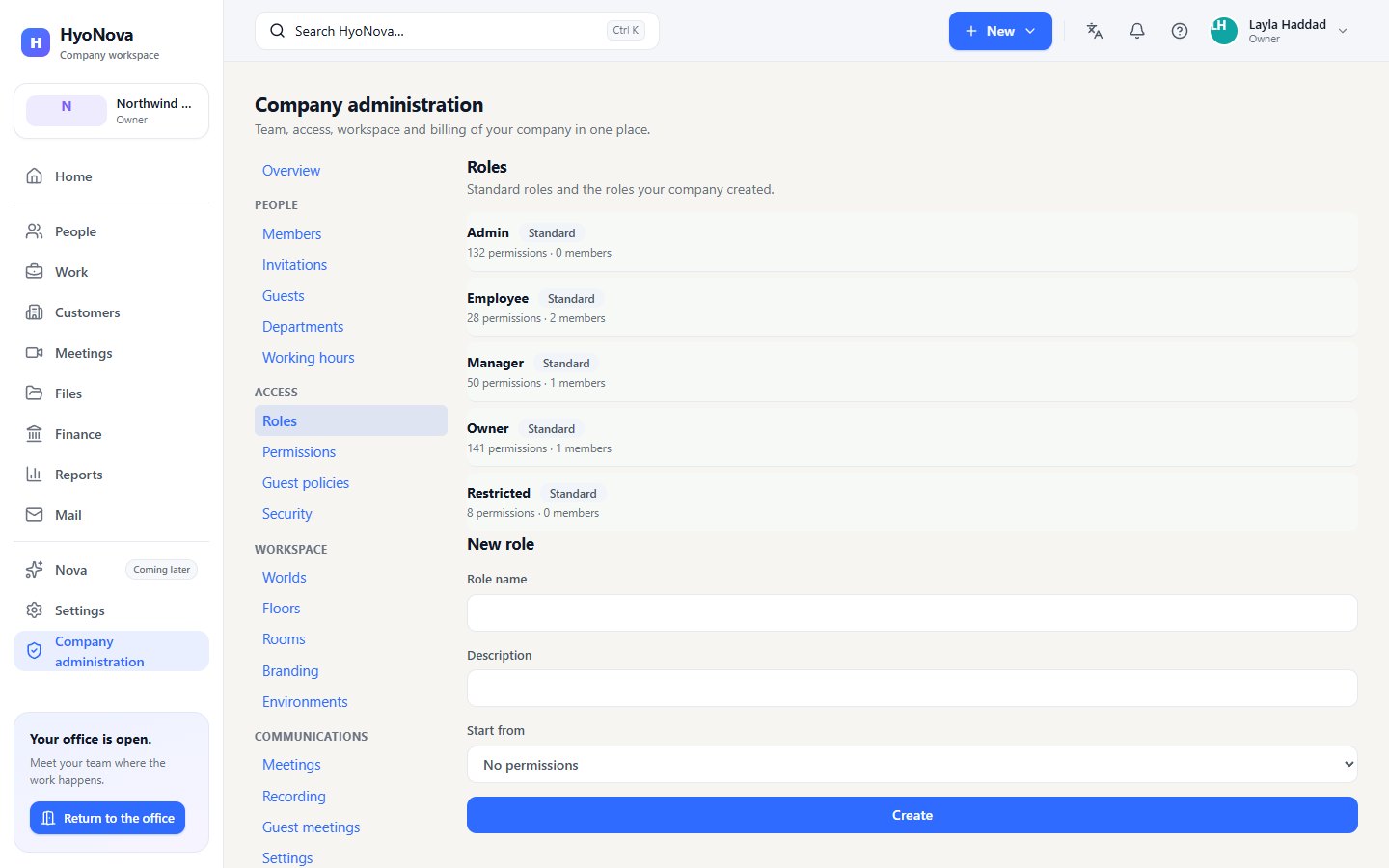
Open Company administration → Access → Roles: "Standard roles and the roles your company created." Each role is tagged Standard or Custom and shows how many permissions and members it has, with its description. A role that carries permissions you do not hold is tagged Above your own role.
- Fill in New role. Enter a Role name (2 to 80 characters, different from every other role in your company) and an optional Description.
- Choose Start from. Pick No permissions to build the role from nothing, or a standard role to copy its permissions. Only standard roles you could give yourself are offered.
- Create it. Select Create. The role appears in the list, tagged Custom.
To rename a custom role or change its description, select Edit, change the fields and select Save (or Cancel). To remove it, select Delete. Delete stays unavailable while anyone holds the role — "This role is assigned to members and cannot be deleted." — so first give those members another role. To change what the role may do, use the permission matrix.
The permission matrix#
Open Company administration → Access → Permissions: "What each role may do. Standard roles are read-only; custom roles are editable."
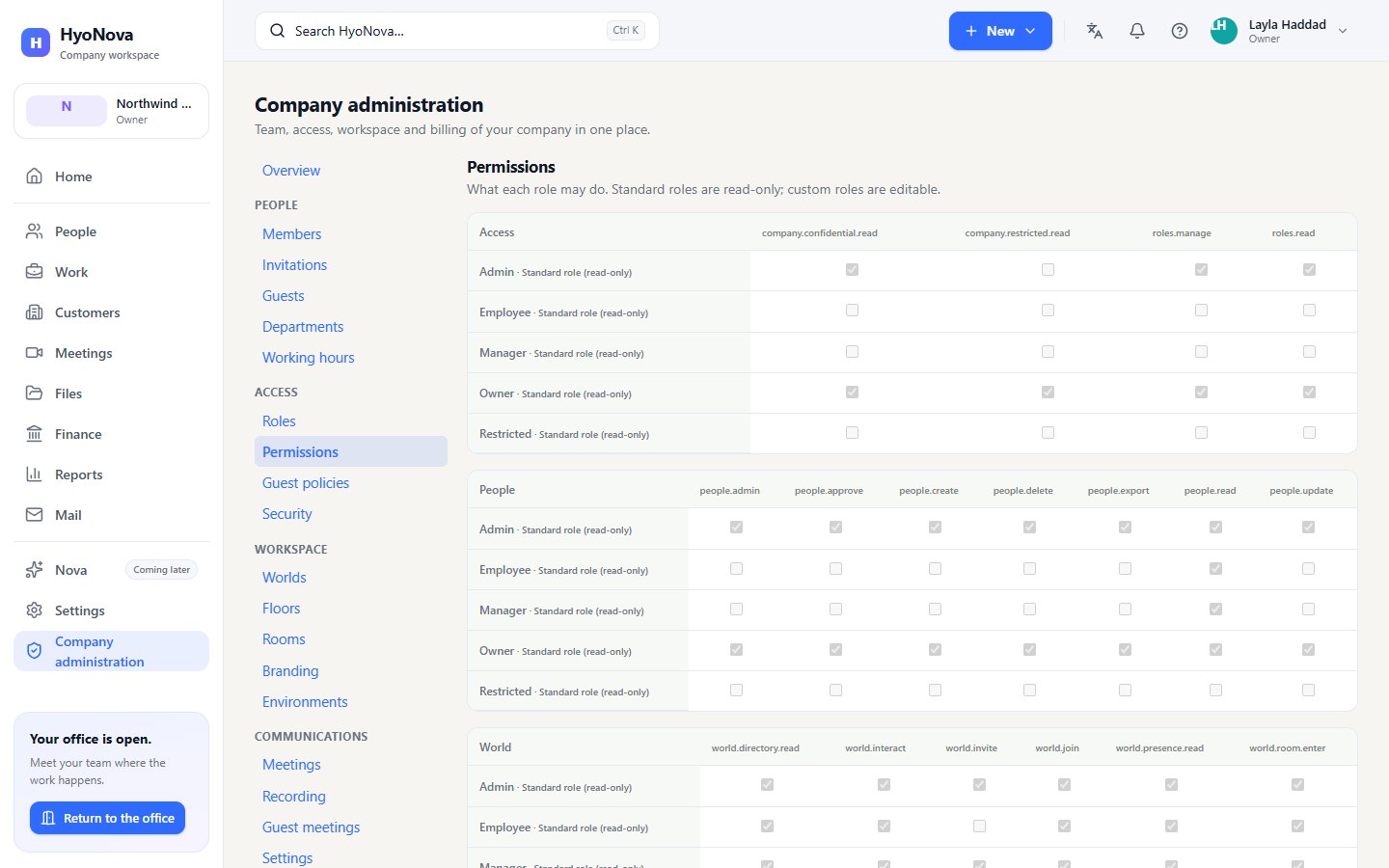
The matrix has one table per group: Access, People, World, Builder, Chat, Meetings, Guests, Files, Projects & tasks, CRM & sales, Finance, Analytics, Company admin, Integrations and AI & automation. Each row is a role; standard roles are marked Standard role (read-only). Each column is one permission, shown by its technical name.
- Find the custom role's row in the group you want to change.
- Tick or untick permissions. You can only tick permissions you hold yourself; the others stay greyed out.
- Save. A Save role button with the role's name appears at the top of the page. Select it to store the change.
The change applies straight away to everyone who holds the role. A step-by-step example is in Configure roles and permissions.
Give a custom role to a member#
Custom roles are assigned in Company administration → People → Members, in the Change role column. They cannot be chosen in the invitation form or in the People page menu: invite the person with a standard role, then change it once they have joined. See People.
Rules that always apply#
- No escalation. Nobody can create, edit, delete or give a role that carries a permission they do not hold. The server refuses it even if the interface is bypassed.
- Standard roles are fixed. They cannot be edited or deleted; copy one with Start from instead.
- Plans still apply. A module your plan does not include stays unavailable, even when a role allows it.
- Changes are recorded. Creating, editing and deleting roles and changing a member's role appear in the audit log.
Show technical details
Permissions are keys in the form namespace.action. Roles are sets of these keys, stored and checked on the server; the product interface only adapts to them.
- Company namespaces:
people,payroll,finance,crm,sales,projects,tasks,support,marketing,communications,files,automation,ai,integrations,analytics. - Actions:
read,create,update,delete,approve,export,admin.people.adminis member administration (invite, change role, remove).tasks.approveallows assigning tasks to others. Departments usepeople.create(add) andpeople.delete(archive). - Communication capabilities:
communications.meeting.join,.meeting.invite,.meeting.moderate,.meeting.record,.call.create,.screen.share,.guest.invite,.guest.admit,.recording.read,.recording.delete,.transcript.read,.transcript.create,.transcript.delete,.support.manage,.file.guest_grant. Company meeting settings needcommunications.admin. - Office (world):
world.join,world.invite(create guest links),world.manage_access(allow or stop guests),world.manage,world.room.enter,world.room.manage,world.interact,world.directory.read,world.presence.read. - Guests:
guests.read,guests.manage(approve, decline, end visits),guests.promote. - Company administration:
company.admin.read(open the area),company.settings.manage,roles.read,roles.manage,audit.read,billing.read,billing.manage. - Clearance:
company.confidential.readgrants confidential clearance,company.restricted.readgrants restricted clearance. Without either, clearance is internal.
Standard roles:
- Owner: every key.
- Admin: every key except
payroll.*,company.restricted.readandbilling.manage. - Manager:
read,create,update,exporton projects, tasks, crm, sales, support and files;tasks.approve,support.approve;people.read,analytics.read;company.admin.read;communications.read/create/update; meeting join, invite, moderate and record, call, screen share, guest invite and admit, recording and transcript read, live support sessions (communications.support.manage);world.join,world.invite,world.room.enter,world.room.manage,world.interact,world.directory.read,world.presence.read;guests.read,guests.manage. - Employee:
read,create,updateon projects, tasks and files;readon people, crm, sales and support;support.createandsupport.update(working the tickets of the support queues they belong to);communications.read/create/update; meeting join and invite, call, screen share, recording and transcript read;world.join,world.room.enter,world.interact,world.directory.read,world.presence.read. - Restricted:
tasks.read,files.read;communications.meeting.join,communications.screen.share;world.join,world.room.enter,world.interact,world.presence.read.
A member cannot grant, change or remove a role that carries a key they do not hold, and a custom role cannot carry a key its author does not hold. Only company keys can be put in a custom role. Features also depend on the company's plan: a module that is not included is refused even when the role allows it.
Was this page helpful?
Thanks. Page ratings are not collected yet, so nothing was sent. If something is missing or wrong, see the Get help page.