Security at HyoNova
How HyoNova separates companies, checks permissions, protects sign-in, passwords and sessions, and encrypts data today — and what is not available yet.
On this page
This page describes the security controls that are in HyoNova today, so owners, admins and IT teams can evaluate the product. It describes how the product works; it is not a certification or compliance statement.
Company isolation#
Every company in HyoNova is separated from every other company.
- Each request for company data runs inside a database transaction that is bound to one company.
- The database itself enforces the separation with row-level security, so a query can only see rows of the company it is bound to.
- The HyoNova service refuses to start if its database account could bypass those rules.
Show technical details
- The API sets the company context at the start of each transaction and the database policies read it. Data outside that context is not visible to the query.
- On start-up the API checks that its database role is neither a superuser nor allowed to bypass row-level security, and stops if it is.
- HyoNova’s own operator tools use a separate sign-in and separate sessions from company accounts.
Roles and permissions are checked on the server#
Members get one of five standard roles — Owner, Admin, Manager, Employee or Restricted — or a custom role that owners and admins create in Company administration › Access › Roles. The server checks the permission for every request, so a member who loses a permission loses it at once. The interface hides actions you cannot take, but that is a convenience, not the protection.
Nobody can give a role above their own, and nobody can create, edit or grant a custom role with permissions they do not hold themselves. Standard roles cannot be edited or deleted. See Roles and permissions.
Show technical details
Examples of permission keys enforced by the server:
| Permission | Allows | Standard roles |
|---|---|---|
people.admin | Invite members, change roles, remove members, manage company and office addresses | Owner, Admin |
company.admin.read | Open Company administration, including its Security page | Owner, Admin, Manager |
roles.manage | Create, edit and delete custom roles | Owner, Admin |
audit.read | Read the company audit log | Owner, Admin |
world.manage | Open the office builder and create office worlds | Owner, Admin |
world.manage_access | Turn guest access on or off, revoke any guest link | Owner, Admin |
world.invite | Create guest links and revoke your own | Owner, Admin, Manager |
Data classification#
Company records carry a classification — public, internal, confidential or restricted — and each role has a clearance level. A record is shown only when your role’s clearance is high enough and you have the permission for that kind of record. Restricted records such as payroll and restricted finance records are visible to Owners only.
Sign-in & Security for every member#
Every member — whatever their role — manages their own sign-in in Settings.
- Open Settings. In the sidebar of the company workspace, choose Settings, or open the account menu in the top-right corner and choose Settings.
- Open the Access tab. Choose Access. The card Sign-in & Security lists your sign-in methods.
- Change your password. Enter your Current password and a New password of at least 8 characters, then choose Change password.
HyoNova confirms "Password saved. Other browsers were signed out." The browser you are using stays signed in; every other browser and device has to sign in again with the new password. If the current password is wrong, you see Email or password is incorrect.
The card shows two rows:
| Row | What it shows today |
|---|---|
| Not configured by HyoNova — Google sign-in is not switched on yet, so there is nothing to connect. | |
| Password | Set when your account has a password. Every account created with email and password has one. |
The same Access tab also shows Your access — your role and how many permissions it has — a short description of each standard role under Roles, and the Permission matrix of the standard roles. That view is informational: "Every action is authorised by the server; this page only shows the presets." Custom roles are listed in Company administration instead.
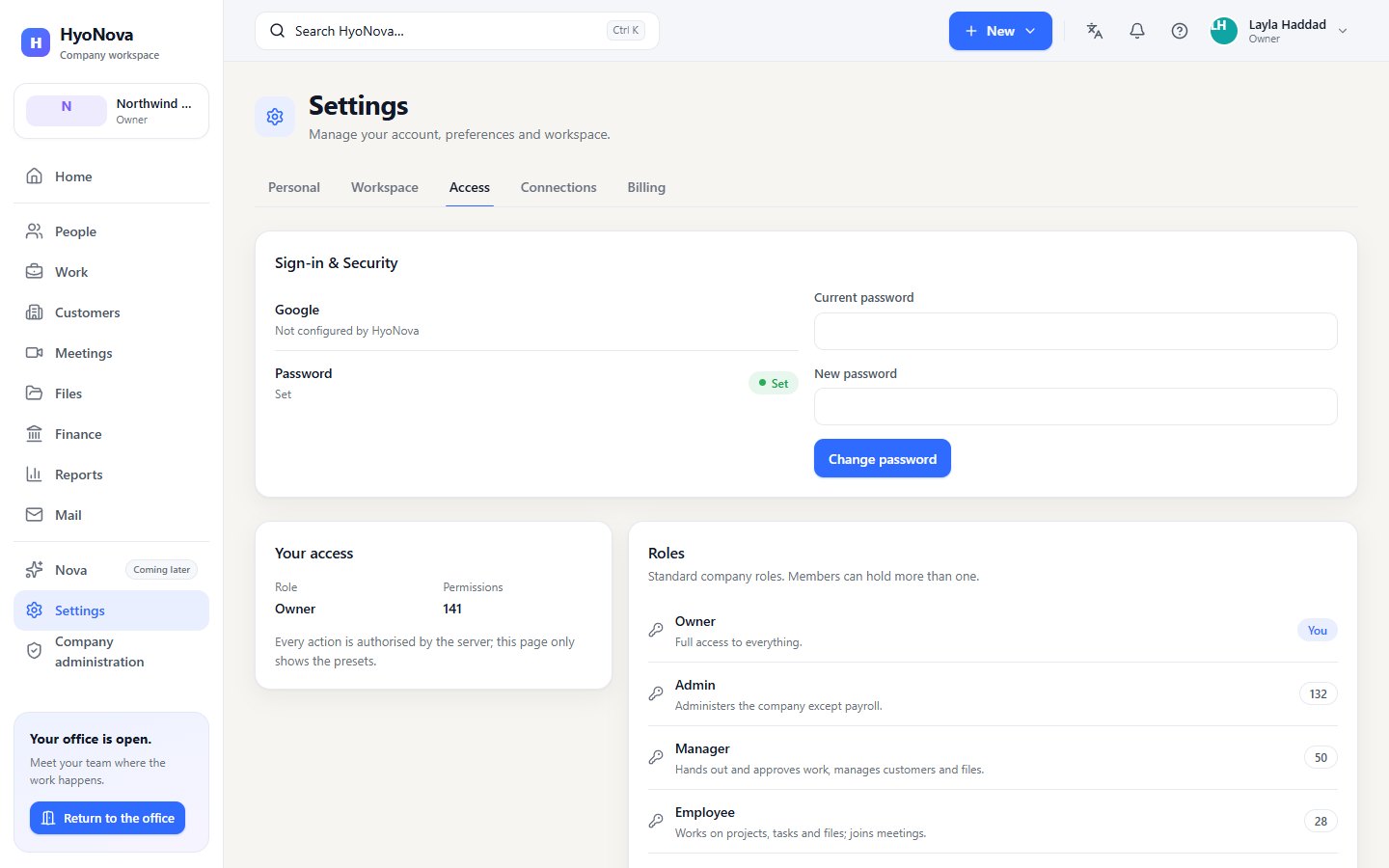
Company sign-in rules#
Owners, admins and managers can review the sign-in rules that apply to the whole company in Company administration › Access › Security — "Sign-in rules that apply to every member." The page is read-only. Nothing on it can be switched by the company today.
| Row | Shown today | What it means |
|---|---|---|
| Password | 8 characters at least | The minimum length for every password. Any characters are allowed. |
| Sign in with Google | Not available | Google sign-in is not switched on yet. |
| Allowed Google domains | Any Google account | When Google sign-in is on, no Google domain restriction is set. It has no effect while Google sign-in is off. |
| Session lifetime | In hours (720 hours = 30 days) | The longest a session lasts, even when you are active. |
| Idle sign-out | In minutes (10080 minutes = 7 days) | A session ends after this long without activity. |
| Two-step verification | Optional | There is nothing to switch on: members cannot set up a second factor yet, so in practice nobody uses one. See Not available yet. |
| Passkeys | Not available | Members cannot sign in with passkeys. |
The link Your own sign-in & security settings at the bottom opens Settings › Access.
Sign-in and sessions#
- You sign in with your work email and password at https://app.hyonova.com/sign-in. While your session is valid, opening HyoNova takes you straight to your company without signing in again.
- Your session is kept in a cookie that page scripts cannot read (HttpOnly), that is sent only over HTTPS (Secure) and only to HyoNova itself (SameSite=Strict).
- A session ends after 7 days without activity and at the latest 30 days after you signed in. After that you sign in again.
- Every request that changes something must carry a separate anti-forgery (CSRF) token that belongs to your session. Requests without it are refused.
- Sign out ends the session on the server, not only in your browser.
- Changing your password signs out your other browsers. Resetting a forgotten password signs you out everywhere.
Show technical details
- Session tokens are random and stored on the server only as a hash.
- Requests that change data without the matching
X-CSRF-Tokenheader receive403with the codeCSRF_DENIED. - Guests do not receive a company session. They enter with their guest link, which is checked on every guest request.
Passwords#
- Passwords must have at least 8 characters.
- HyoNova never stores your password. It stores a salted hash made with scrypt, a deliberately slow password-hashing function.
- An unknown email address goes through the same password check as a real one, so the time a sign-in takes does not reveal which email addresses have an account.
- Changing a password requires the current password.
Password reset#
A member who forgot their password chooses Forgot your password? on the sign-in page and receives an email with a reset link.
- The link works once and for 30 minutes, and it is stored on the server only as a hash.
- The page always gives the same answer, whether or not the address has an account, so it cannot be used to find out who uses HyoNova.
- At most one reset email is sent per minute for the same account.
- Saving the new password signs the account out everywhere.
- Owners and admins cannot see, reset or change another member's password.
Password reset depends on email delivery. If the email does not arrive — check the spam folder first — the member contacts HyoNova through Get help. See Sign-in and invitations.
Rate limiting#
HyoNova limits how many requests can be made in a short time. Sign-in, password and invitation actions have stricter limits than the rest of the product. When a limit is reached you see Too many attempts. Wait a minute and try again.
Encryption#
In transit:
- The product is served only over HTTPS. Plain HTTP requests are redirected to HTTPS, and the HyoNova service endpoints use a TLS 1.3 security policy.
- Connections between HyoNova services and the database require TLS.
- Voice and video travel over encrypted connections. In calls and meetings the product shows Encrypted in transit.
- Email delivery requires TLS to the receiving mail server.
At rest:
- Database storage is encrypted.
- Uploaded files are stored in encrypted file storage.
- Background job queues and the short-lived cache used for real-time coordination are encrypted.
Browser protections#
The web app sends a Content-Security-Policy and cannot be embedded in frames on other sites. Error messages are generic and include a request reference instead of internal details, so problems can be traced without exposing data. Invitation and password-reset links keep their secret part out of server logs, and the invitation page removes it from the address bar as soon as it opens.
Guest access limits#
Guests never receive a company session and cannot open the company workspace.
- Office guests enter through a guest link that expires and can be limited to a number of uses. They see one office world only, and only what the link allows. They can message only their host and the members named on the link. When the link asks for it, the host approves each visitor before they enter.
- Meeting guests use a meeting's private guest link, see only that meeting, and wait until the host lets them in.
Owners and admins can stop guest access at any time, which removes guests who are inside. See Guests.
Audit logging#
Important administrative changes — invitations, role changes, custom roles, member removal, guest access, guest promotion, company profile and address changes — are recorded in an append-only audit log with secrets removed. Owners and admins read it in Company administration › Company › Audit log. See Audit log.
Not available yet#
- Two-step sign-in for members — a second factor or passkeys — is planned. The company Security page shows two-step verification as "Optional" because no member can set one up yet.
- Continue with Google is built but not switched on yet.
- Single sign-on with other identity providers, and company-wide sign-in rules you can change yourself, are not available.
- There is no screen yet to see your active sessions or sign out one particular device. Changing your password signs out your other browsers.
- Owners and admins cannot reset a member's password for them.
| Feature | Status | Notes |
|---|---|---|
| Secure sessions and tenant isolation | AvailableWorks today for workspaces whose plan includes it. | HttpOnly session cookies, CSRF protection, and database-level isolation between companies. |
| Sign-in & Security settings | AvailableWorks today for workspaces whose plan includes it. | Every member sees their sign-in methods and changes their password; other browsers are signed out. |
| Continue with Google | Requires setupBuilt, but works only after a supporting service is configured for your workspace. | Sign up and sign in with a Google account, linked to an existing account with the same email. Built but not switched on yet. The Continue with Google button appears once HyoNova turns it on. |
| Two-step sign-in for members | PlannedOn the HyoNova roadmap. Not built yet and has no release date. | Passkeys or a second factor for HyoNova member accounts. |
Was this page helpful?
Thanks. Page ratings are not collected yet, so nothing was sent. If something is missing or wrong, see the Get help page.