Views and planning: board, flow, timeline, calendar and goals
Plan and follow work in HyoNova with the Board, Flow, Timeline and Calendar views, the Team workload and Goals with key results.
The same tasks can be seen in several ways. A project's Board, Flow and Timeline tabs show its tasks by status, by dependency and by date; the Calendar shows dates across projects; Team shows who carries how much; and Goals connects work to measurable results. Every view reads and changes the same records, so a move on the board is the same change as a move in the task list.
Board#
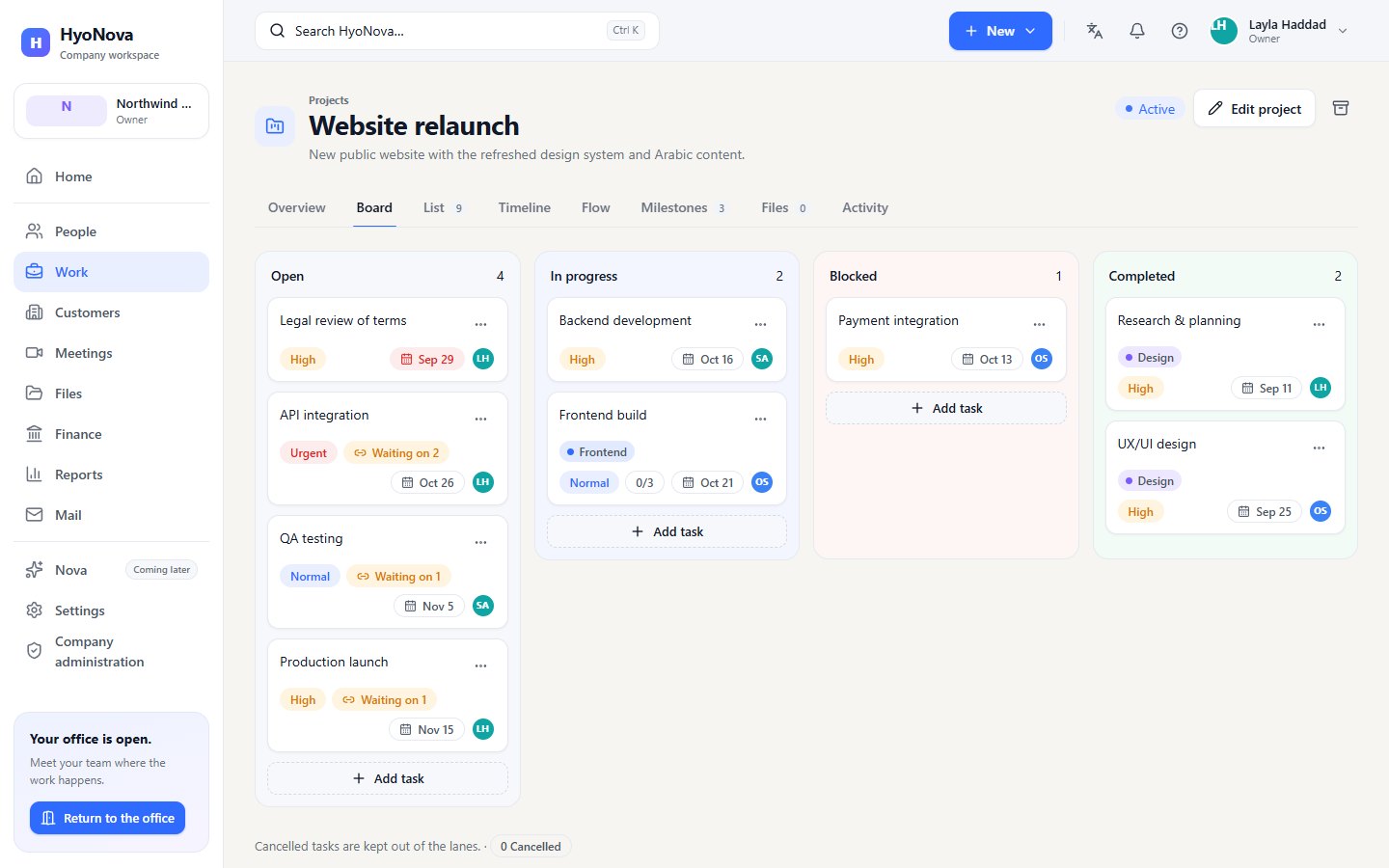
Open a project and select Board. The lanes are Open, In progress, Blocked and Completed, each with its count. Cards show the task name, labels, priority, Waiting on, subtask progress, due date and assignees. Subtasks are not shown as separate cards, and cancelled tasks stay out of the lanes ("Cancelled tasks are kept out of the lanes.").
- Drag a card to another lane to change its status. HyoNova saves the move straight away; if the move is not allowed — for example from Blocked straight to Completed — or the server refuses it, the card goes back to where it was and the reason is shown.
- Without a mouse: focus a card, press Space to lift it, use the arrow keys to choose a lane and press Enter to drop it ("Move with the arrow keys, drop with Enter"). Esc cancels.
- The card menu offers Move to with the allowed statuses.
- Add task at the bottom of a lane creates a task already in that status.
- Select a card's name, or double-click the card, to open the task.
The board of an archived project is read-only.
Flow#
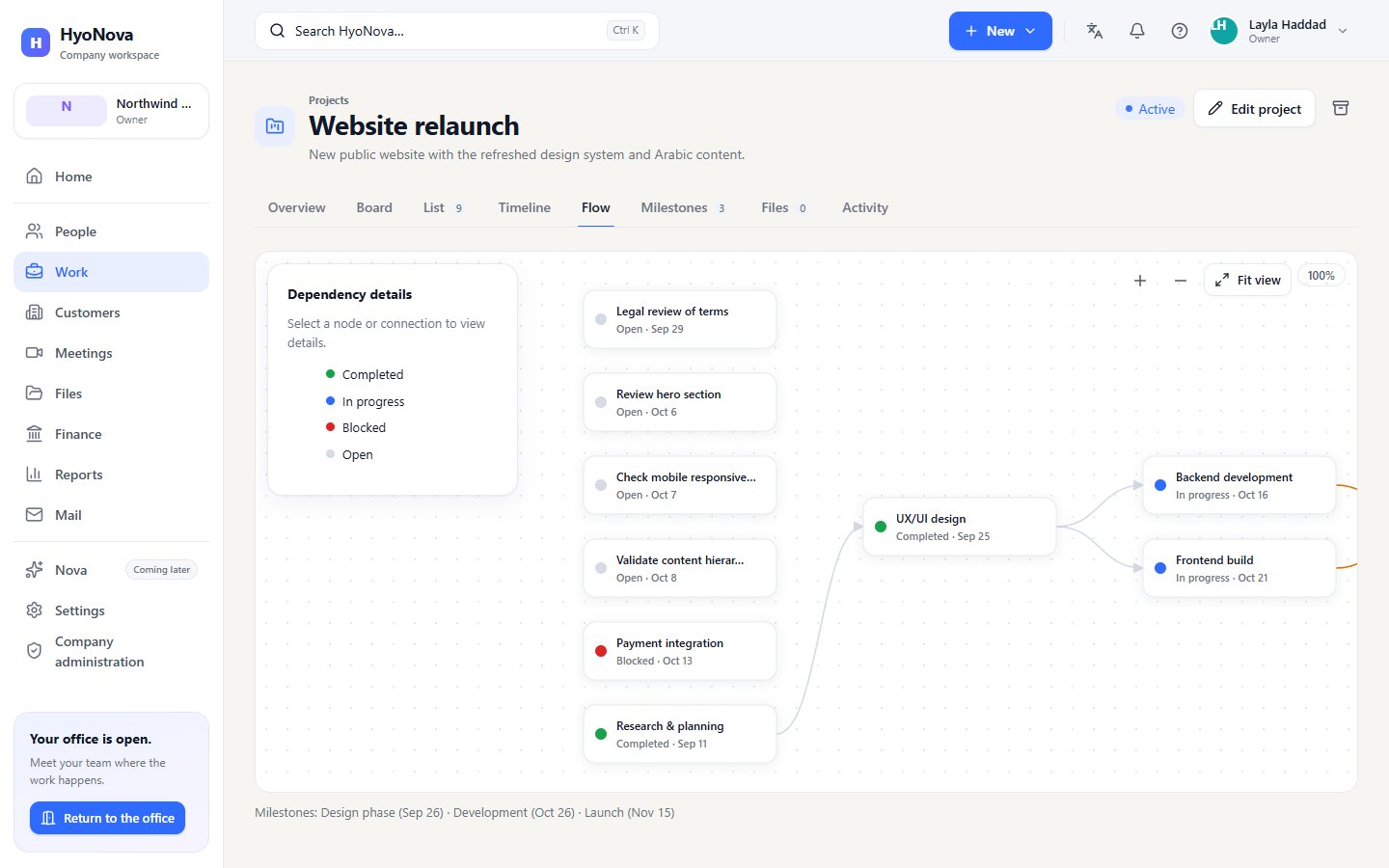
Flow draws the project's dependencies as a graph: each task is a box, coloured by status (Completed, In progress, Blocked, Open), and each arrow says which task depends on which. Tasks with no dependencies start on the left, and each task sits to the right of everything it waits on. The project's milestones are listed under the graph.
- Zoom in, Zoom out and Fit view, or use the mouse wheel; drag the background to move around.
- Select a task to see its status, due date and Waiting on in Dependency details, and Open task.
- Add a dependency: select the task that must finish first, choose Add dependency, then click the task that waits on it ("Now click the task that depends on the selected one.").
- Remove a dependency: select its arrow and choose Remove dependency.
The rules are the same as in the task panel: same project only, no loops. See Tasks.
Timeline#
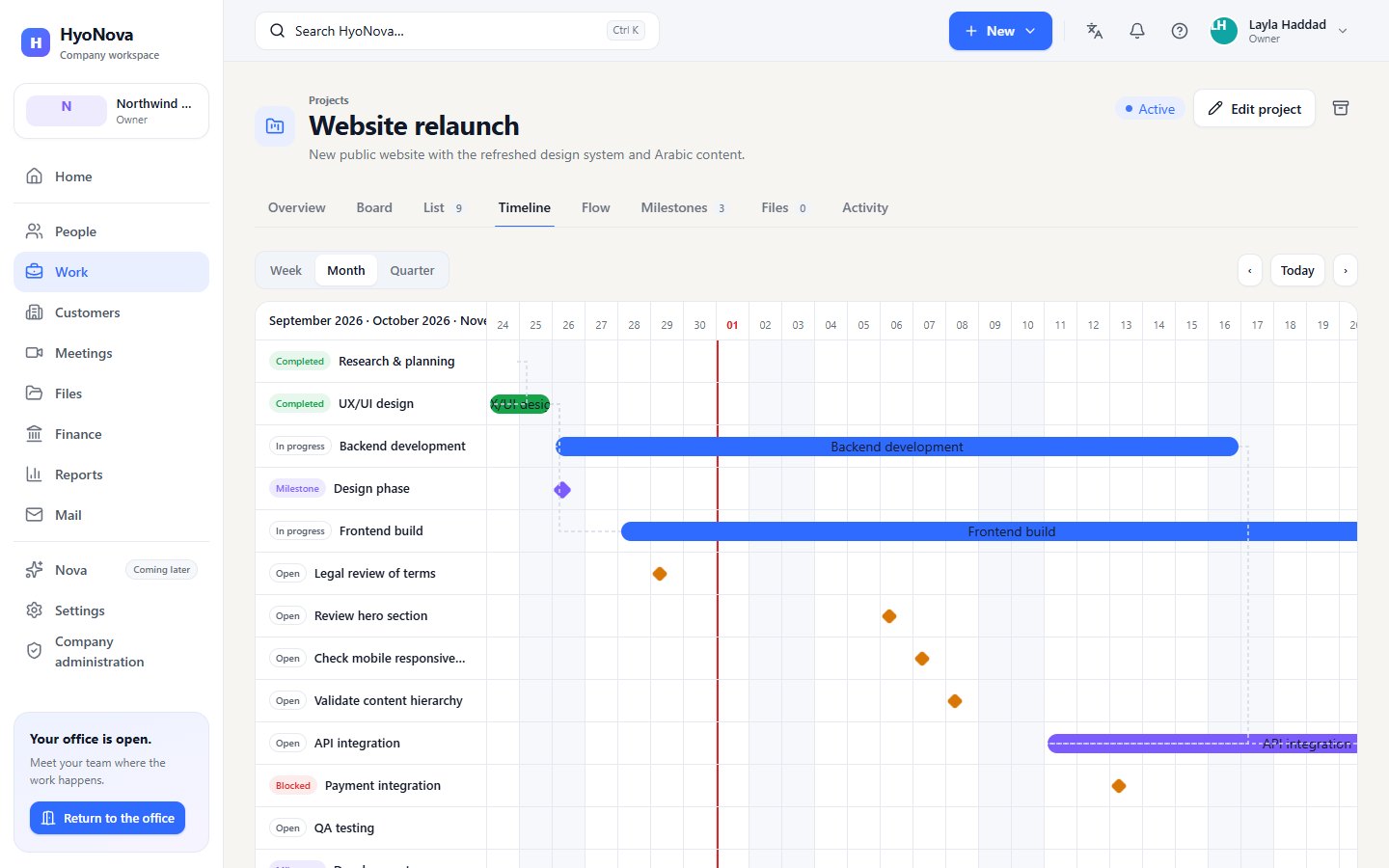
Timeline is a Gantt chart. Each task with dates is a bar from its Start date to its Due date; a task with only one date is a point, and milestones are markers. Dashed connectors show dependencies. Today is highlighted.
- Zoom between Week, Month and Quarter, and move with the arrows and Today.
- Select a bar or a name to open the task.
- Tasks with no dates are listed under Without dates; HyoNova never invents dates for them. If no task has a date, the timeline says Give tasks a start or due date to see them on the timeline.
To move a bar, change the task's dates in its panel.
Calendar#
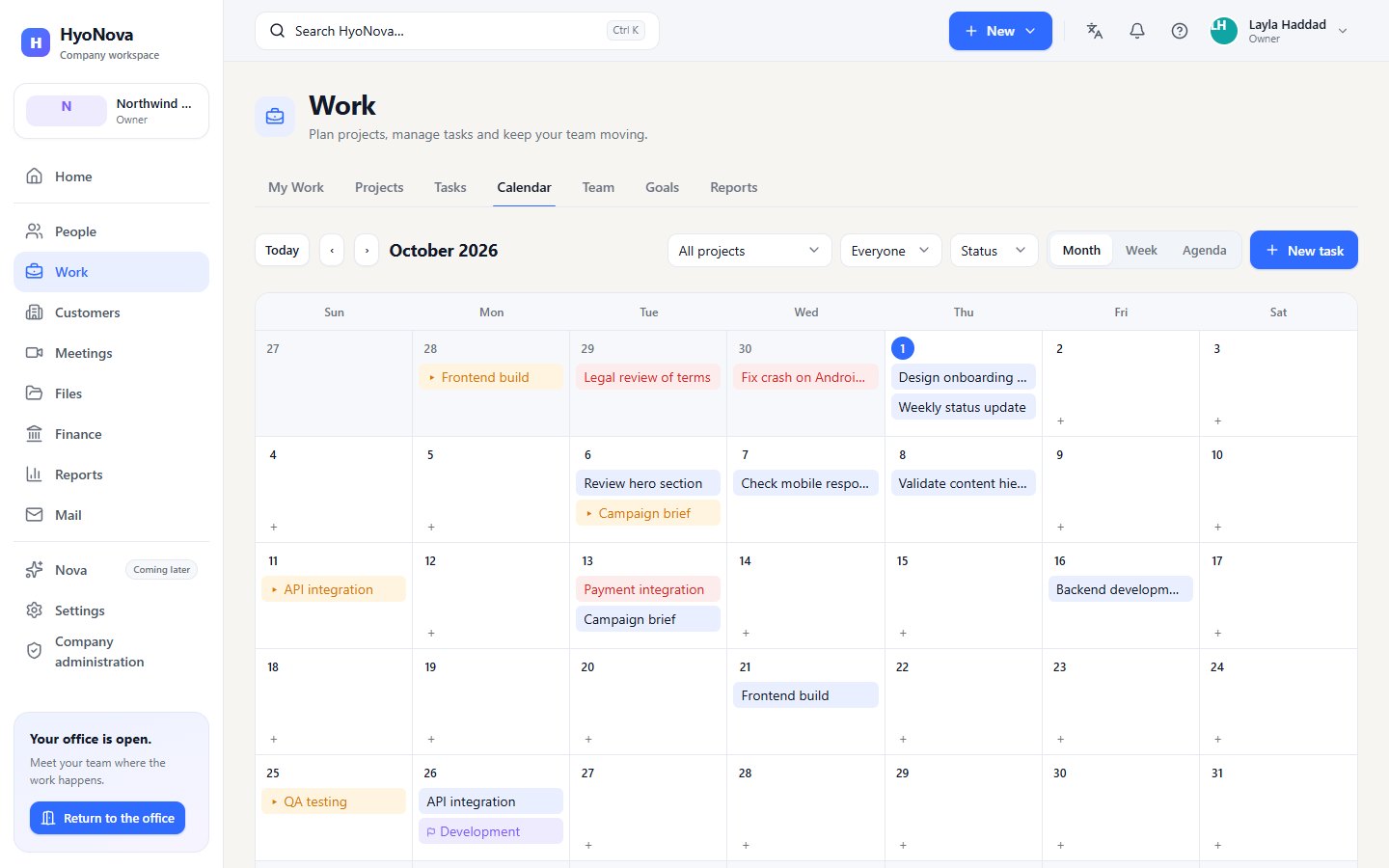
Work › Calendar shows tasks on their due day, tasks on their start day (marked ▸) and milestones, across all projects.
- View: Month, Week or Agenda (the next 30 days). Your choice is remembered on this device and can be set in Settings › Personal › Work preferences › Default calendar view.
- Filter by Project and Status; owners, admins and managers can also filter by person.
- In the month view, a day shows up to three items; + and a number opens that week. On an empty day from today on, + creates a task due that day.
- Select a task to open it, or a milestone to open the project's milestones.
- Companies with Calendar & Bookings also see a Bookings layer: the bookings visitors made with you and your own appointments. The Bookings chip shows or hides it, and New appointment blocks time in your own calendar. See Manage bookings.
Team workload#
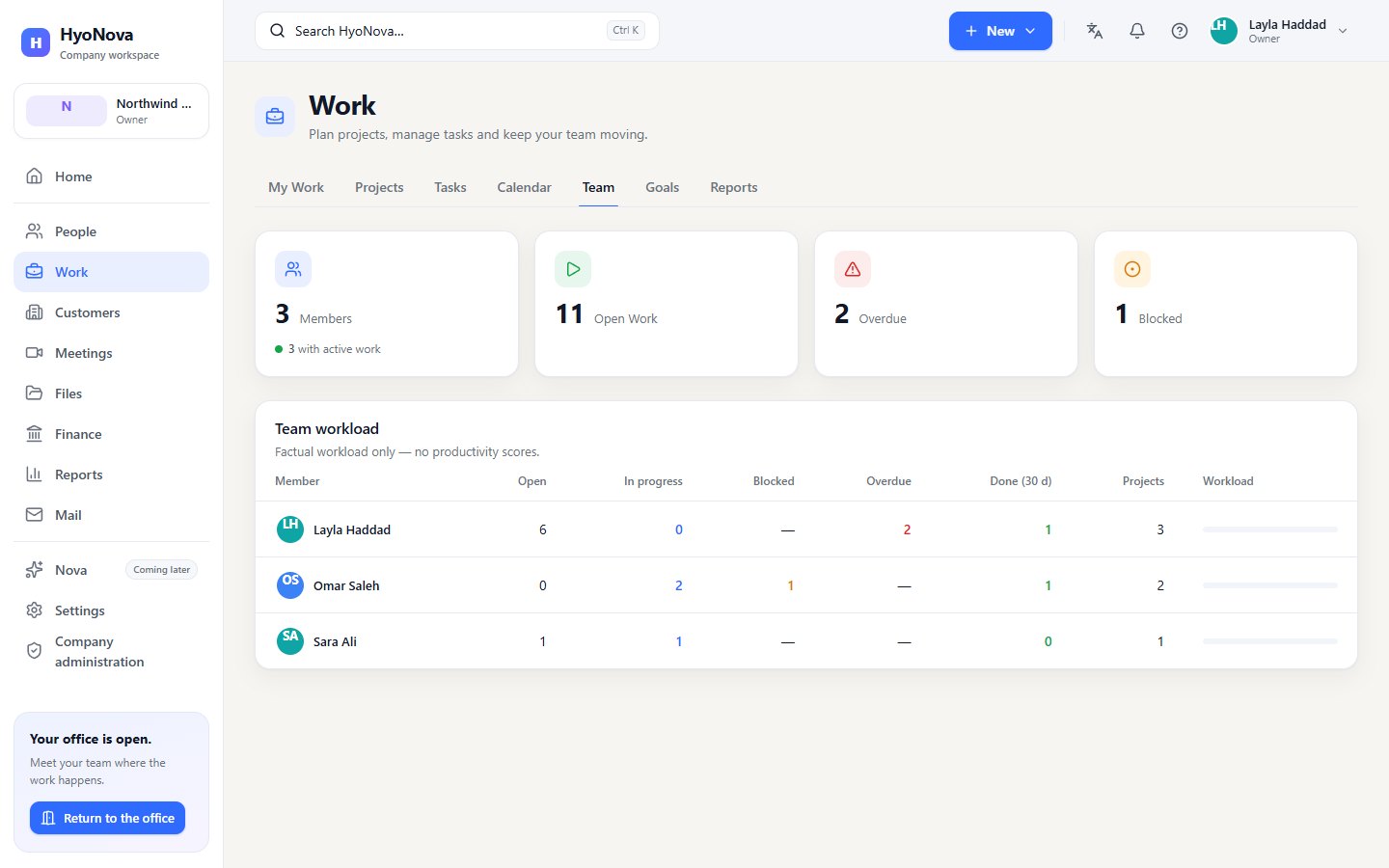
Work › Team is for owners, admins and managers. For each member it shows open, in-progress, blocked and overdue tasks, tasks completed in the last 30 days (Done (30 d)) and the number of projects, with a Workload bar. Select a member to see their tasks. The page says it plainly: "Factual workload only — no productivity scores."
Goals#
Work › Goals links company goals to measurable results.
- Create a goal. Select New goal, enter a Name and, optionally, an Owner and a Due date, then Save.
- Add objectives. Under the goal, select Add objective and name it.
- Add key results. Under an objective, select Add key result and set Target, Current and Unit.
- Update progress. Select Update on a key result and record the current value.
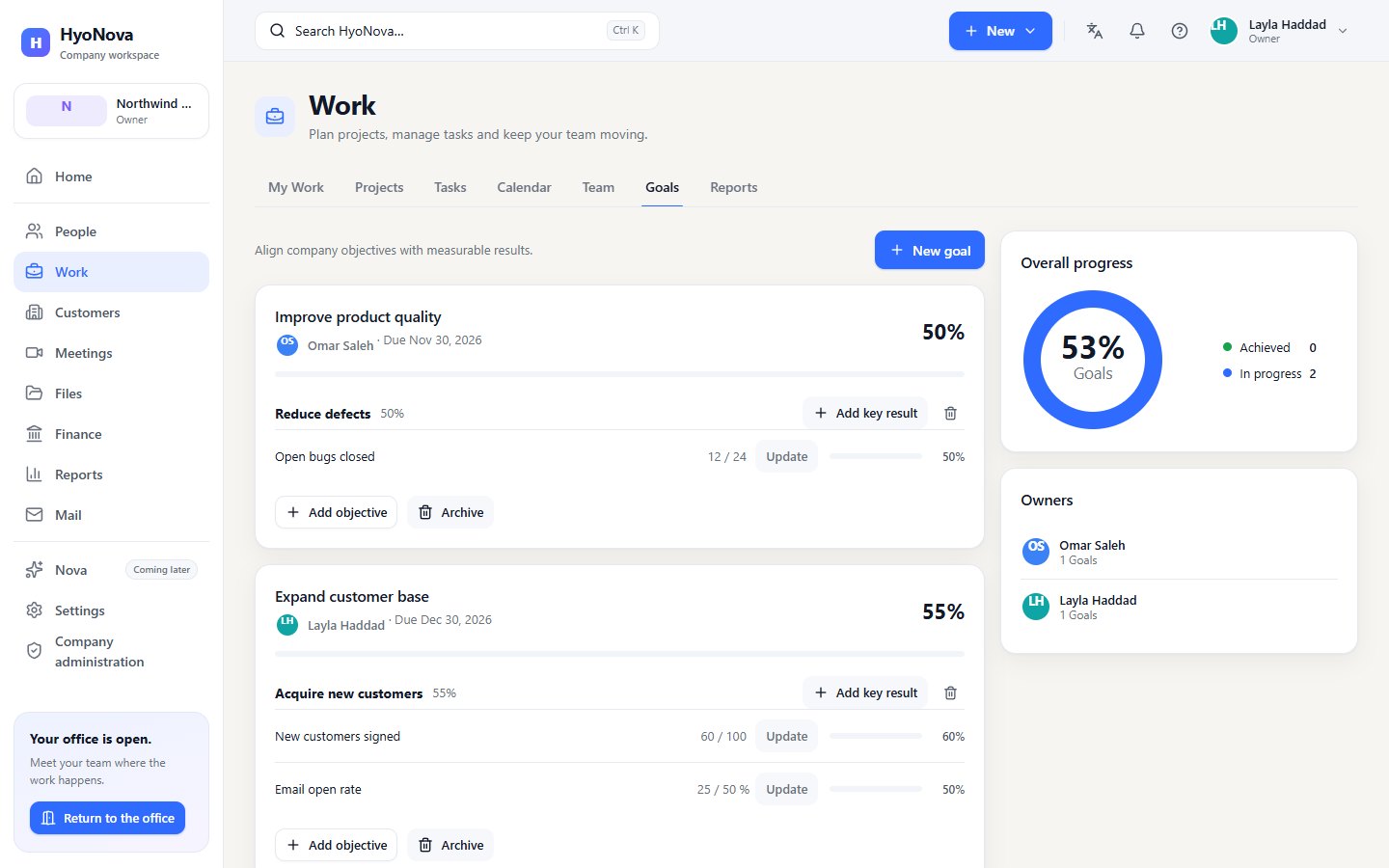
A key result's progress is current ÷ target; an objective's progress is the average of its key results, and a goal's the average of its objectives. Overall progress and Owners summarise all goals. Anyone who can create projects can create goals; anyone who can edit projects can add objectives and key results, update them and archive them. Goals are not linked to projects or tasks.
Task flow is not automation#
A task moves only when a person moves it, through the fixed statuses above. HyoNova does not change a task's status by itself — not even when its dependencies are done. Automation workflows with triggers, actions and approvals are a separate, planned product; see Automation.
Status#
| Feature | Status | Notes |
|---|---|---|
| Goals and OKRs | AvailableWorks today for workspaces whose plan includes it. | Goals with objectives and key results; progress = current ÷ target. |
| Work calendar | AvailableWorks today for workspaces whose plan includes it. | See tasks and milestones by date. |
| Board view | AvailableWorks today for workspaces whose plan includes it. | A Kanban board of tasks by status. |
| Timeline and Gantt | AvailableWorks today for workspaces whose plan includes it. | Plan projects on a timeline with dependencies. |
| Team workload | AvailableWorks today for workspaces whose plan includes it. | See how much work each person has. Owners, admins and managers only; counts, no scores. |
| Flow (dependency graph) | AvailableWorks today for workspaces whose plan includes it. | See and edit a project's task dependencies as a graph. |
Was this page helpful?
Thanks. Page ratings are not collected yet, so nothing was sent. If something is missing or wrong, see the Get help page.