Mail automations
Build automated email journeys in Hyo Mail — a trigger, then steps such as send email, wait, change lists or attributes, and conditions.
On this page
A Mail automation is an email journey that runs by itself for each contact who meets its trigger — for example a welcome series for new subscribers, or a follow-up for people who clicked a link in a campaign.
Mail automations are about email and your Mail contacts. They are not the company-wide automation workflows, which are planned separately.
Who can do what#
- Anyone with access to Mail can view automations and their runs.
- Creating and editing automations needs permission to create and edit in Mail.
- Activate and Pause need permission to approve in Mail.
By default, Owners and Admins have all of these. See Hyo Mail. Every plan includes automations.
How an automation works#
Each automation has one trigger and a list of steps that run in order:
- A contact meets the trigger and enters the automation. One contact can be in the same automation only once at a time.
- The steps run one after another. A Wait step pauses that contact's run for the time you set.
- The run ends when the last step is done, or earlier if the contact is no longer subscribed or the automation is paused or archived.
Triggers#
| Trigger | Starts when |
|---|---|
| Contact joins a list | A contact is added to the chosen list in any way: Add members on the list, a new contact, a bulk action, a CSV import or a sign-up form |
| Attribute changes | The custom attribute with the chosen Key changes — on the contact's page, with a bulk action or with an Update attribute step |
| Form is submitted | Someone submits the chosen sign-up form |
| Campaign is opened | A contact opens the chosen campaign for the first time |
| Campaign link is clicked | A contact clicks a link in the chosen campaign for the first time |
| Date attribute is reached | The date in the attribute with the chosen Key, plus the Offset (days), is today. Use a negative offset to start before the date |
Steps#
| Step | What it does |
|---|---|
| Send email | Sends a template to the contact, from a verified sender |
| Wait | Waits a number of minutes, hours or days before the next step |
| Add to list | Adds the contact to a list |
| Remove from list | Removes the contact from a list |
| Update attribute | Sets a custom attribute on the contact |
| Condition | Checks a rule about the contact. If it is false, skips the number of steps you choose under Steps to skip when the condition is false |
Journeys run in a straight line: a condition skips steps forward but does not branch into separate paths.
Create an automation#
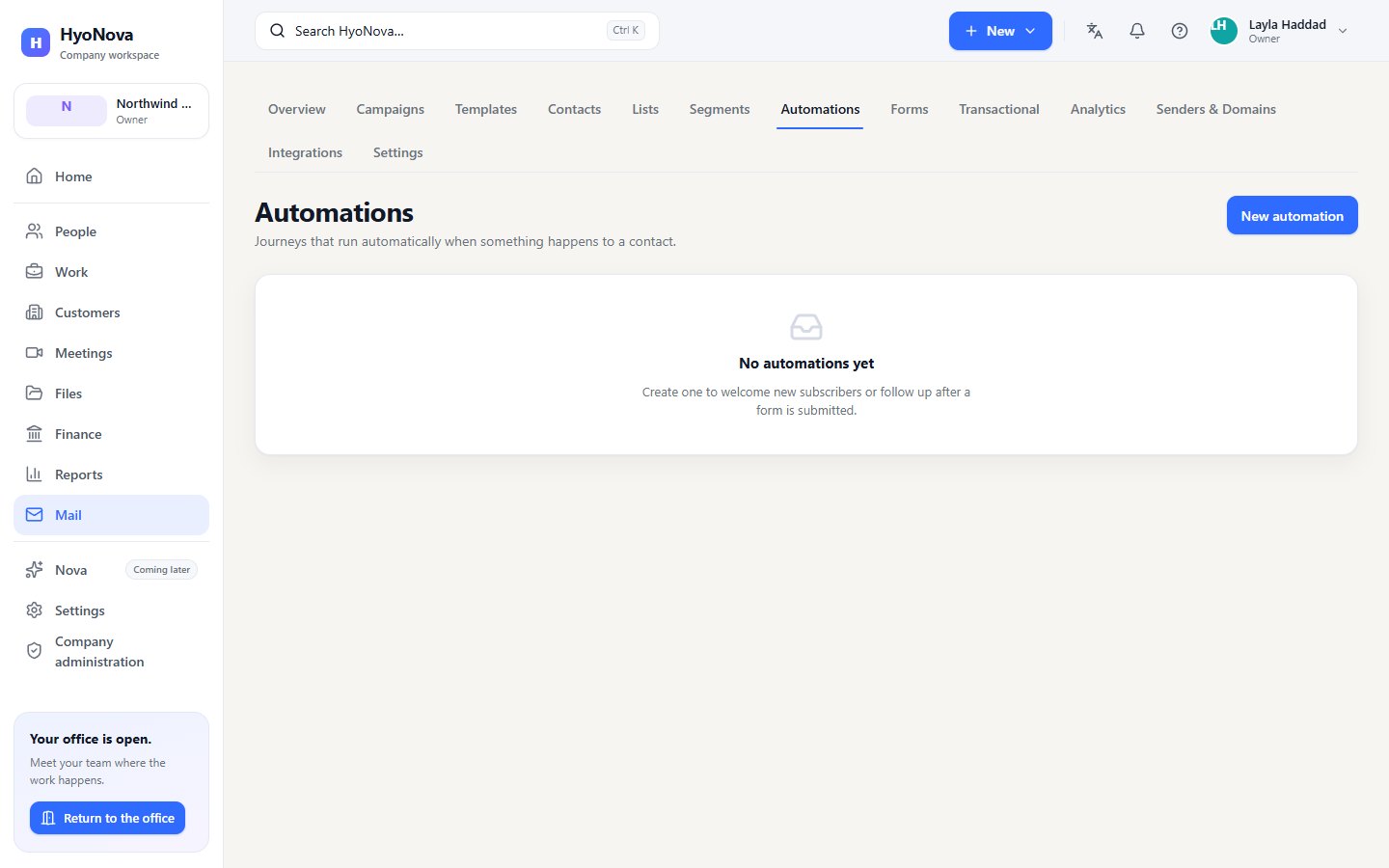
- Create it. Open Mail › Automations and choose New automation. Give it a name.
- Choose the trigger. Under When, pick a trigger and the list, form or campaign it watches.
- Add steps. Under Flow, use Add step. Reorder steps with Move up and Move down. For Send email, choose a template — design it first in Templates and include an unsubscribe link.
- Activate. Choose Activate. An automation needs at least one step before it can be activated.
To change the trigger or the steps of an active automation, Pause it first, make the change, then Activate it again. Archiving an automation stops its active runs.
Follow the runs#
The automation page shows Active runs, Completed and Failed. Runs lists each contact's run with its Status, current Step, Waiting until, Entered and Exited, and the Last error if a run failed — for example when a contact is no longer subscribed or no verified sender is available.
Consent and limits#
- Only Subscribed contacts receive automation emails. If a contact unsubscribes, bounces or complains, their run stops.
- Each automation email uses one Mail credit. If your company runs out of credits, the email fails with
MAIL_CREDITS_EXHAUSTED. There is no monthly allowance and no plan daily cap. See Mail and Sign capacity. - Automation emails are sent at HyoNova's sending pace, like every other message.
Status#
| Feature | Status | Notes |
|---|---|---|
| Mail automations | AvailableWorks today for workspaces whose plan includes it. | Email journeys started by list joins, attribute changes, dates, form submissions, or campaign opens and clicks. |
Was this page helpful?
Thanks. Page ratings are not collected yet, so nothing was sent. If something is missing or wrong, see the Get help page.