Enter your workspace
Find your way around the company workspace — sidebar, search, New, notifications — step into your company's 3D office and make your first moves.
On this page
Every member of your company has two places to work in HyoNova. This page shows how the company workspace is laid out, how to get into the office, and the few controls that get you moving.
The office and the company workspace#
HyoNova has two surfaces, and you can move between them at any time:
- The office (your world) is the 3D space where your team appears as characters. It is the daily surface: presence, conversation and quick access to your work.
- The company workspace is the 2D dashboard at app.hyonova.com, for planning, deeper work and administration.
Both show the same company and records, and which areas you see in either place depends on your role.
The company workspace#
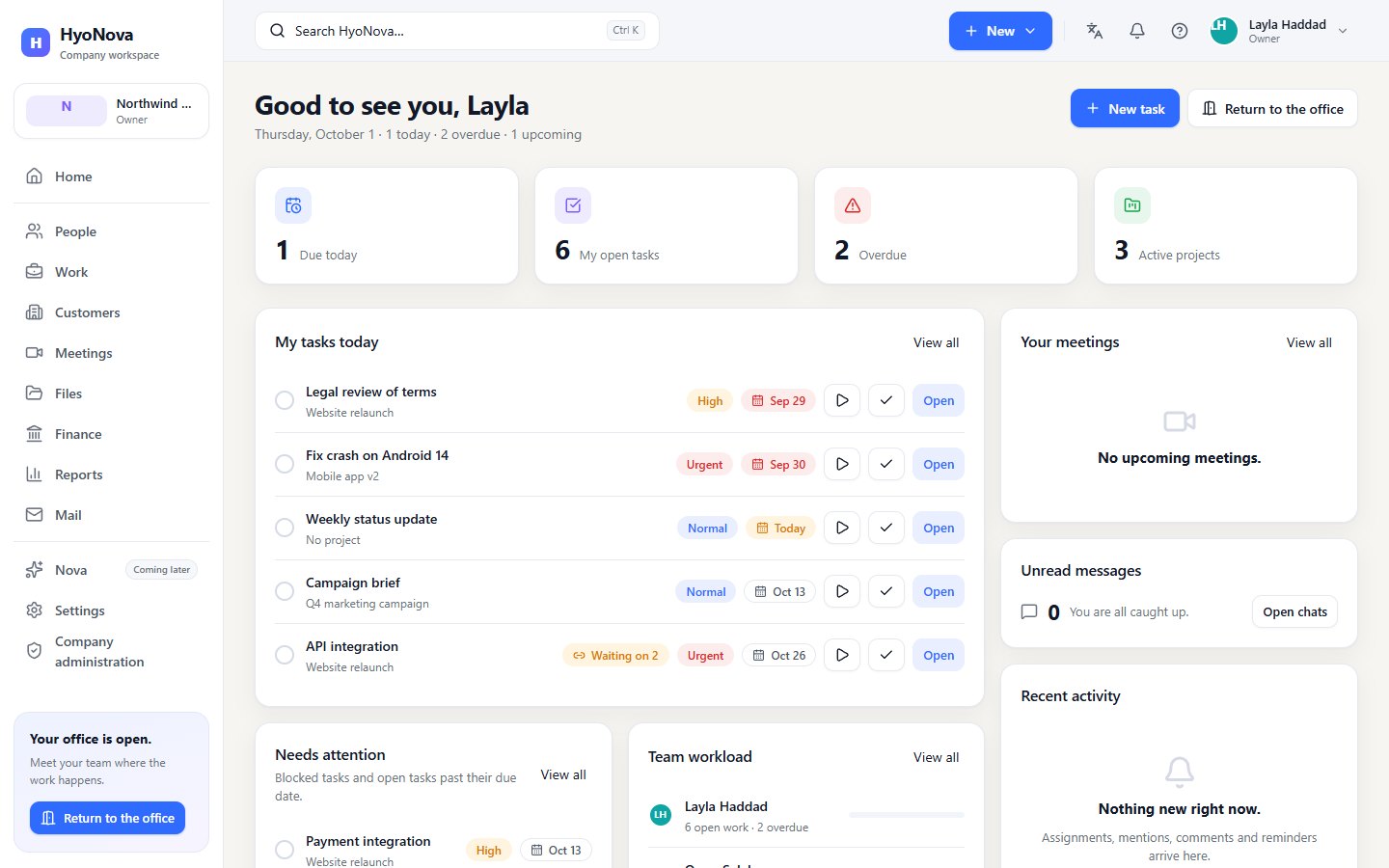
The sidebar#
On the left, under the HyoNova name and Company workspace, a card shows your company and your role. If you belong to several companies, use it to switch. Below it, the areas are grouped:
| Group | Areas |
|---|---|
| Overview | Home — your day, and a number when you have unread notifications |
| Company work | People, Work, Customers, Meetings, Files, Finance, Reports, Mail |
| Account | the AI assistant entry (marked Coming later), Settings, Company administration |
You see only the areas your role allows: for example Finance for owners and admins, Reports for owners, admins and managers, and Company administration for owners, admins and managers. At the bottom, Your office is open. with Enter the office — or Return to the office if you were there before — takes you into the 3D office.
On a narrow window the sidebar folds away; open it with the menu button at the start of the top bar.
The top bar#
| Control | What it does |
|---|---|
| Search (Search HyoNova…) | Opens search. Press Ctrl + K (or ⌘ + K on a Mac) from anywhere in the workspace. |
| New | Creates something in one step: New task, New project, New meeting, Upload file, Invite person or New customer, as your role allows. |
| Language | Switches the workspace between English and العربية. Arabic is shown right to left. |
| Notifications (the bell) | Opens your notifications. A dot means some are unread. |
| Help | Opens Settings. |
| Your name | The Account menu: your email, Settings, the language switch, Switch company when you have several, and Sign out. |
Search#
Search finds pages, people and company records in one list:
- Pages — the areas of the workspace, plus My Work, Projects, Tasks, Calendar and Goals when their name matches.
- People — members whose name matches, if you can see People.
- Records — projects, tasks, goals, customers, deals, files, invoices and expenses whose name matches, limited to what your role can read.
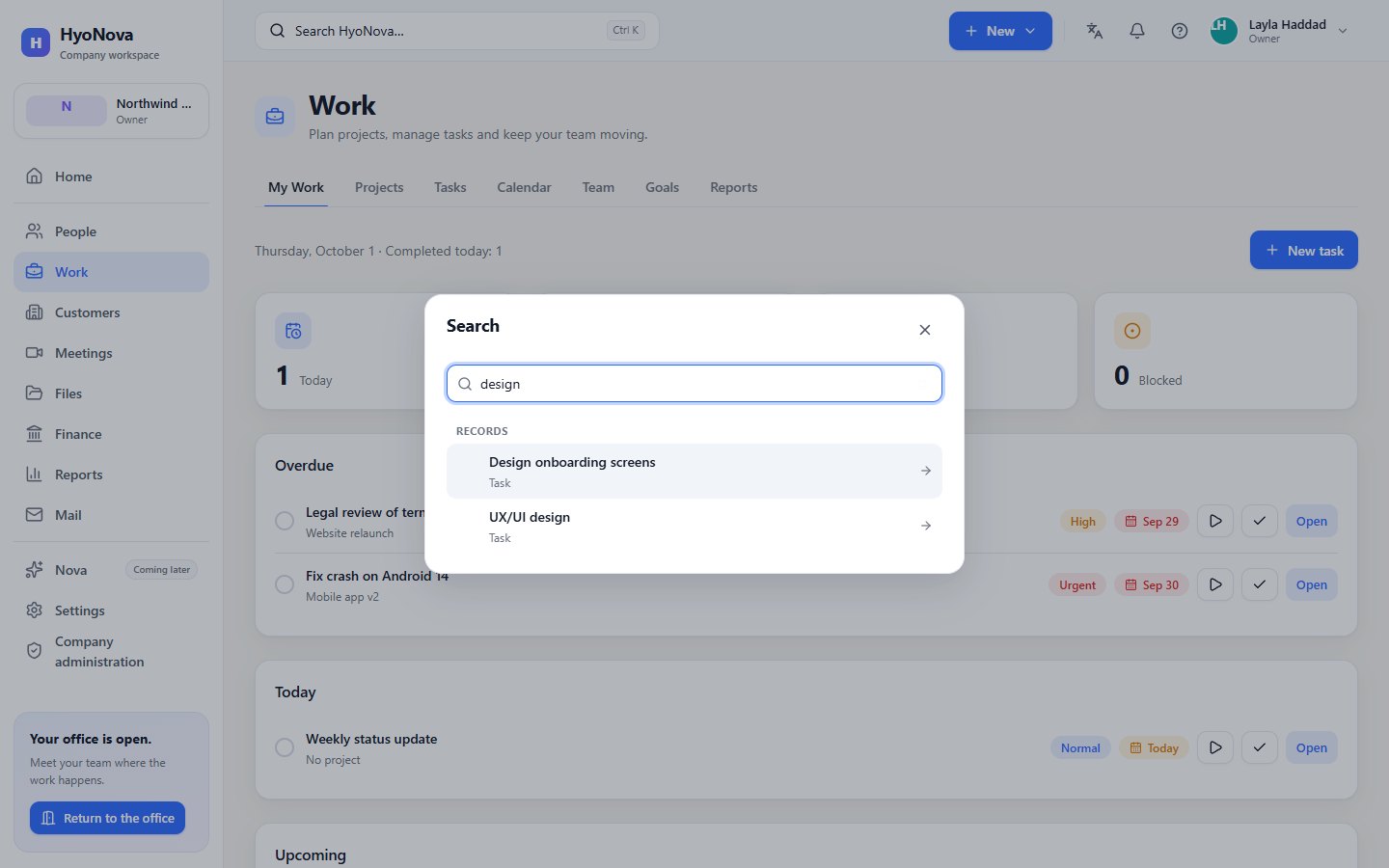
Type at least two characters to search people and records. Use ↑ and ↓ to move, Enter to open and Esc to close. A task or project opens directly; other records open their area.
Notifications#
The bell opens Notifications: assignments, mentions, comments, completed tasks, tasks that are ready to start, and due-soon and overdue reminders. Select one to open it; Mark all as read clears the list. See Work overview.
Home#
Home greets you with today's date and a short summary — tasks due today, overdue and upcoming — and New task and Enter the office buttons. Its cards depend on your role: your tasks, project progress, your meetings, unread messages, recent activity, recent files and your Office worlds; managers also see what needs attention and the team's workload, and owners and admins a Company overview.
How to enter the office#
- Right after the welcome steps. Enter HyoNova takes you straight into the office.
- From the company workspace. Choose Enter the office — or Return to the office — at the bottom of the sidebar or at the top of Home.
- If your company has several offices. The Office worlds card on Home lists them, each with Enter the office.
- From a bookmark. Each office has its own web address inside your company's address. Bookmark it to come straight back.
If there is no office, the sidebar shows No office world yet. Ask an owner or admin — see Choose your world.
What you see in the office#
- The caption shows the office name, Live, and how many people are here.
- The left rail opens company areas beside the office — Home, People, Work, Meetings and more, as your role allows — plus the Map. At the bottom are Company workspace, Notifications, Settings and My character.
- The search bar at the top: Search rooms, people or commands…
- The bottom bar: Mic, Camera, React, Share and More.
- The minimap in the corner.
A full tour is on The world interface.
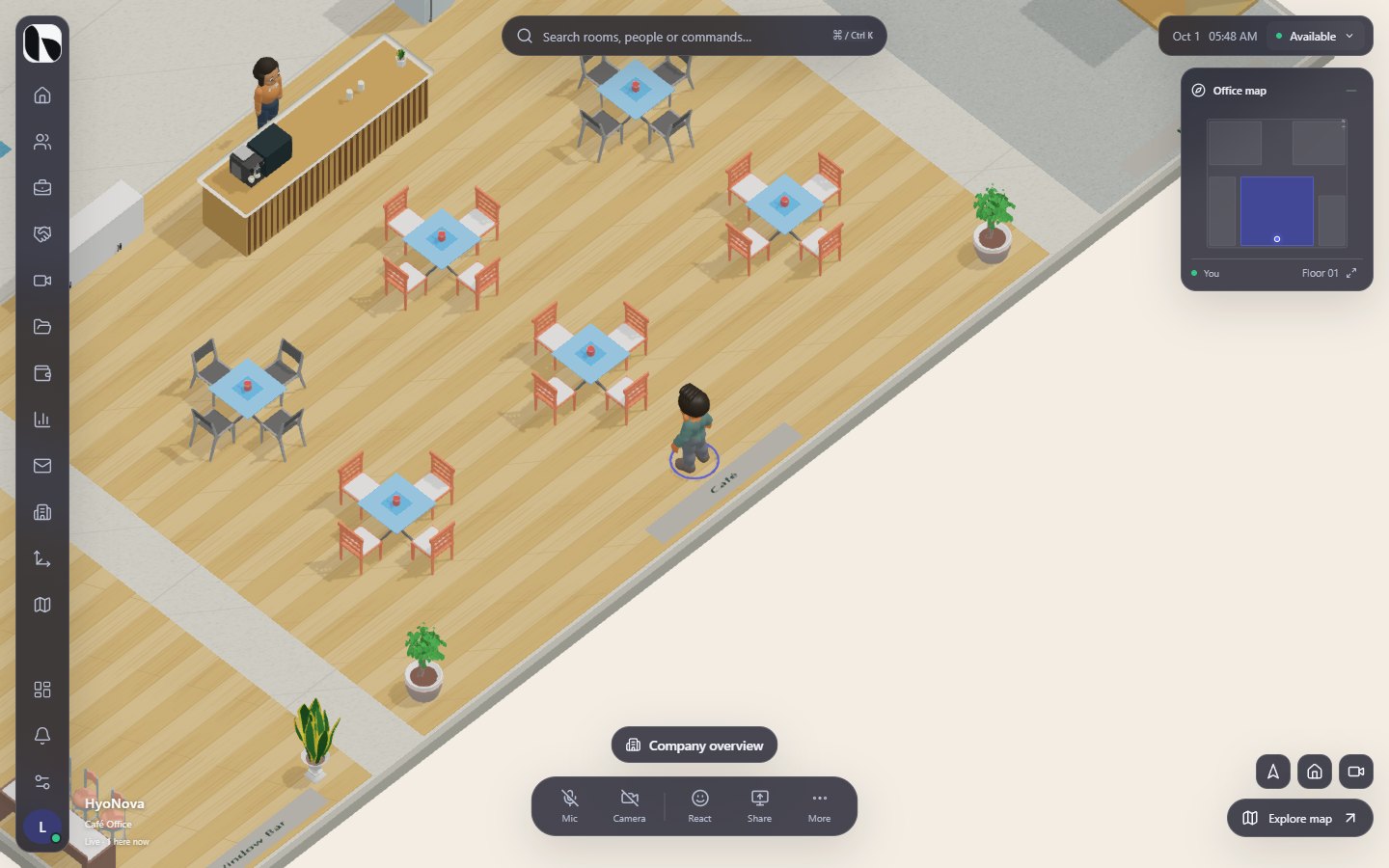
Your first moves#
| To | Do this |
|---|---|
| Walk | W A S D or the arrow keys. Hold Shift to run. |
| Walk to a spot | Double-click the floor. Press Esc or a movement key to stop. |
| Change the view | Press V to cycle Isometric, Third person and First person. |
| Interact | Press E near a chair, door or screen — for example Take a seat or Open door. |
| Open the map | Press M, or choose Map in the rail. |
| Find a person, room or command | Press Ctrl + K (⌘ + K on Mac). |
| Open settings | Press Esc when nothing else is open. |
Try this: walk to a desk and press E to sit. Your work appears, and opens your tasks beside the office. In the lobby, Company overview opens Home.
Talking with people nearby#
When you choose Mic outside a meeting, HyoNova asks before anyone can hear you:
- Talk with people nearby — others close to you in the same room hear you, and you hear them.
- Listen only — you hear others but your microphone stays off.
- Not now — nothing turns on.
Your camera never turns on for spatial voice, and nothing is recorded. The status line tells you who can hear you, for example "Nobody can hear you right now". Distances and rules are on Proximity and voice.
Going back to the company workspace#
Choose Company workspace at the bottom of the rail. To come back, choose Return to the office.
What your browser needs#
- A current desktop browser with WebGL enabled for the office. HyoNova is tested most with Chrome and Edge. If WebGL is off or unsupported, the office cannot load and you see "WebGL is unavailable."
- A window at least 600 pixels wide for the office. On phones, HyoNova shows "Your office, on a bigger canvas." instead of the office. Tablets work.
- A microphone and camera only if you want to talk or use video. Your browser asks for permission the first time.
If the office does not load, see World loading.
Status#
| Feature | Status | Notes |
|---|---|---|
| Movement and camera views | AvailableWorks today for workspaces whose plan includes it. | Walk with the keyboard or double-click to move, run, sit, and switch between three views. |
| Search the company workspace | AvailableWorks today for workspaces whose plan includes it. | Ctrl/⌘ K finds pages, people and company records. |
| Notifications and reminders | AvailableWorks today for workspaces whose plan includes it. | In-app notifications for assignments, mentions, comments, due dates and approvals. In-app only; email notifications are not available. |
| Spatial voice | BetaWorks today in early-access workspaces. Behaviour and limits may still change. | Talk to people near you, the way you would in a real office. Opt-in, with clear distance rules. |
Was this page helpful?
Thanks. Page ratings are not collected yet, so nothing was sent. If something is missing or wrong, see the Get help page.