Build your workspace
The office builder lets you draw walls and rooms and place furniture. Today it is a preview, and changes stay in your own browser.
On this page
Builder changes are saved in your browser and are not yet shared with your team.
The office builder is the editor inside the 3D office. With it you can draw walls and glass partitions, cut doorways, create rooms, and furnish the space from a library of furniture, plants, lighting and decor.
What you can do with the builder today#
- Walls, glass and doors. Draw straight walls or glass partitions and click a wall to add a doorway. See Walls, rooms and doors.
- Rooms. Drag a rectangle to create an enclosed room with a name, a type, a wall material and a capacity.
- Furniture and assets. Search the Asset library by category, collection, pack and style, then click or drag an item into the office. See Furniture and assets.
- Precise editing. Move, rotate, duplicate and delete, type exact positions, change materials, and use snapping, a grid, and undo and redo. See Editing tools.
- Drafts and versions. Save a draft, publish a local version, keep several layouts in My worlds, and move a layout between browsers as a JSON file. See Drafts and publishing.
Because everything stays local, the builder is best used today to try out layouts, plan a redesign or explore how an office could look — not to change the office your team works in.
Who can open the builder#
- In a company office: owners and admins. The Build office button appears only for people whose role can manage office worlds. Managers, employees, restricted members and guests do not see it.
- In the trial office you open from https://app.hyonova.com/start: anyone trying HyoNova can open the builder.
See World permissions for what each role can do in the office.
How to open it#
- Enter the office. Open your office from the company workspace, or start the trial office.
- Open the builder. Select Build office in the left rail, or press Ctrl + K and choose Start build mode. In a company office, this is the moment you leave the live session.
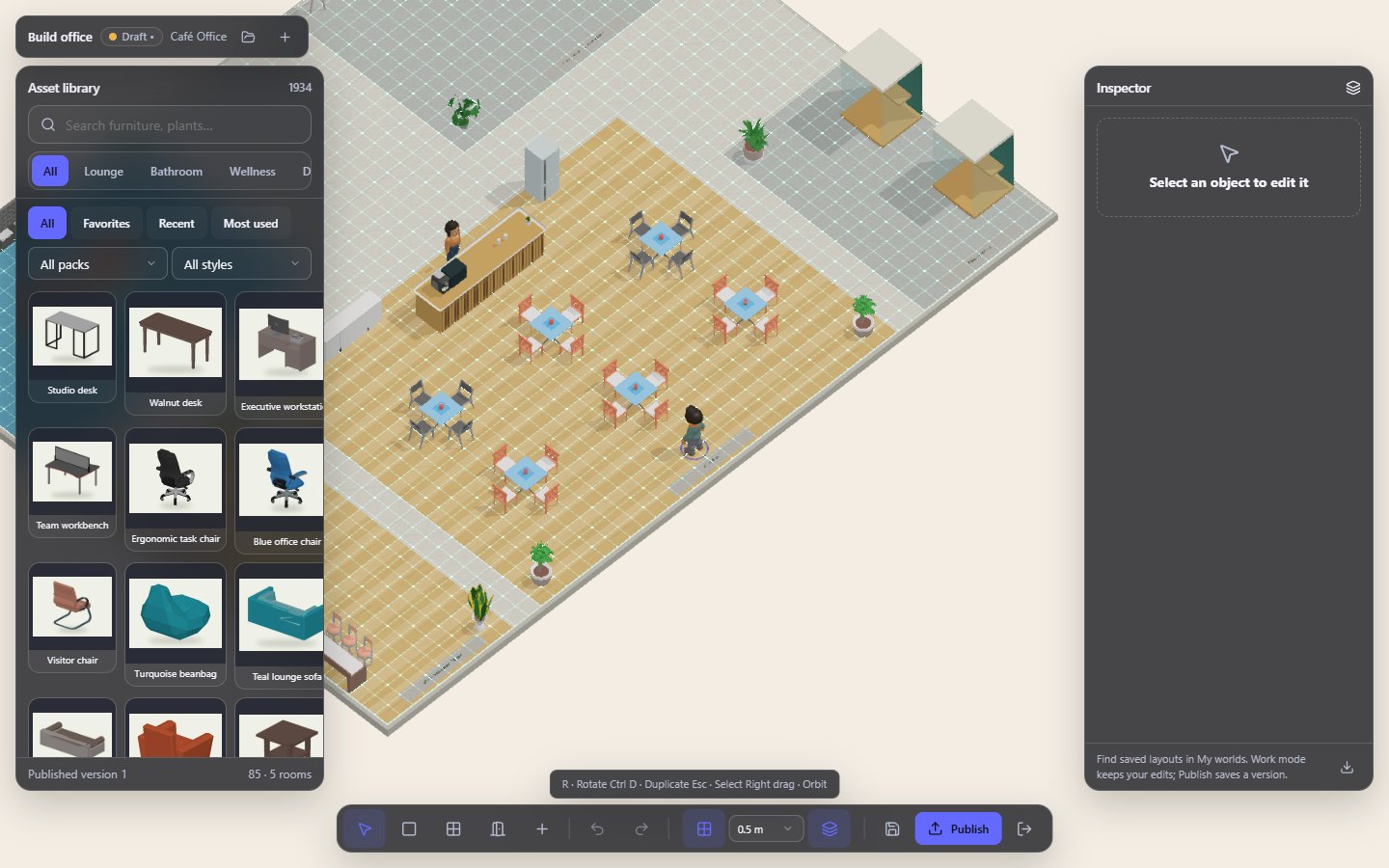
- Start editing. The camera switches to an isometric view. The Asset library is on one side, the Inspector on the other, and the tools are in the bar at the bottom.
- Leave the builder. Select Work mode in the bottom bar, or press Esc with the Select tool active. Your edits are kept as a draft on this browser.
The builder screen#
| Area | What it holds |
|---|---|
| Header | Build office, the draft indicator (a dot appears when there are unsaved edits), the office name, My worlds and New office |
| Asset library | Search, categories, collections (All, Favorites, Recent, Most used), pack and style filters, and the item tiles |
| Inspector | The settings of whatever you selected: an object, a wall or a room. With nothing selected it shows Select an object to edit it |
| Bottom bar | Select, Wall, Glass, Door, Room, Undo, Redo, Snap, grid size, Grid, Save draft, Publish, Work mode |
| Hint strip | What the current tool expects, or why a placement is not allowed |
The library footer shows the Published version number of the layout on this browser and how many objects and rooms it contains.
How the builder connects to the rest of HyoNova#
- Office worlds. Your company office is created from a template when the company is set up. The builder edits a local copy of that layout; the shared office stays as it is. See Worlds and spaces.
- Rooms. Rooms drawn in the builder have the same types as the rooms in your office (meeting, workspace, social, executive, focus, lobby). Because builder changes are local, colleagues cannot meet in a room you drew.
- Permissions. Opening the builder in a company office needs the permission to manage office worlds, which owners and admins have.
Not available yet#
The builder has no floors tool: every office has one floor. It also has no tools for environment, lighting or company branding such as logos, and no tool for drawing zones.
Status#
| Feature | Status | Notes |
|---|---|---|
| Office builder | PreviewA first, limited version you can use today. Important parts are still missing. | Draw walls and rooms, place furniture from the catalogue, and save drafts with undo, snap and grid. Builder changes are saved in your browser and are not yet shared with your team. |
| Environment and branding tools | PlannedOn the HyoNova roadmap. Not built yet and has no release date. | Edit lighting, surroundings, logos and brand colours inside the builder. |
| Feature | Status | Notes |
|---|---|---|
| Publish office changes to your team | PlannedOn the HyoNova roadmap. Not built yet and has no release date. | Publish a builder draft so everyone in the company enters the updated office. |
| Feature | Status | Notes |
|---|---|---|
| Multiple floors | PlannedOn the HyoNova roadmap. Not built yet and has no release date. | Offices with more than one floor, connected by stairs or lifts. |
Was this page helpful?
Thanks. Page ratings are not collected yet, so nothing was sent. If something is missing or wrong, see the Get help page.